
Herald OS
An agent-native operating system, with Hermes Agent as the interface.


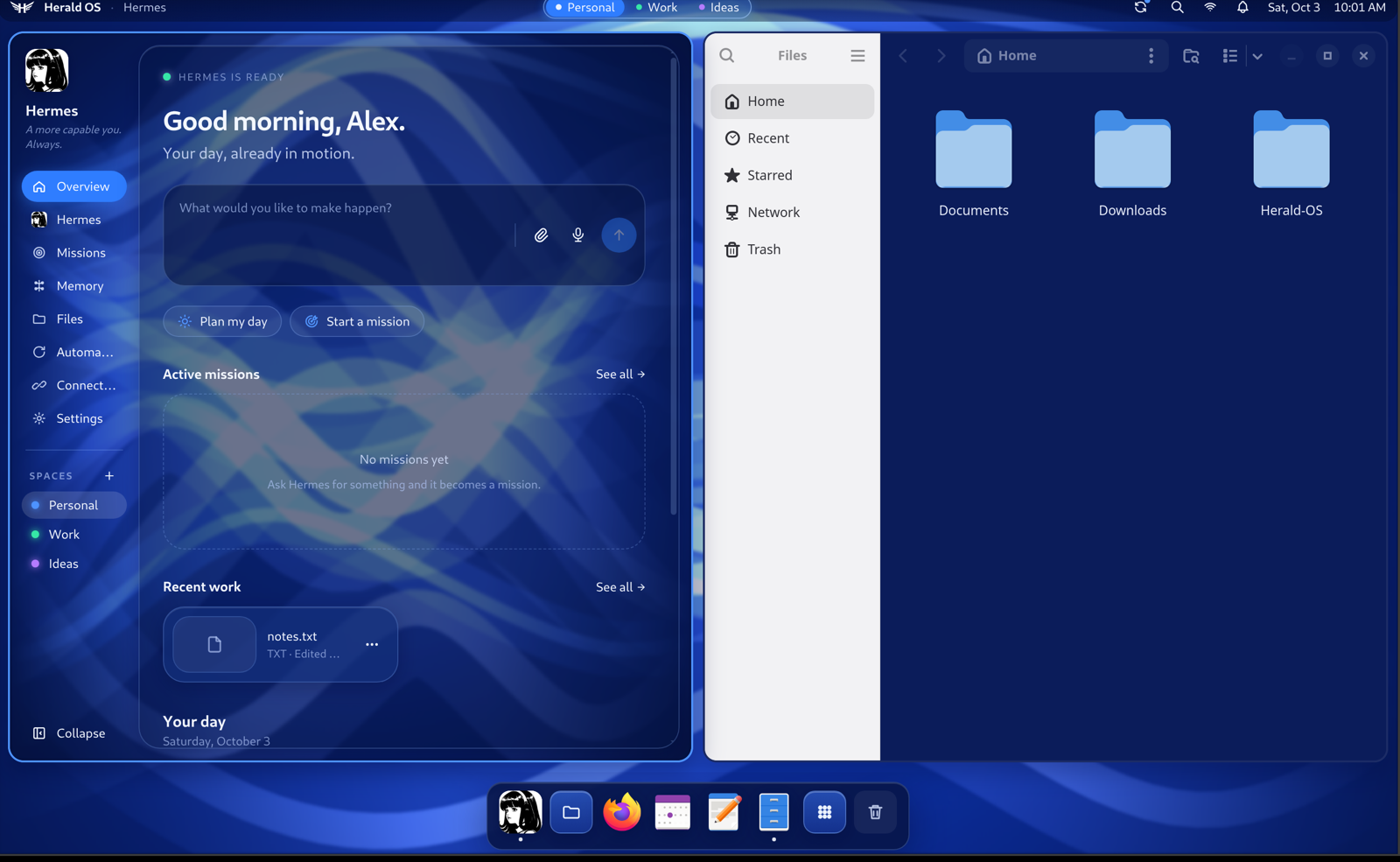
Herald OS is an operating system built around an AI agent. Instead of working through menus and folders yourself, you talk or type to Hermes, and it works across the whole machine: it opens apps, finds and organises files, watches what is running, remembers what matters to you, runs routines on a schedule, and builds software while you watch. Every action that changes something goes through a permission system you control.
[!NOTE] Herald OS is an independent project by Luke The Dev. It is not an official Hermes or Nous Research product, and it is not affiliated with, sponsored by or endorsed by Nous Research. Herald OS runs on Hermes Agent, the open-source agent Nous Research publishes, which is installed alongside it.
Status: alpha (0.1). Expect rough edges, and keep backups of anything you let an agent touch.
Install
Every download is on the releases page. Pick the way that matches your machine:
| Your machine | What to install |
|---|---|
| A Mac, Apple Silicon or Intel | Herald OS for macOS |
| A PC you can give to Herald OS | The Herald OS Linux installer |
| Arch Linux | The Arch package |
| Omarchy | The Arch package, then one command |
| Another Linux | The tarball |
| An Apple Silicon Mac, to try the whole OS | The virtual machine in UTM |
| An Intel Mac, to try the whole OS | The x86_64 virtual machine |
| A Windows 11 PC, to try the whole OS | The virtual machine in Hyper-V |
Hermes needs a model provider whichever you pick: a Nous Portal account, or an API key for a provider Hermes supports (OpenRouter, OpenAI, Anthropic, a local model, and others). Herald OS shows a sign-in card the first time Hermes needs one, and Settings > Hermes & agents > Model provider switches to another provider or takes its API key, a custom endpoint's included.
macOS
You need macOS 13 (Ventura) or later, on Apple Silicon or Intel (On an Intel Mac).
1. Install Hermes Agent and choose a model, if you don't have it yet:
curl -fsSL https://hermes-agent.nousresearch.com/install.sh | bash
source ~/.zshrc
hermes setup
2. Install Herald OS. Download HeraldOS--mac-arm64.dmg (Apple Silicon) or
HeraldOS--mac-x64.dmg (Intel) from the
releases page, open it and drag Herald OS to
Applications. Apple menu > About This Mac says which you have: "Chip: Apple M…" is Apple Silicon,
"Processor: … Intel …" is Intel.
3. Let it open. This build is not notarized by Apple yet, so macOS stops it the first time. Run this once, then open Herald OS from Applications:
xattr -dr com.apple.quarantine "/Applications/Herald OS.app"
Or, without Terminal: open Herald OS once and close the warning, then go to System Settings > Privacy & Security, scroll to Security, click Open Anyway next to "Herald OS was blocked", and confirm with your password. Since macOS Sequoia, right-click > Open no longer skips the warning.
Herald OS takes over the screen: Cmd+Ctrl+F leaves or re-enters fullscreen and Cmd+Q quits. On
its first start it adds its system tools to Hermes (~/.hermes/plugins/herald-os-bridge). macOS asks
for each of these the first time a feature needs it:
- Microphone: talking to Hermes, dictation, and screen recordings with sound.
- Camera: the camera bubble on a screen recording, when you turn it on.
- Screen Recording: asking Hermes about the screen, copying text or a QR code from it, screenshots and screen recordings. Without it, Herald OS captures nothing and says where to turn it on (System Settings > Privacy & Security > Screen & System Audio Recording); reopen Herald OS after switching it on.
- Accessibility and Automation: typing an emoji or dictation into another app (through System Events), and Hermes listing or quitting apps, locking the screen, switching dark mode and moving files to the Trash (through Finder). The first time you type an emoji or dictation into another app, Herald OS explains these two before macOS asks; until both are allowed, the text stays on the clipboard and Herald OS says which one is missing.
- Calendars: today's events on the Overview.
- Local Network: Hermes reaching a model server or another device on your network, such as a
custom endpoint at a
192.168…address. Hermes runs inside Herald OS, so this is Herald OS's to allow. - Files and Folders: your Desktop, Documents and Downloads, for recent files on the Overview, the Files page and Hermes's file tools.
- Notifications: alerts while you are in another app, in a code-signed build (this release is not one yet).
On an Intel Mac
Download HeraldOS--mac-x64.dmg and follow the steps above. The Intel build is the same
app built for x86_64, with node-pty's Intel binaries for the Terminal, but it is new and has not
been tried on an Intel Mac yet: please open an issue
if something does not work.
To try the whole OS instead, open the ready-made x86_64 disk in UTM, as in On Linux or an Intel Mac, or install the x86_64 installer ISO from Herald OS Linux on a PC in a VM that boots with UEFI. CI installs it in QEMU with UEFI, 4 cores, 6 GB of memory and a 40 GB disk (installer-test.yml).
Herald OS Linux on a PC
The whole operating system, for a 64-bit Intel or AMD PC: Fedora underneath, everything you see is Herald.
-
Download both parts of the installer from the releases page,
herald-os--x86_64.iso.part0and.part1(GitHub takes files of up to 2 GB), and join them. On macOS or Linux:shasum -a 256 -c herald-os--x86_64.iso.sha256sums # each part; sha256sum -c on Linux cat herald-os--x86_64.iso.part* > herald-os--x86_64.iso shasum -a 256 -c herald-os--x86_64.iso.sha256 # the joined fileOn Windows:
copy /b herald-os--x86_64.iso.part0 + herald-os--x86_64.iso.part1 herald-os--x86_64.iso. -
Write the ISO to a USB stick of 8 GB or more with Fedora Media Writer or balenaEtcher.
-
Start the PC from the stick and follow the installer. Its disk screen lets you erase the disk or install next to Windows, and encrypt it. Secure Boot can stay on.
-
The first start sets up Hermes Agent, then Herald OS asks for your name, a password and Wi-Fi.
Updates come as a whole new version of the system: herald-os update installs one, and
herald-os rollback goes back to the one before. Already on Fedora Silverblue or another bootc
system? It can switch to the Herald OS image in place, which replaces the system you run: try it on
a spare machine or in a virtual machine. Afterwards a login screen asks who signs in, and your own
account and its password keep working. Herald OS also adds a hermes account, which stays locked,
and is not an administrator, until you give it a password (sudo passwd hermes).
docs/LINUX.md has the steps, what changes and
how to go back.
Arch Linux
git clone https://github.com/iamlukethedev/Herald-OS.git
cd Herald-OS/packaging/arch/herald-os-bin
makepkg -si
herald-os setup        # once per user: Hermes Agent and Herald's system tools
The package downloads the release build for your architecture (x86_64 or aarch64). Then choose
Herald OS on your login screen for the full session (it needs niri; the package's optional
dependencies list what each panel uses), or run herald-os-app to use Herald OS as an app inside
your current desktop. The session applies Herald's theme to GTK apps, foot and GNOME's colour
scheme for the account that runs it, so on a desktop you already use, try it from a second account.
The package is not on the AUR yet.
Omarchy
Install the Arch package, then:
herald-os omarchy install
Herald OS becomes an app inside Omarchy. It follows Omarchy's theme and has a row on the Omarchy
menu. Super+Alt+H opens it, and Super+Alt+A, C, V, X, E and M ask Hermes about the
window, open the command bar, talk, dictate, pick an emoji and show Missions. herald-os omarchy remove takes it all out again. This has been tested against Omarchy 4's own configuration and
scripts, but not yet on an Omarchy machine: reports
are welcome.
Another Linux
The tarball carries the app, its command-line tools and the full session. Download
herald-os--linux-x64.tar.gz and its .sha256 from the
releases page (the arm64 ones on ARM), then:
sha256sum -c herald-os--linux-x64.tar.gz.sha256
sudo mkdir -p /opt/herald-os
sudo tar -xzf herald-os--linux-x64.tar.gz -C /opt/herald-os --strip-components=1
sudo /opt/herald-os/resources/herald-os-linux/bin/herald-os-tarball install
herald-os setup        # once per user: Hermes Agent and Herald's system tools
herald-os-app          # Herald OS as an app inside your desktop
herald-os-tarball install puts the herald-os commands in /usr/local/bin and Herald OS in your
application menu, and, if niri is installed, on your login screen; sudo herald-os-tarball remove
takes them out again. herald-os update installs a new release once its checksum matches, and
herald-os rollback goes back to the version before.
The full session needs niri and the tools its menu bar and panels use (Fedora's package names are
in linux/image/packages.txt). It also applies Herald's theme to the
account that runs it: GTK 3 and 4 apps (gtk.css), the foot terminal (foot.ini) and GNOME's
colour scheme and GTK theme. On a desktop you already use, try it from a second account.
docs/LINUX.md has the details.
The whole OS in a virtual machine
Each release carries ready-made virtual machines of Herald OS Linux, so you can try the whole
operating system without installing it. The first start sets itself up in a few minutes, Hermes
Agent included, then Herald OS asks for your name and a password. Give the virtual machine 4 cores,
6 GB of memory and 40 GB of disk space. The UTM bundle and the Hyper-V disk come with releases built
after 0.1.0-alpha.4; earlier releases have only the Apple Silicon disk for try.sh. The manual's
Trying it in a virtual machine has the same steps, with the
system key and scaling inside a virtual machine.
GitHub takes release files of up to 2 GB, so a bigger one comes in parts. The zips are split as
.001, .002 and so on: open the .001 with 7-Zip on Windows or
Keka on a Mac, which read the parts as one archive. Every file has a
.sha256 beside it for the whole file, and a split one also has a .sha256sums with a line per
part. From a terminal, check the parts, join them and check the result (the .vhdx.zip here; the
.utm.zip is the same, and the qcow2.zst parts are .part0, .part1):
shasum -a 256 -c herald-os--x86_64.vhdx.zip.sha256sums   # sha256sum -c on Linux
cat herald-os--x86_64.vhdx.zip.[0-9][0-9][0-9] > herald-os--x86_64.vhdx.zip
shasum -a 256 -c herald-os--x86_64.vhdx.zip.sha256
In Windows' Command Prompt:
copy /b herald-os--x86_64.vhdx.zip.001 + herald-os--x86_64.vhdx.zip.002 herald-os--x86_64.vhdx.zip
certutil -hashfile herald-os--x86_64.vhdx.zip SHA256
Then compare the hash with the one in the .sha256. With more parts, add a + and the next part
for each.
On a Mac with UTM
For a Mac with Apple Silicon, without Homebrew or a terminal:
- Install UTM, a free app that runs virtual machines.
- Download
herald-os--aarch64.utm.zipfrom the releases page and open it. Finder unpacksHerald OS.utm. - Double-click
Herald OS.utm. UTM adds it to its list; press the play button.
The bundle runs on Apple's hypervisor with GPU-accelerated graphics, and asks UTM for sound, a shared clipboard and a screen that follows the window's size. How much of that Herald OS Linux uses inside UTM is still being tested (#67). UTM's settings for the machine change its cores and memory.
On Windows with Hyper-V
Hyper-V comes with Windows 11 Pro, Enterprise and Education (not Home):
- Turn it on: Start, type "Turn Windows features on or off", tick Hyper-V and restart.
- Download
herald-os--x86_64.vhdx.zipfrom the releases page and unpack it to a folder with 40 GB free; the disk grows up to that as you use it. To check it, 7-Zip's right-click menu has CRC SHA > SHA-256; compare with the.sha256. - In Hyper-V Manager, New > Virtual Machine: generation 2, 6144 MB of memory, the Default
Switch network, and Use an existing virtual hard disk with the
.vhdx. - Before the first start, open the machine's Settings: under Security set the Secure Boot template to Microsoft UEFI Certificate Authority (the Windows one refuses Linux), and under Processor give it 4 virtual processors.
- Connect, then Start.
Hyper-V gives Linux no 3D acceleration, so the processor draws the screen, and there is no sound or shared clipboard there yet.
On Linux or an Intel Mac
herald-os--x86_64.qcow2.zst (and aarch64 for ARM machines) is the same disk for QEMU,
virt-manager, GNOME Boxes or UTM on an Intel Mac. Unpack it with zstd -d, then create a machine
that boots with UEFI from it as an existing disk.
From the terminal on an Apple Silicon Mac
One command downloads the latest release's disk (about 2.7 GB) and boots it with Apple's Virtualization framework through vfkit:
brew install qemu zstd
git clone https://github.com/iamlukethedev/Herald-OS.git && cd Herald-OS
bash linux/vm/try.sh
To build the VM from your checkout instead and work on Herald OS Linux, see Building from source.
How Herald OS fits together
Herald OS Linux is the operating system. Fedora supplies the kernel, drivers and packages, and everything you see is Herald. The machine boots to the Herald splash screen and signs you straight in. The niri compositor arranges the windows, Herald draws the menu bar, dock, notifications, app launcher and system menus, and its theme styles the lock screen. Hermes starts with the session, with tools to see and operate the machine. Linux apps such as Firefox, LibreOffice and VS Code run as windows inside it, and a curated set comes preinstalled. It installs on a PC from the installer image or runs in a virtual machine, and it updates as a whole system you can roll back.
On Arch Linux and Omarchy, Herald OS is a package: the full session from the login screen, or Herald as an app inside Hyprland and Omarchy, following Omarchy's theme and keys.
Herald OS also runs on a Mac, fullscreen over macOS: the same interface, agent and tools, with macOS underneath handling the hardware and your Mac apps. It is the quickest way to try Herald OS, and where most of it is built.
Herald OS does not fork Hermes. It runs a standard Hermes Agent install and adds its system
abilities as a regular Hermes plugin, herald-os-bridge.
A look around
Herald OS Linux boots to its own splash screen and signs you straight in.
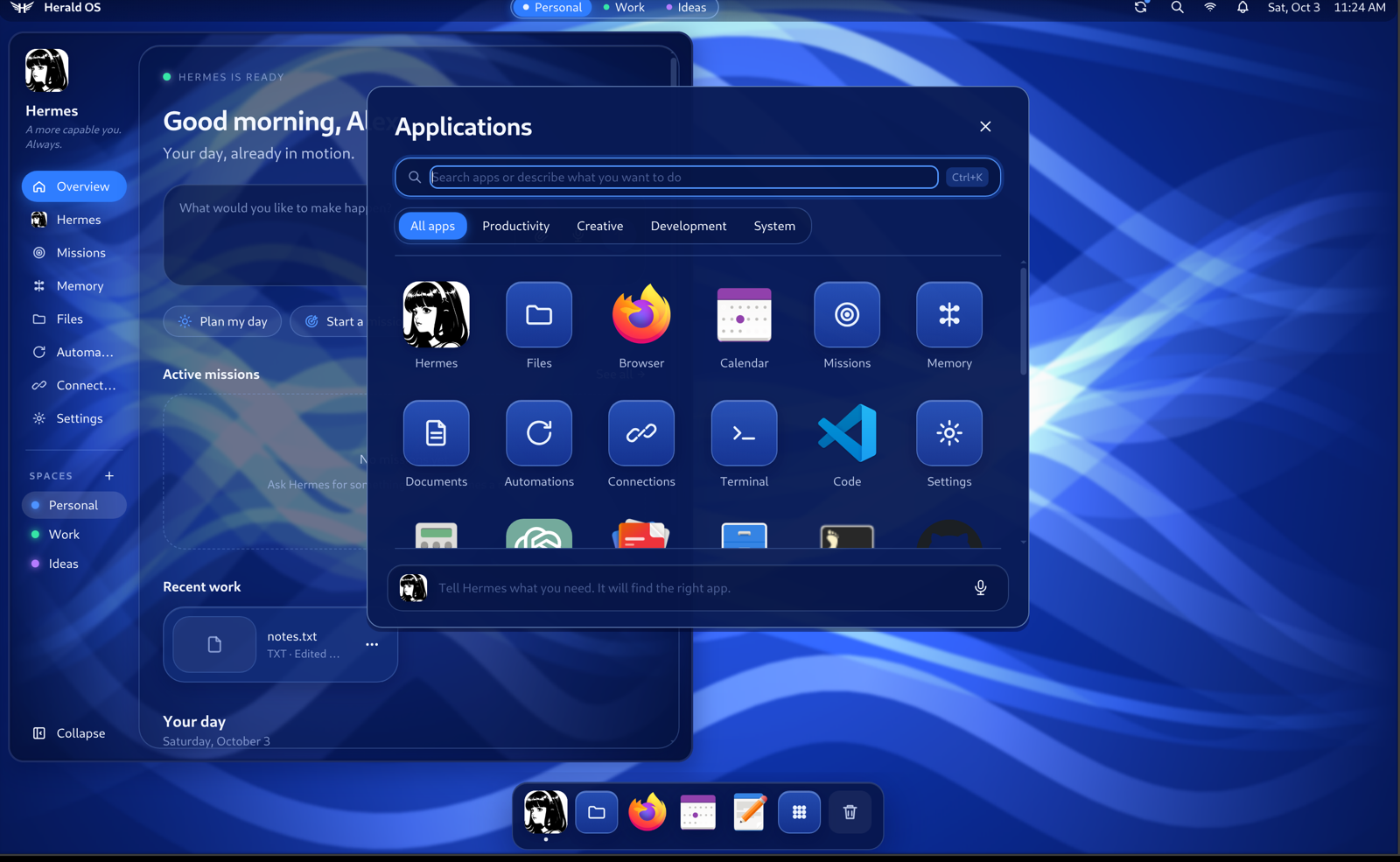
The launcher holds Herald's own apps and every installed Linux app.
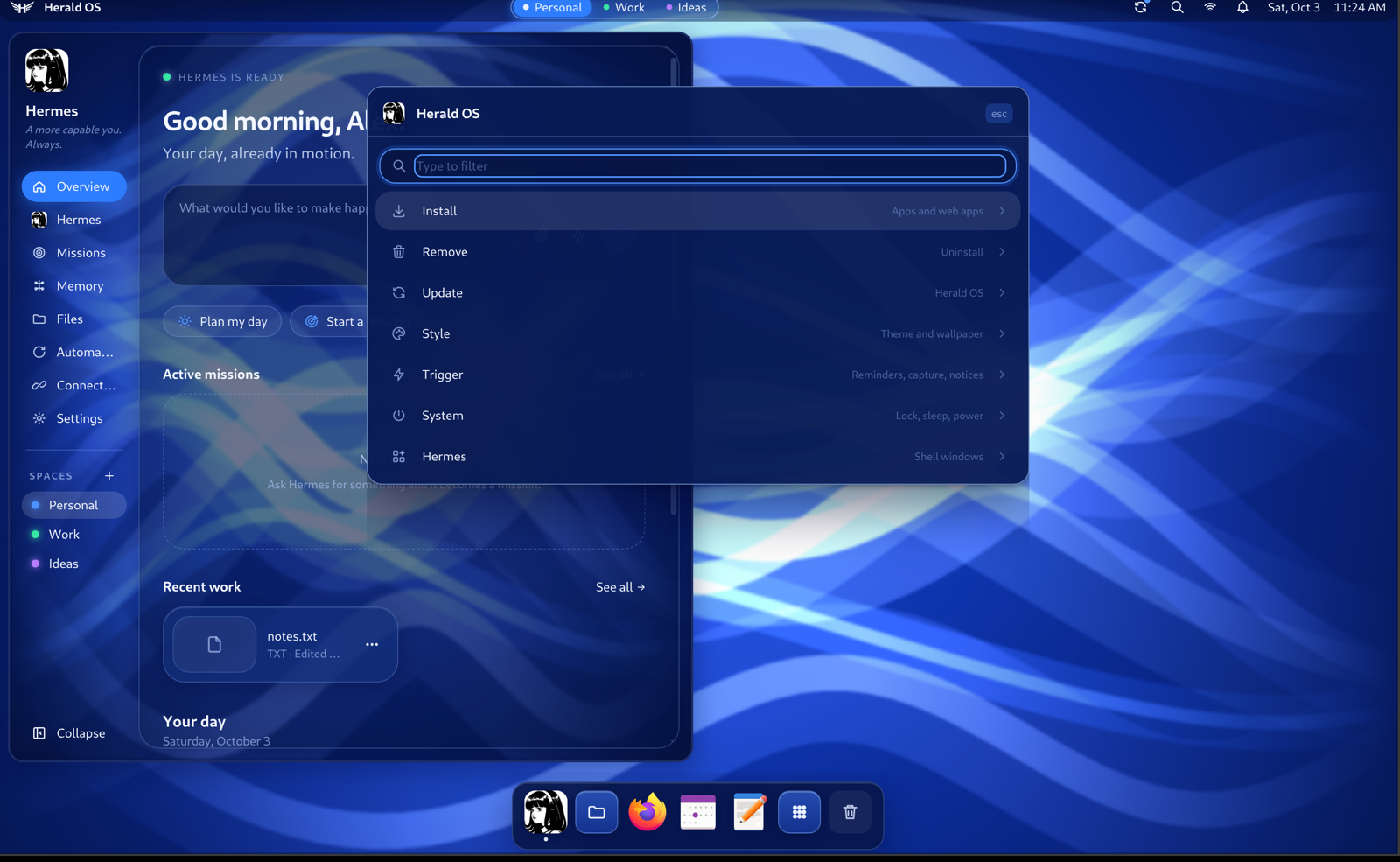
One menu installs apps, changes the theme and updates the system. Hermes can do the same.
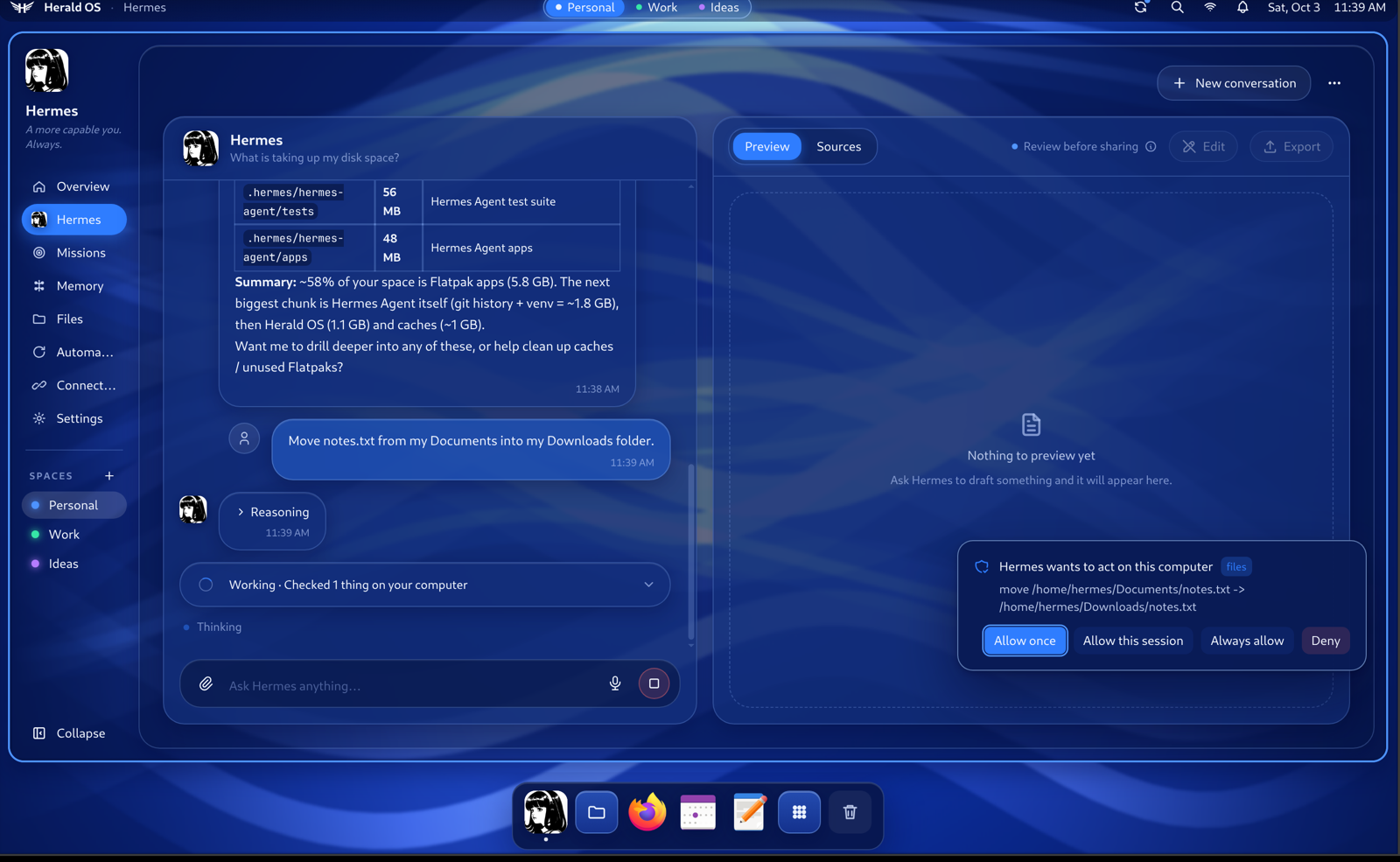
Hermes answers with its system tools and asks before it changes anything.
What you get
- Hermes at the centre. Overview, Hermes, Missions, Memory, Files, Automations, Connections and Settings, plus a Terminal, a System monitor, and floating chat windows.
- Your other bots. Each Hermes profile is a bot with its own memory, skills and model, shown with the name and picture Hermes Desktop's Bot Mode gave it. Start a conversation with any of them from the Hermes page or the Overview, or say "talk to Alfred"; each bot's conversations stay in its own session list, and new conversations keep the bot chosen last. See the manual.
- Pick up where you left off. When you open Herald OS or come back after a break, Hermes looks at your recent documents, project folders (with their git state), conversations and today's calendar, and puts up to three threads of work on the Overview. Continue reopens a thread's conversation, folder and files; its suggested next step starts only when you click it.
- A command bar for every action in the OS: open pages and apps, add memories, run automations, start missions.
- Your language: English, Brazilian Portuguese (Português (Brasil)) or Simplified Chinese (简体中文), following the system's language unless you pick one in Settings > General. The menus, menu bar, Overview, command bar and Settings' main pages are translated so far, and more follows; see docs/TRANSLATING.md to help.
- System tools for Hermes: system info, processes, disk usage, file search, opening apps, moving and trashing files, and more, each with a permission tier, protected paths, an audit log and the standard Hermes approval card. See docs/SYSTEM-BRIDGE.md.
- Voice: press the voice key or say "hey Hermes" and talk. Hermes answers out loud and can operate the interface ("open missions", "remember that my sister's birthday is in May"). A free engine works with any speech provider; an opt-in realtime engine is available. See docs/VOICE.md.
- Studio: say "build a website for a hair salon" and watch it happen in one window: the project's files, the code as it is written, the commands it runs, and a live preview.
- Crash help: when a program crashes, a notification offers to have Hermes read the crash report and explain, in plain words, what went wrong and whether it is worth reporting.
- Herald Canvas: a layered image editor with masks, blend modes, adjustment layers, layer effects and editable text, drawn on the GPU. Remove backgrounds, select objects and fill holes with models that run on your computer, open and export Photoshop files, and ask Hermes for a poster or a warmer photo while you watch it work. Its projects open in Compositor on the Mac. See the manual.
- Herald Office: Herald Docs, Sheets and Slides for Word, Excel and PowerPoint files: real pages with headers, footers, comments and tables of contents; formulas, charts and summaries; themes, masters and a presenter view. Ask Hermes for a cover letter, a cleaner column or slides from a report and watch each change land as a step you can undo. Before Herald first saves over a file, it says what the file would lose and backs it up. See the manual.
- Herald Calc: a notepad where you write math the way you say it ("20% of 84.50", "5 km in miles", "100 USD in BRL", "days until Dec 25", "9am Sydney in New York") and every line answers as you type, in exact decimals. A classic keypad with scientific and programmer modes, graphs you can pan, zoom and trace, a searchable history, and a note becomes a workbook with real formulas in one click. Hermes uses the same engine for math, so its numbers are worked out, not guessed. See the manual.
- A desktop pet: Hermes's own petdex pet on the desktop, the same one its CLI, TUI and desktop app show. It acts out what Hermes is doing, holds up approvals for you to answer, takes questions in a chat bubble and files you drop on it, walks over to the window Hermes works in, and gets out of the way for full screen, presentations and screen shares. See the manual.
- The Pet Room: a window where every conversation, mission, helper and automation Hermes is working on stands as a petdex pet of its own. Pets walk to the area for the tool they use, stand at the desk of the document they work on, say the step they are on, hand notes to the helpers they start and get the results back, and hold up a sign when they need your OK, from what Hermes reports and nothing else. A lane for Hermes at work outside Herald and the room as your screensaver are there when you turn them on. See the manual.
- Make it yours: twelve themes (two light) that also dress Hermes's own command line, a theme made from any image, themes installed from git, your own fonts, and Hermes can design one from a description. Widgets for the menu bar, the Overview or their own window run sandboxed with only the permissions you grant, and Hermes can write them for you. Arrange the menu bar and its clock, add your own control-menu entries, and put your logo in About and your picture on the lock screen. See the manual.
- The screen: select part of the screen and ask Hermes about it; pick a colour, read a QR code
or copy the text from anywhere on it; and type an emoji into any app (
Cmd+Ctrl+Eon the Mac,Super+Ctrl+Eon Linux). - Usage: what Hermes used this week and this month, and what is left on your model plan, with a warning at 90%.
- When something happens: automations that run when you log in, come back after a break, the battery runs low or a program crashes, and hook scripts for the same moments.
- On Herald OS Linux, the rest of an OS: a control menu to install and remove apps, change the
theme and update the system; one-click installs for AI tools such as Claude Code, Codex and local
models; themes that recolour everything from the menu bar to the terminal; Wi-Fi, Bluetooth,
sound, display and battery panels; screenshots, screen recording, night light and do not disturb;
web apps in their own windows; clipboard history, a lock screen and a power menu; fingerprint and
security-key sign-in; a firewall that refuses incoming connections; and one command,
herald-os update, that updates Herald OS, Hermes and Fedora, withherald-os rollbackto undo it.
The manual covers installing and using all of it, with every hotkey, pages for people coming from macOS and Windows, and help for when something goes wrong.
Building from source
To work on Herald OS, or to run what is on main:
- Herald OS Linux in a virtual machine gives you the whole operating system, built from your checkout. The first setup takes about half an hour, most of it downloads.
- Herald OS on macOS runs from your checkout in a few minutes if you already have Node.js.
- Your own Herald OS image, the bootable system the installer and the VM disks are made from, builds from your checkout with Podman on Linux. docs/BUILDING-THE-IMAGE.md covers the recipe, the build, switching a machine to your build, and adding packages, Flatpaks and branding.
Herald OS Linux in a virtual machine
You need an Apple Silicon Mac with Homebrew and about 20 GB of free disk space.
The virtual machine gets 4 cores and 8 GB of memory; on a Mac with 8 GB in total, start it with
MEM=4096 in front of the command. Nothing on the Mac itself changes: the VM is a disk image in
linux/vm/build/.
1. Install QEMU and get the code.
brew install qemu
git clone https://github.com/iamlukethedev/Herald-OS.git
cd Herald-OS
2. Download Fedora and prepare the first boot.
bash linux/vm/download-image.sh   # Fedora Cloud for ARM, about 500 MB
bash linux/vm/make-seed.sh        # first-boot setup and an SSH key, in linux/vm/build/
3. Boot the virtual machine. A window opens on your Mac. The first boot installs Herald OS: the system packages, Hermes Agent and the default apps.
bash linux/vm/run-qemu.sh
bash linux/vm/run-qemu.sh console   # follow the install; Ctrl+C stops watching
Wait until the console prints ==> Provisioning complete. That takes 30 to 45 minutes, mostly
downloads. If it prints ==> Provisioning FAILED instead, see Troubleshooting.
4. Install the Herald shell. This copies your checkout into the VM, builds it there and starts Herald OS:
bash linux/dev/push.sh
5. Sign Hermes in. The first time Hermes needs a model, Herald OS shows a sign-in card with a
short code: open the link on any device and enter the code. To use an API key or another provider
instead, choose it under Settings > Hermes & agents > Model provider (or run hermes setup in a
shell in the VM, bash linux/dev/push.sh ssh).
From then on, bash linux/vm/run-qemu.sh stop shuts the VM down and bash linux/vm/run-qemu.sh
starts it again, straight into Herald OS. After you change the code on your Mac,
bash linux/dev/push.sh installs it. docs/LINUX.md covers UTM, display scaling on
Retina screens, the session model and the dev loop.
Herald OS on macOS from source
You need:
- macOS 13 (Ventura) or later on Apple Silicon. Intel Macs are untested. Herald OS is
developed on macOS 26.
npm run dist:macbuilds both the Apple Silicon and the Intel app. - Node.js 22.12 or later (nodejs.org, or
brew install node). - Git, and the Xcode Command Line Tools (
xcode-select --install) for native modules. - Hermes Agent 0.21.3 or later, with a model provider set up (step 1 below).
1. Install Hermes Agent and choose a model. Herald OS on macOS uses your own Hermes install. If you don't have it yet:
curl -fsSL https://hermes-agent.nousresearch.com/install.sh | bash
source ~/.zshrc
hermes setup
hermes setup walks you through choosing a model provider and signing in. You can change it later
with hermes model, or from Herald OS under Settings > Hermes & agents. Check that Hermes works on
its own before going further:
hermes doctor
hermes        # say hello, then exit with Ctrl+D
2. Get the code.
git clone https://github.com/iamlukethedev/Herald-OS.git
cd Herald-OS
3. Bootstrap.
npm run bootstrap
This is safe to re-run, and you should re-run it after every git pull. It:
- downloads the pinned Hermes gateway client the shell is compiled against (
upstream/); - installs the Node packages and downloads Electron;
- links the
herald-os-bridgeplugin into~/.hermes/pluginsand enables it and its tools; - migrates settings from the project's earlier name (Hermes OS), if you had it installed;
- reports which optional voice packages your Hermes install has.
4. Start Herald OS.
npm run dev
Herald OS starts your Hermes runtime in the background (hermes serve, on 127.0.0.1 only), shows
the boot screen, and takes over the screen. Cmd+Ctrl+F leaves or re-enters fullscreen; Cmd+Q
quits and stops the backend it started.
Edits to the interface (apps/desktop/src) reload live. Changes to the Electron main process need
a restart (Ctrl+C, then npm run dev again).
5. Check that everything works.
- Hermes answers. Open the Hermes page (
Cmd+2) and ask something. If it asks you to sign in, use the card it shows, or runhermes setupagain. - System tools work. Ask "what is using the most memory right now?". Hermes should answer with
the
system_processestool rather than a shell command. Ask it to move a file and you should get an approval card first. - Voice works (optional). Press
Alt+Spaceand allow microphone access when macOS asks. Settings > Voice has "Say hello" and "Start talking" buttons to test it.
Using Herald OS
Keyboard shortcuts
On Herald OS Linux the system key is Super (the Windows or Command key), and Super+K lists every
shortcut. In the virtual machine the system key is Alt (Option on a Mac keyboard) instead, so
Super+A becomes Alt+A: the Mac keeps Command for itself. Herald's own pages also answer to
Ctrl on Linux, so Ctrl+K and Ctrl+1 work everywhere.
| Action | Herald OS Linux | macOS |
|---|---|---|
| Command bar | Super+Shift+Space or Ctrl+K |
Cmd+K |
| All applications | Super+A |
Cmd+Shift+A |
| Talk to Hermes | Super+V |
Alt+Space |
| Ask Hermes about the focused window | Super+Space |
|
| Herald OS menu: apps, themes, updates | Super+M or Super+Alt+Space |
|
| Overview, Hermes, Missions, Memory, Files, Automations, Connections | Ctrl+1 ... Ctrl+7 |
Cmd+1 ... Cmd+7 |
| Settings | Super+, |
Cmd+, |
| Terminal | Super+Return |
Cmd+8 |
| Close window | Super+Q |
Cmd+W |
| Emoji, typed into any app | Super+Ctrl+E |
Cmd+Ctrl+E |
| Clipboard history | Super+Ctrl+V |
|
| Lock, power menu | Super+Ctrl+L, Super+Escape |
|
| Toggle fullscreen, quit | Cmd+Ctrl+F, Cmd+Q |
On Linux, every hotkey and menu item is a herald-os command, so Hermes and your scripts can do
the same things: herald-os install app obsidian, herald-os theme set ice, herald-os update.
herald-os commands lists them all.
Permissions
Hermes's system tools have four tiers. read tools (system info, file search) and act tools
(opening an app) run straight away and are logged. mutate tools (create, move, rename) ask first,
and you can allow them for the session or always. destructive tools (stopping a process, moving
files to the Trash) ask every time. Some locations, such as ~/.ssh, your keychains and Hermes's
own credentials, are always refused.
Settings > Privacy shows the policy and the audit log (~/.hermes/herald-os/audit.jsonl). Hermes's
own terminal tool keeps following Hermes's approval settings.
Pick up where you left off is off until you turn it on from the Overview. It reads names and dates (recent files and folders, project branches and commit messages, conversation titles, today's event titles, open apps), never file contents, window titles or the screen, and sends them to your Hermes model provider to write the suggestions. Settings > Privacy turns it off and lists folders and words it must leave out, such as a client's name.
Settings and data
| What | Where |
|---|---|
| Herald OS preferences | ~/.hermes/herald-os/prefs.json (edit them in Settings) |
| Audit log, control socket | ~/.hermes/herald-os/ |
| Log file | ~/.hermes/logs/herald-os.log |
| Hermes config, memories, sessions, credentials | ~/.hermes/, managed by Hermes |
A few options come from environment variables, mostly for development: starting windowed on macOS
(HERALD_OS_WINDOWED=1), using a different Hermes checkout (HERALD_OS_HERMES_ROOT), or a
throwaway Hermes home (HERMES_HOME=/tmp/herald-test). .env.example lists them
all.
What Herald OS changes in your Hermes
Herald OS runs on your own Hermes, so a few of its changes reach Hermes's other sessions too:
- The system bridge plugin. Setup (the Mac app's first start,
herald-os setup, ornpm run bootstrap) links it into~/.hermes/plugins/herald-os-bridge, adds it toplugins.enabled, and saves thecliplatform's toolset list withherald_osin it. Its tools run only in sessions Herald OS starts; Telegram, Discord, cron and thehermesCLI never get them. - Tool search off (
tools.tool_search.enabled: off), so Hermes calls the system tools directly. Hermes has one switch for every session, so plugin and MCP tools are listed directly everywhere. The earlier value is kept in~/.hermes/herald-os/tool-search-before, and Settings > Hermes & agents > Tool search turns it back on. - Your theme becomes Hermes's skin (
display.skin: herald-os) unless you picked another one. - Voice switches speech-to-text to
localor text-to-speech toedge(stt.provider,tts.provider) when the provider you had cannot run, and tells you when it does.
To undo it on Linux, run herald-os setup --undo. On macOS, the steps are in
docs/SYSTEM-BRIDGE.md.
Building a macOS release
npm run dist:mac
This writes a DMG and zip for Apple Silicon (-mac-arm64) and for Intel (-mac-x64) to
apps/desktop/release/, with the apps in release/mac-arm64/ and release/mac/.
node apps/desktop/scripts/check-mac-builds.mjs checks that every Mach-O file in each app is built
for that app's architecture alone, and that the DMGs and zips carry package.json's version. Before installing, know that:
- A local build is not notarized. electron-builder signs it with a code-signing identity from
your keychain if it finds one, and leaves it unsigned otherwise. A copy that was downloaded or sent
to you will not open the first time: choose Open Anyway in System Settings → Privacy & Security, or
run
xattr -dr com.apple.quarantine "/Applications/Herald OS.app". The release workflow (.github/workflows/release.yml) builds a signed and notarized one when the repository has theMAC_CERTIFICATE_P12,MAC_CERTIFICATE_PASSWORD,APPLE_ID,APPLE_APP_SPECIFIC_PASSWORDandAPPLE_TEAM_IDsecrets; set the same variables locally (CSC_LINKandCSC_KEY_PASSWORDfor the certificate) to notarize from your Mac. - macOS notifications need a signed build. Notifications still appear inside Herald OS, but the macOS ones it sends while you are in another app only work when the build is code-signed.
- The system tools plugin comes with the app. On its first start the app links its copy into
~/.hermes/pluginsand enables it. A link from a checkout (npm run bootstrap) stays as it is. - Hermes Agent is not bundled. The app finds it as in development:
HERALD_OS_HERMES_ROOT, then~/.hermes/hermes-agent, thenhermeson your PATH.
Building a Linux release
npm run dist:linux --workspace apps/desktop            # this machine's architecture
npm run dist:linux --workspace apps/desktop -- --arm64  # or pick one
This writes herald-os--linux-.tar.gz to apps/desktop/release/: the app, with the
herald-os CLIs, the niri session, themes, the install catalog and the bridge plugin under
resources/. Build on the target architecture (node-pty is compiled, not cross-built); the release
workflow builds x64 and arm64 on matching runners. The tarball is what the Arch package and the
Herald OS image install; on its own, unpack it to /opt/herald-os and run
sudo /opt/herald-os/resources/herald-os-linux/bin/herald-os-tarball install, as in
Another Linux.
Project layout
apps/desktop/               The Herald shell: Electron main (electron/), preload/, React interface (src/)
packages/hermes-client/     Typed client for the Hermes gateway (JSON-RPC over WebSocket, REST)
plugins/herald-os-bridge/   Hermes plugin: system tools, permission tiers, audit log, UI control
linux/                      Herald OS Linux: provisioning, session, niri config, themes, apps, VM tooling
examples/widgets/           sample widget plugins (ADR-019)
scripts/                    bootstrap, upstream sync, bridge tests, secret scan
upstream/                   UPSTREAM.lock, the pinned Hermes version the shell builds against
docs/                       architecture, decisions, system bridge, voice, Linux
New here? Read docs/ARCHITECTURE.md, then apps/desktop/README.md for where things go in the shell.
Development
npm run typecheck     # TypeScript: interface, Electron main and preload, client package
npm test              # Vitest
npm run test:bridge   # pytest for the bridge plugin
npm run build         # production build into apps/desktop/dist
bash scripts/check-secrets.sh   # gitleaks over the history and your changes
CI runs all of these on Ubuntu and macOS. CONTRIBUTING.md has the conventions.
Updating
- Herald OS Linux:
herald-os update(or Update in the Herald OS menu) installs the new system, Hermes Agent and the Flatpak apps, andherald-os rollbackgoes back. - The Mac app: download the new DMG and replace the app in Applications.
hermes updateupdates Hermes itself, whenever you like. - Arch and Omarchy: run
git pullandmakepkg -siagain inpackaging/arch/herald-os-bin. - The tarball on another Linux:
herald-os updatedownloads the newest release for your architecture, checks it against its.sha256and swaps it into/opt/herald-os, keeping the version before in/opt/herald-os.previousforherald-os rollback. Log out and back in to use it. - From source on macOS:
git pull, thennpm run bootstrap. - The development VM:
git pullon the Mac, thenbash linux/dev/push.sh.
The shell compiles against a pinned Hermes version (upstream/UPSTREAM.lock), so updating Hermes
does not change the shell's code. Moving the pin is described in upstream/README.md.
Troubleshooting
- "No Hermes runtime found", or the boot screen never finishes. Herald OS keeps looking and
starts Hermes as soon as it is installed. On the Herald OS image, a first start without a network
installs it once you are online (
journalctl -u herald-os-hermesshows how that goes). Otherwise runhermes doctor. If Hermes lives somewhere other than~/.hermes/hermes-agentand is not on your PATH, start withHERALD_OS_HERMES_ROOT=/path/to/hermes-agent npm run dev. The cause is usually in~/.hermes/logs/herald-os.log. - macOS says Herald OS "is damaged", "cannot be opened" or "Apple could not verify Herald OS is
free of malware". The build is not notarized yet: run
xattr -dr com.apple.quarantine "/Applications/Herald OS.app"and open it again, or click Open Anyway in System Settings > Privacy & Security after the first attempt. 0.1.0-alpha.4 shipped without a signature over the app bundle; if it still says "damaged", sign your copy ad hoc withcodesign --force --deep --sign - "/Applications/Herald OS.app". - Hermes uses shell commands instead of its system tools.
hermes plugins listshould showherald-os-bridgeas enabled;hermes plugins enable herald-os-bridgeturns it on. From a checkout, re-runnpm run bootstrap; on Linux,herald-os setup. Then restart Herald OS. - The VM's first boot fails or never finishes. A failed step prints
==> Provisioning FAILED at line N, andbash linux/vm/run-qemu.sh consoleshows where it stopped./var/log/herald-os-provision.login the VM has the whole run (bash linux/dev/push.sh sshopens a shell there).bash linux/vm/run-qemu.sh resetdeletes the VM's disk so the next start begins again. - Herald OS Linux shows a black screen after
push.sh. Open a shell withbash linux/dev/push.sh sshand read~/.local/state/herald-os/shell.logandjournalctl -u greetd. npm run devwaits on a download. Electron downloads itself on first use. Bootstrap does this up front; behind a proxy, see Electron's installation docs.- Native module errors after changing Node versions. Delete
node_modulesand runnpm run bootstrapagain. - The microphone does nothing on macOS. Check System Settings > Privacy & Security > Microphone. In development the permission belongs to Electron (or your terminal); in a built release, to Herald OS.
- Stuck fullscreen on macOS.
Cmd+Ctrl+F, or start withHERALD_OS_WINDOWED=1 npm run dev. - Still stuck? Ask in #help on Discord, or open an issue on GitHub.
Contributing and security
Contributions are welcome: see CONTRIBUTING.md. Come and ask questions, share ideas or show what you built on Discord. Please report vulnerabilities privately, as described in SECURITY.md.
License
MIT. Herald OS builds on Hermes Agent by Nous Research, also MIT; see NOTICE. Herald OS is an independent project and is not affiliated with Nous Research; the Hermes names refer to Nous Research's project and are used only to say what Herald OS runs on.