Implementation of code snippets, exercises and application to live data from Machine Learning for Asset Managers (Elements in Quantitative Finance) written by Prof. Marcos López de Prado.
This repository includes tutorials on how to use the TensorFlow estimator APIs to perform various ML tasks, in a systematic and standardised way.
Key parameters and specifications
Key parameters and specifications
Parameter
Value
Language
Lua
Category
Tutorials
Subcategory
ML/AI fundamentals
Keywords
Gaming, RL
Stars
673
Forks
56
Contributors
3
Created date
2017-05-10
Updated date
2026-10-13
Stars in 1 day
0
Stars in 7 days
1
Rank
15,192
Previous rank
15,012
Rank change
-180
7-day stars rank
10,977
Previous 7-day stars rank
11,035
7-day stars rank change
58
Total stars rank
15,353
Previous total stars rank
15,322
Total stars rank change
-31
README summary
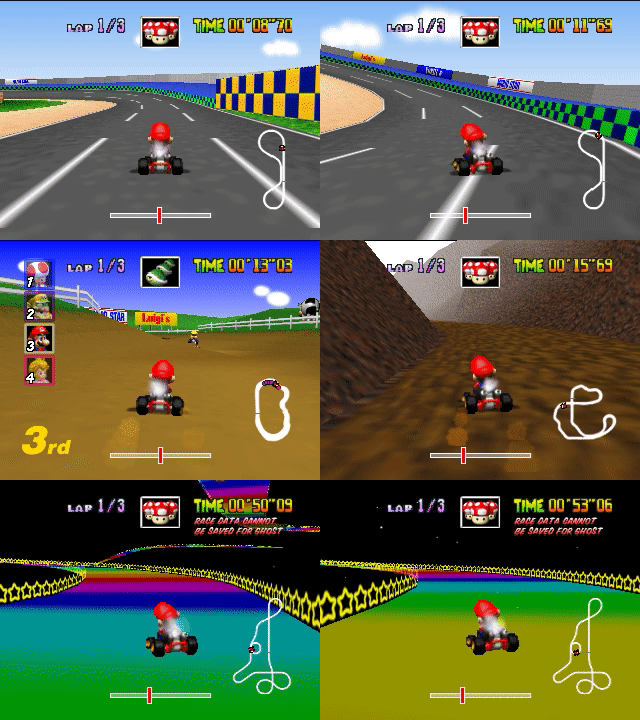
NeuralKart - A Real-time Mario Kart AI using CNNs, Offline Search, and DAGGER Explanation Video Videos of Runs Class Poster Class Writeup Set-up The project currently only works on Windows. Install 64-bit Python 3 This project was written for Python 3. Furthermore, Tensorflow requires 64-bit Python. Install Python Dependencies The following Python dependencies need to be installed. Tensorflow Keras Pillow matplotlib mkdir_p h5py Get BizHawk (1. 2) Our scripts are all written for the BizHawk emulator
(tested in version 1. To get BizHawk you first need to install the prerequisites - Then you can download BizHawk (version 1. 2) and unzip it to any directory - Download Our Pre-trained Weights and Recordings These should be unzipped into the folder of the repo. Save States - The states should be accessible as . Weights - The weights should be accessible as Recordings (Optional) - The recordings should be accessible as . Usage Instructions Running a Live Demo These instructions can be used to
run a demo of three tracks that the AI performs well on. Download the save states and pre-trained weights. Run using Python 3 - this starts a server on port which actually runs the model. Open BizHawk and Load the MarioKart 64 ROM. Turn off messages (View > Display Messages). Open the BizHawk Lua console (Tools > Lua Console). Load This should automatically play three tracks in a loop. You can hit to switch to the next track. You can also hit
the arrow keys to manually steer the player. This can be used to demonstrate the AI's stability. Note that the clipboard is used to pass frames from the emulator to the Python script. It's a hack, but it seems to work - just don't try to copy or paste anything while the scripts are running. Run the AI on another Track Once you have the demo working, you can use these instructions to play on other tracks. Note that you can
only play on a track if there are weights trained for it. First, navigate to another track from the menu, or use one of our save states (File > Load State > Load Named State). These states are set to be the frame after the race starts. Training the Model on Recordings Once you have the AI running, you probably want to try retraining the weights based off our recordings. First download our weights from the link above, then run . You can
also use to force it to use the CPU. Creating new Recordings from the Search AI Load a state and then load in order to generate a recording using the search AI. Recordings consist of a series of frames and a file that contains the recorded steering values. Running the Iterative Improvement Loop As mentioned in the paper, we ran an iterative improvement loop that swaps between playing and generating new recordings. To bootstrap the process, you must first generate
a recording using the search AI and create an initial weights file using . Now start using the flag (so that
Frequently asked questions
How many stars and forks are recorded?
rameshvarun/NeuralKart has 673 stars and 56 forks.
What is the repository rank?
rameshvarun/NeuralKart is ranked 15,192.
What language and category are recorded?
rameshvarun/NeuralKart has 673 stars, uses Lua and belongs to Tutorials.
Which repository is closest in rank?
rameshvarun/NeuralKart is compared with amitshekhariitbhu/ai-system-design, ranked 15,197 with 672 stars.
README
NeuralKart - A Real-time Mario Kart AI using CNNs, Offline Search, and DAGGER
These should be unzipped into the folder of the repo.
Save States - The states should be accessible as states/[mode]/[track].state.
Weights - The weights should be accessible as weights/[track].hdf5
Recordings (Optional) - The recordings should be accessible as recordings/[track]/[mode]/[recording]/[frame].png.
Usage Instructions
Running a Live Demo
These instructions can be used to run a demo of three tracks that the AI performs well on.
Download the save states and pre-trained weights.
Run predict-server.py using Python 3 - this starts a server on port 36296 which actually runs the model.
You can pass a --cpu to force Tensorflow to run on the CPU.
Open BizHawk and Load the MarioKart 64 ROM.
Turn off messages (View > Display Messages).
You don't have to do this, but they get in the way.
Open the BizHawk Lua console (Tools > Lua Console).
Load Demo.lua
This should automatically play three tracks in a loop. You can hit Esc to switch to the next track. You can also hit the arrow keys to manually steer the player. This can be used to demonstrate the AI's stability.
Note that the clipboard is used to pass frames from the emulator to the Python script. It's a hack, but it seems to work - just don't try to copy or paste anything while the scripts are running.
Run the AI on another Track
Once you have the demo working, you can use these instructions to play on other tracks. Note that you can only play on a track if there are weights trained for it.
First, navigate to another track from the menu, or use one of our save states (File > Load State > Load Named State). These states are set to be the frame after the race starts. Then load Play.lua from the Lua console.
Training the Model on Recordings
Once you have the AI running, you probably want to try retraining the weights based off our recordings. First download our weights from the link above, then run train.py [track]. You can also use --cpu to force it to use the CPU.
Creating new Recordings from the Search AI
Load a state and then load SearchAI.lua in order to generate a recording using the search AI. Recordings consist of a series of frames and a steering.txt file that contains the recorded steering values.
Running the Iterative Improvement Loop
As mentioned in the paper, we ran an iterative improvement loop that swaps between playing and generating new recordings. To bootstrap the process, you must first generate a recording using the search AI and create an initial weights file using train.py. Now start predict-server.py using the --cpu flag (so that you can train on the GPU).
Now you can load a state and run PlayAndSearch.lua which alternates between playing and searching. It retrains every other run. You probably need to edit the code that calls train.py on line 90 so that it works in your environment.
Other Projects + Links
TensorKart - The first MarioKart deep learning project, which we started from as our baseline.