mcp-cli
A lightweight, Bun-based CLI for interacting with MCP (Model Context Protocol) servers.
Features
- 🪶 Lightweight - Minimal dependencies, fast startup
- 📦 Single Binary - Compile to standalone executable via
bun build --compile - 🔧 Shell-Friendly - JSON output for call, pipes with
jq, chaining support - 🤖 Agent-Optimized - Designed for AI coding agents (Gemini CLI, Claude Code, etc.)
- 🔌 Universal - Supports both stdio and HTTP MCP servers
- ⚡ Connection Pooling - Lazy-spawn daemon keeps connections warm (60s idle timeout)
- � Tool Filtering - Allow/disable specific tools per server via config
- 📋 Server Instructions - Display MCP server instructions in output
- �💡 Actionable Errors - Structured error messages with available servers and recovery suggestions
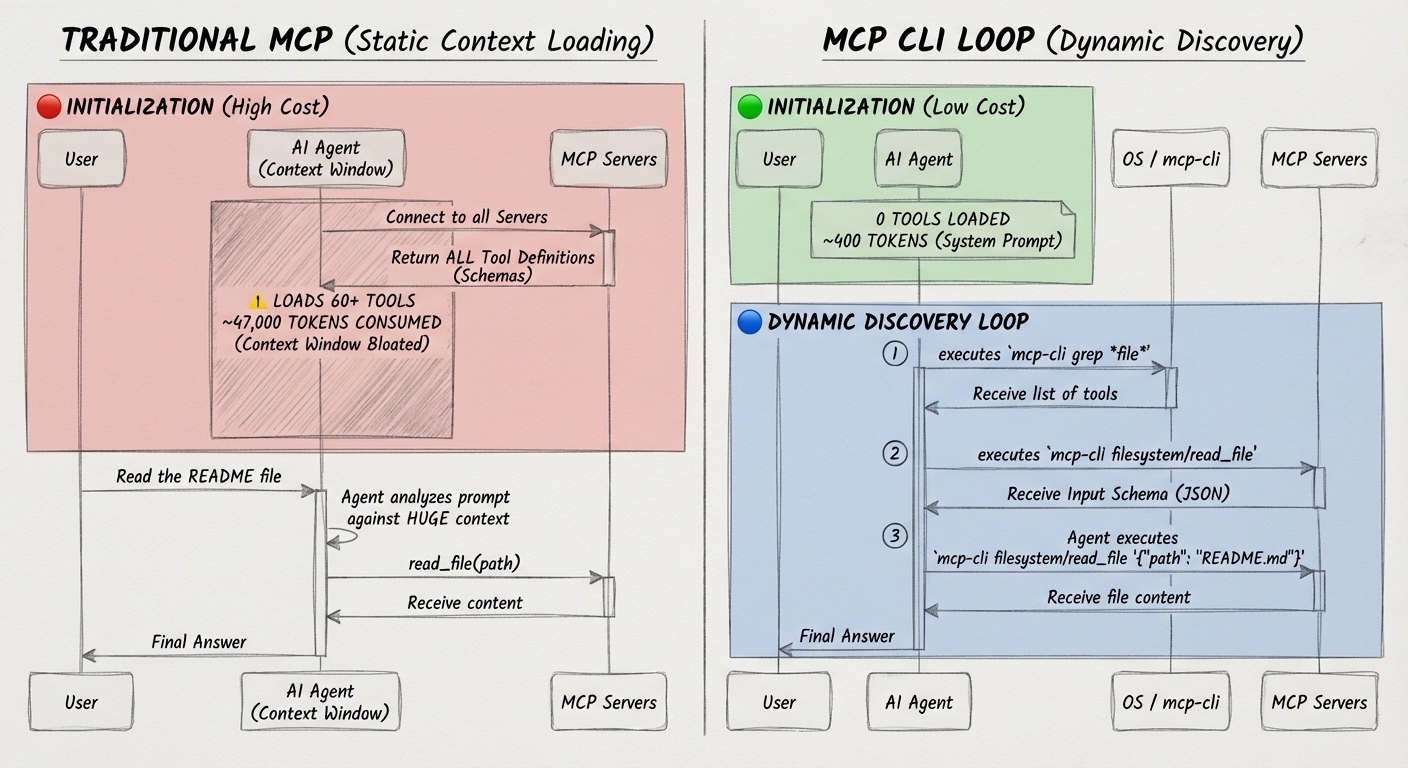
Quick Start
1. Installation
curl -fsSL https://raw.githubusercontent.com/philschmid/mcp-cli/main/install.sh | bash
or
# requires bun install
bun install -g https://github.com/philschmid/mcp-cli
2. Create a config file
Create mcp_servers.json in your current directory or ~/.config/mcp/:
{
  "mcpServers": {
    "filesystem": {
      "command": "npx",
      "args": [
        "-y",
        "@modelcontextprotocol/server-filesystem",
        "."
      ]
    },
    "deepwiki": {
      "url": "https://mcp.deepwiki.com/mcp"
    }
  }
}
3. Discover available tools
# List all servers and tools
mcp-cli

# With descriptions
mcp-cli -d
4. Call a tool
# View tool schema first
mcp-cli info filesystem read_file

# Call the tool
mcp-cli call filesystem read_file '{"path": "./README.md"}'
Usage
mcp-cli [options]                             List all servers and tools
mcp-cli [options] info                Show server tools and parameters
mcp-cli [options] info          Show tool schema
mcp-cli [options] grep               Search tools by glob pattern
mcp-cli [options] call          Call tool (reads JSON from stdin if no args)
mcp-cli [options] call    Call tool with JSON arguments
Both formats work: info or info /
[!TIP] Add
-dto any command to include descriptions.
Options
| Option | Description |
|---|---|
-h, --help |
Show help message |
-v, --version |
Show version number |
-d, --with-descriptions |
Include tool descriptions |
-c, --config |
Path to config file |
Output
| Stream | Content |
|---|---|
| stdout | Tool results and human-readable info |
| stderr | Errors and diagnostics |
Commands
List Servers
# Basic listing
$ mcp-cli
github
  • search_repositories
  • get_file_contents
  • create_or_update_file
filesystem
  • read_file
  • write_file
  • list_directory

# With descriptions
$ mcp-cli --with-descriptions
github
  • search_repositories - Search for GitHub repositories
  • get_file_contents - Get contents of a file or directory
filesystem
  • read_file - Read the contents of a file
  • write_file - Write content to a file
Search Tools
# Find file-related tools across all servers
$ mcp-cli grep "*file*"
github/get_file_contents
github/create_or_update_file
filesystem/read_file
filesystem/write_file

# Search with descriptions
$ mcp-cli grep "*search*" -d
github/search_repositories - Search for GitHub repositories
View Server Details
$ mcp-cli info github
Server: github
Transport: stdio
Command: npx -y @modelcontextprotocol/server-github

Tools (12):
  search_repositories
    Search for GitHub repositories
    Parameters:
      • query (string, required) - Search query
      • page (number, optional) - Page number
  ...
View Tool Schema
# Both formats work:
$ mcp-cli info github search_repositories
$ mcp-cli info github/search_repositories

Tool: search_repositories
Server: github

Description:
  Search for GitHub repositories

Input Schema:
  {
    "type": "object",
    "properties": {
      "query": { "type": "string", "description": "Search query" },
      "page": { "type": "number" }
    },
    "required": ["query"]
  }
Call a Tool
# With inline JSON
$ mcp-cli call github search_repositories '{"query": "mcp server", "per_page": 5}'

# JSON output is default for call command
$ mcp-cli call github search_repositories '{"query": "mcp"}' | jq '.content[0].text'

# Read JSON from stdin (no '-' needed!)
$ echo '{"path": "./README.md"}' | mcp-cli call filesystem read_file
Complex Commands
For JSON arguments containing single quotes, special characters, or long text, use stdin to avoid shell escaping issues:
# Using a heredoc (no '-' needed with call subcommand)
mcp-cli call server tool < main.ts

# 6. Error handling in scripts
if result=$(mcp-cli call filesystem read_file '{"path": "./config.json"}' 2>/dev/null); then
  echo "$result" | jq '.content[0].text | fromjson'
else
  echo "File not found, using defaults"
fi

# 7. Aggregate results from multiple servers
{
  mcp-cli call github search_repositories '{"query": "mcp", "per_page": 3}'
  mcp-cli call filesystem list_directory '{"path": "./src"}'
} | jq -s '.'
Tips for chaining:
- Use
jq -rfor raw output (no quotes) - Use
jq -efor conditional checks (exit code 1 if false) - Use
2>/dev/nullto suppress errors when testing - Use
| jq -s '.'to combine multiple JSON outputs
Configuration
Config File Format
The CLI uses mcp_servers.json, compatible with Claude Desktop, Gemini or VS Code:
{
  "mcpServers": {
    "local-server": {
      "command": "node",
      "args": ["./server.js"],
      "env": {
        "API_KEY": "${API_KEY}"
      },
      "cwd": "/path/to/directory"
    },
    "remote-server": {
      "url": "https://mcp.example.com",
      "headers": {
        "Authorization": "Bearer ${TOKEN}"
      }
    }
  }
}
Environment Variable Substitution: Use ${VAR_NAME} syntax anywhere in the config. Values are substituted at load time. By default, missing environment variables cause an error with a clear message. Set MCP_STRICT_ENV=false to use empty values instead (with a warning).
Tool Filtering
Restrict which tools are available from a server using allowedTools and disabledTools:
{
  "mcpServers": {
    "filesystem": {
      "command": "npx",
      "args": ["-y", "@modelcontextprotocol/server-filesystem", "."],
      "allowedTools": ["read_file", "list_directory"],
      "disabledTools": ["delete_file"]
    }
  }
}
Rules:
allowedTools: Only tools matching these patterns are available (supports glob:*,?)disabledTools: Tools matching these patterns are excludeddisabledToolstakes precedence overallowedTools- Filtering applies globally to all CLI operations (info, grep, call)
Examples:
// Only allow read operations
"allowedTools": ["read_*", "list_*", "search_*"]

// Allow all except destructive operations
"disabledTools": ["delete_*", "write_*", "create_*"]

// Combine: allow file operations but disable delete
"allowedTools": ["*file*"],
"disabledTools": ["delete_file"]
Config Resolution
The CLI searches for configuration in this order:
MCP_CONFIG_PATHenvironment variable-c/--configcommand line argument./mcp_servers.json(current directory)~/.mcp_servers.json~/.config/mcp/mcp_servers.json
Environment Variables
| Variable | Description | Default |
|---|---|---|
MCP_CONFIG_PATH |
Path to config file | (none) |
MCP_DEBUG |
Enable debug output | false |
MCP_TIMEOUT |
Request timeout (seconds) | 1800 (30 min) |
MCP_CONCURRENCY |
Servers processed in parallel (not a limit on total) | 5 |
MCP_MAX_RETRIES |
Retry attempts for transient errors (0 = disable) | 3 |
MCP_RETRY_DELAY |
Base retry delay (milliseconds) | 1000 |
MCP_STRICT_ENV |
Error on missing ${VAR} in config |
true |
MCP_NO_DAEMON |
Disable connection caching (force fresh connections) | false |
MCP_DAEMON_TIMEOUT |
Idle timeout for cached connections (seconds) | 60 |
Using with AI Agents
mcp-cli is designed to give AI coding agents access to MCP (Model Context Protocol) servers. MCP enables AI models to interact with external tools, APIs, and data sources through a standardized protocol.
Why MCP + CLI?
Traditional MCP integration loads full tool schemas into the AI's context window, consuming thousands of tokens. The CLI approach:
- On-demand loading: Only fetch schemas when needed
- Token efficient: Minimal context overhead
- Shell composable: Chain with
jq, pipes, and scripts - Scriptable: AI can write shell scripts for complex workflows
Option 1: System Prompt Integration
Add this to your AI agent's system prompt for direct CLI access:
## MCP Servers

You have access to MCP servers via the `mcp-cli` CLI.

Commands:

```bash
mcp-cli info                        # List all servers
mcp-cli info                # Show server tools
mcp-cli info          # Get tool schema
mcp-cli grep ""            # Search tools
mcp-cli call          # Call tool (stdin auto-detected)
mcp-cli call   '{}'   # Call with JSON args
```

**Both formats work:** `info  ` or `info /`

Workflow:

1. **Discover**: `mcp-cli info` to see available servers
2. **Inspect**: `mcp-cli info  ` to get the schema
3. **Execute**: `mcp-cli call   '{}'` with arguments

### Examples

```bash
# Call with inline JSON
mcp-cli call github search_repositories '{"query": "mcp server"}'

# Pipe from stdin (no '-' needed)
echo '{"path": "./file"}' | mcp-cli call filesystem read_file

# Heredoc for complex JSON
mcp-cli call server tool <` | Only the specified server |
| `mcp-cli info  ` | Only the specified server |
| `mcp-cli call   '{}'` | Only the specified server |


### Error Handling & Retry

The CLI includes **automatic retry with exponential backoff** for transient failures.

**Transient errors (auto-retried):**
- Network: `ECONNREFUSED`, `ETIMEDOUT`, `ECONNRESET`
- HTTP: `502`, `503`, `504`, `429`

**Non-transient errors (fail immediately):**
- Config: Invalid JSON, missing fields
- Auth: `401`, `403`
- Tool: Validation errors, not found


## Development

### Prerequisites

- [Bun](https://bun.sh/) >= 1.0.0

### Setup

```bash
bun install https://github.com/philschmid/mcp-cli
```

### Commands

```bash
# Run in development
bun run dev

# Type checking
bun run typecheck

# Linting
bun run lint
bun run lint:fix

# Run all tests (unit + integration)
bun test

# Run only unit tests (fast)
bun test tests/config.test.ts tests/output.test.ts tests/client.test.ts

# Run integration tests (requires MCP server, ~35s)
bun test tests/integration/

# Build single executable
bun run build

# Build for all platforms
bun run build:all
```

### Local Testing

Test the CLI locally without compiling by using `bun link`:

```bash
# Link the package globally (run once)
bun link

# Now you can use 'mcp-cli' anywhere
mcp-cli --help
mcp-cli call filesystem read_file '{"path": "./README.md"}'

# Or run directly during development
bun run dev --help
bun run dev info filesystem
```

To unlink when done:

```bash
bun unlink
```

### Releasing

Releases are automated via GitHub Actions. Use the release script:

```bash
./scripts/release.sh 0.2.0
```

### Error Messages

All errors include actionable recovery suggestions, optimized for both humans and AI agents:

```
Error [AMBIGUOUS_COMMAND]: Ambiguous command: did you mean to call a tool or view info?
  Details: Received: mcp-cli filesystem read_file
  Suggestion: Use 'mcp-cli call filesystem read_file' to execute, or 'mcp-cli info filesystem read_file' to view schema

Error [UNKNOWN_SUBCOMMAND]: Unknown subcommand: "run"
  Details: Valid subcommands: info, grep, call
  Suggestion: Did you mean 'mcp-cli call'?

Error [SERVER_NOT_FOUND]: Server "github" not found in config
  Details: Available servers: filesystem, sqlite
  Suggestion: Use one of: mcp-cli info filesystem, mcp-cli info sqlite

Error [TOOL_NOT_FOUND]: Tool "search" not found in server "filesystem"
  Details: Available tools: read_file, write_file, list_directory (+5 more)
  Suggestion: Run 'mcp-cli info filesystem' to see all available tools

Error [INVALID_JSON_ARGUMENTS]: Invalid JSON in tool arguments
  Details: Parse error: Unexpected identifier "test"
  Suggestion: Arguments must be valid JSON. Use single quotes: '{"key": "value"}'
```

## License

MIT License - see [LICENSE](LICENSE) for details.

## Contributing

Contributions are welcome! Please feel free to submit a Pull Request.