Django Baton


A cool, modern, responsive, and AI-enhanced Django admin interface, built on Bootstrap 5 and Material Symbols.
📖 Documentation | 🚀 Live Demo | Report Bug | Request Feature
Django Baton transforms the standard Django admin into a powerful, intuitive, and visually appealing interface. Built with Bootstrap 5 and Google Material Symbols, it offers full responsiveness and integrates cutting-edge AI functionalities directly into your admin panel.
✨ Try the Live Demo! ✨
Experience the features of Django Baton firsthand. Login with user demo and password demo.
https://django-baton.sqrt64.it/
📣 What's New?
- Baton 5.x: Features a complete visual redesign and migrates from FontAwesome to Google Material Symbols for a sleek, modern icon set, see the migration guide.
- Baton 4.2.1: Integrates computer vision capabilities within the
BatonAiImageField, includes various minor styling improvements, and incorporates several community pull requests. - Baton 4.2.0: Introduced computer vision for automatic generation of
altattributes for images. - Baton 4.0.*: Unleashed a suite of powerful AI functionalities!
- Automatic translations (integrates with
django-modeltranslation). - Text summarization for content creation.
- Text corrections for improved writing.
- Image generation using GPT Image.
- This version also introduced robust theme support, making customization easier than ever. Most theme changes no longer require recompiling the JavaScript application.
- Automatic translations (integrates with
🎨 Explore Themes! Discover ready-to-use themes and get inspiration from the
django-baton-themesrepository: github.com/otto-torino/django-baton-themes
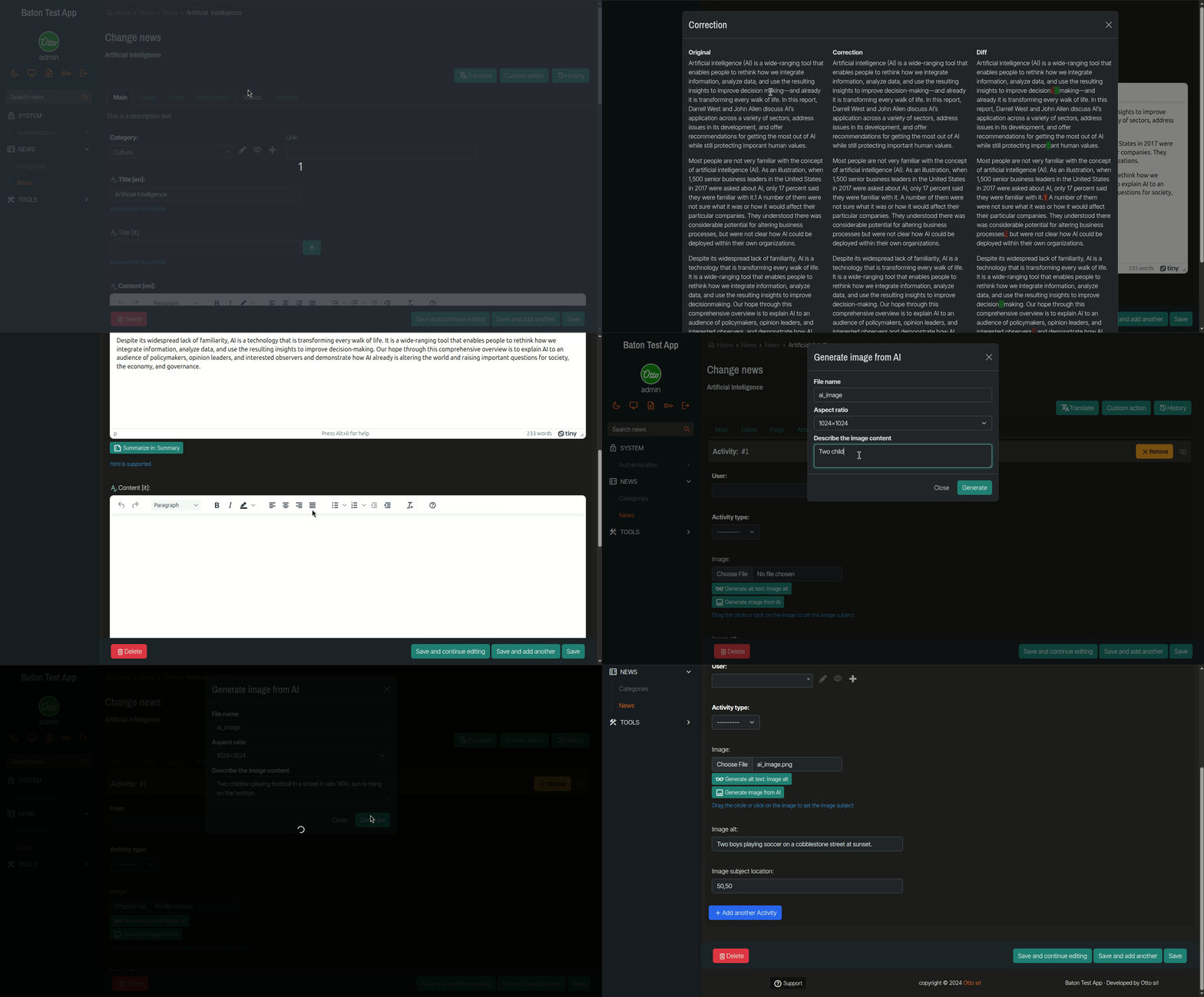 An example of Baton's AI capabilities in action.
📋 Table of Contents
- Key Features
- Installation
- Configuration
- Baton AI In-Depth
- Page Detection
- Signals
- JS Utilities
- JS Translations
- List Filters
- Changelist Includes
- Changelist Filters Includes
- Changelist Row Attributes
- Form Tabs
- Form Includes
- Collapsable Stacked Inlines
- Themes & Customization
- Tests
- Development
- Contributing
- Star History
⭐ Key Features
Compatibility Notes:
- For Django >= 5.x: Use Baton >= 5.0
- For 5.x > Django >= 2.1: Use Baton == 4.x
- For older Django versions (1.x): Use
django-baton==1.13.2
Baton is designed with a core principle: minimize overriding Django templates. Styling is primarily achieved through CSS, with JavaScript used for dynamic functionalities.
- Modern Stack: Built with Bootstrap 5 and Google Material Symbols.
- Fully Responsive: Adapts seamlessly to all screen sizes.
- 🧠 AI Powered:
- Automatic translations (integrates with
django-modeltranslation). - Text summarization and correction.
- Tag suggestions for
ManyToManyFieldtag fields, based on the other form fields. - Image vision (description generation for
alttext). - Image generation with GPT Image.
- (Requires a Baton subscription key for AI features).
- Automatic translations (integrates with
- Customizable Menu: Flexible, dict-configurable sidebar navigation, which can be collapsed to its icons on desktop.
- 🎨 Theme Support: Easily customize the look and feel.
- Enhanced Search: Configurable global search field with autocomplete.
- Advanced List Filters: Includes text input, dropdown, and multiple-choice filter options.
- Improved Forms:
- Out-of-the-box tabbed interface for fieldsets and inlines.
- Fixed submit row for better usability on long forms.
- Collapsable entries for stacked inlines.
- Lazy loading for uploaded images and image previews.
- Flexible Includes: Easily inject custom templates into changelist and change form pages.
- Dynamic Row Attributes: Add custom HTML attributes (classes, data-attributes, titles) to changelist rows or cells.
- User Experience Enhancements:
- Optional modal display for changelist filters.
- Optional "form mode" for changelist filters (apply multiple filters at once).
- Confirmation for unsaved changes.
- Loading indicator for multipart form uploads.
- Toast notifications for admin messages.
- Gravatar support.
- Developer Friendly: Customization via CSS variables or by recompiling the provided JS application for deeper changes.
- Translations: Includes Italian (IT) and Farsi (FA) translations.
Frontend Technologies: Baton leverages Bootstrap 5 for styling and responsiveness, Google Material Symbols for icons, and jQuery for DOM manipulations. All assets are compiled into a single JavaScript file for optimized delivery.
🛠️ Installation
-
Install via pip:
pip install django-batonAlternatively, to use the latest development version, clone the repository into your project:
git clone [https://github.com/otto-torino/django-baton.git](https://github.com/otto-torino/django-baton.git) -
Add to
INSTALLED_APPS: In your project'ssettings.py, addbatonbeforedjango.contrib.adminandbaton.autodiscoverat the very end of the list:# settings.py INSTALLED_APPS = [ # ... other apps ... 'baton', # Must be before django.contrib.admin 'django.contrib.admin', # ... other apps ... 'baton.autodiscover', # Must be the last app ] -
Run Migrations:
python manage.py migrate -
Update URLs: Replace
django.contrib.adminwithbaton.autodiscover.adminin your project's mainurls.pyfile and include Baton's URLs:# urls.py # from django.contrib import admin # Remove or comment out this line from baton.autodiscover import admin # Import Baton's admin from django.urls import path, include urlpatterns = [ path('admin/', admin.site.urls), path('baton/', include('baton.urls')), # ... your other url patterns ... ]
Why two entries in INSTALLED_APPS?
baton: Needs to be placed beforedjango.contrib.adminbecause it overrides some of Django's default admin templates and resets CSS.baton.autodiscover: This module must be the last app inINSTALLED_APPS. Baton uses a customAdminSiteclass to allow Django-style customization of variables likesite_headerandindex_title(instead of overriding templates). A customAdminSitenormally requires manual registration of all your apps. Thebaton.autodiscovermodule cleverly automates this by registering all apps that were already registered with Django's defaultAdminSite, ensuring all your models appear in the Baton admin. For this to work, all other apps must have already been processed.
Content Security Policy
With Django >= 6.0 the admin can run under a nonce based Content Security Policy: enable django.middleware.csp.ContentSecurityPolicyMiddleware and the django.template.context_processors.csp context processor, and allow CSP.NONCE in script-src and style-src. Baton puts the nonce on its scripts and styles, the ones baton.min.js injects included. If you override admin/base_site.html, add {% if csp_nonce is not None %} nonce="{{ csp_nonce }}"{% endif %} to the `
Set `ENABLE_IMAGE_GENERATION` to `False` in the `AI` settings to remove the button (and refuse the requests to the image generation endpoint): `BatonAiImageField` keeps the alt text generation and the subject location. It defaults to `True`.

Integrates `django-subject-imagefield` features for subject location. Configure preview width via `IMAGE_PREVIEW_WIDTH` in `BATON` settings.

### Image Vision

Generate `alt` text for images.

1. **Using `BatonAiImageField`**:
    Set `alt_field`, `alt_chars` (optional), `alt_language` (optional) attributes on the field. Works primarily for images within inlines.

    ```python
    # models.py
    image = BatonAiImageField(upload_to="news/", alt_field="image_alt_text", alt_chars=100)
    image_alt_text = models.CharField(max_length=150, blank=True)
    ```

2. **Using `ModelAdmin` configuration**:
    Define `baton_vision_fields` in your `ModelAdmin`:

    ```python
    # admin.py
    class MyModelAdmin(admin.ModelAdmin):
        # ...
        baton_vision_fields = {
            #id_form-0-image": [{ // CSS selector for the image field (can target inlines)
            "#id_image_field_name": [{ // Key must be a CSS selector targeting the image input or its preview
                "target": "name_of_alt_text_field", // Name of a CharField in the same model/form
                "chars": 80,                            // Optional: max characters (default 100)
                "language": "en",                       // Optional: language for description
            }],
        }
    ```

    A button appears near the specified image field. Clicking it populates the `target` field with the AI-generated description.

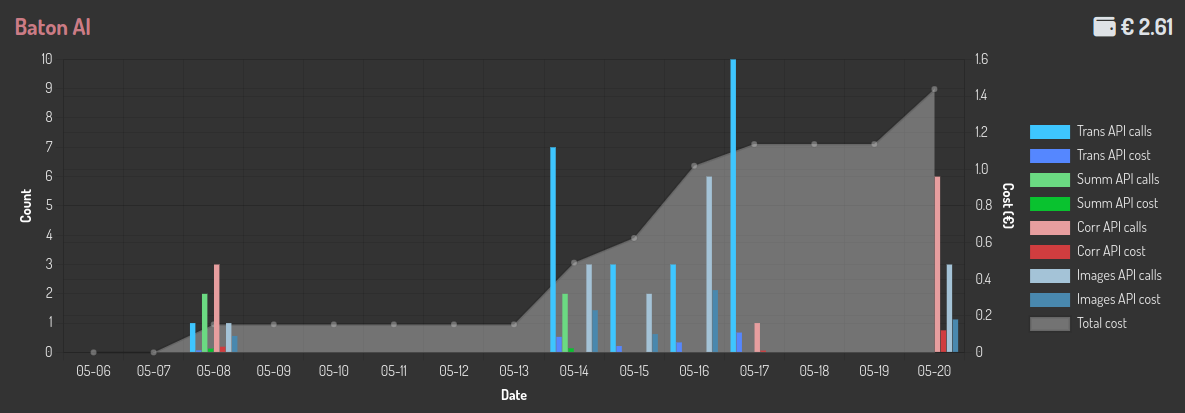
### Stats Widget

Display a widget showing AI feature usage statistics on your admin dashboard. Add the following to your admin index template (typically `admin/index.html` that you override):

```django
{% load baton_tags %}

{% baton_ai_stats %}
Editor Adapters
Django Baton's AI features interact with form fields to get and set values. Native HTML inputs/textareas and fields managed by django-ckeditor are supported out of the box. Other rich-text editors plug in through editor adapters, and multiple editors can coexist on the same form (e.g. CKEditor and another editor).
Already using
dj-editor-js? Nothing to configure — it ships its own adapter that self-registers (see Baton AI + Editor.js below).
An adapter is a plain object implementing this contract:
const MyEditorAdapter = {
  name: 'my-editor',
  // Return the ids of the fields this editor manages
  getFields() { return Object.keys(window.MyEditor.instances) },
  // Return the field content (string), or undefined if not owned by this editor
  getValue(fieldId) { return window.MyEditor.instances[fieldId]?.getContent() },
  // Set the content; return true if handled, false if not owned
  setValue(fieldId, value) {
    const inst = window.MyEditor.instances[fieldId]
    if (!inst) return false
    inst.setContent(value)
    return true
  },
  // Render the "correct" checkmark icon near the field; return true if handled
  setCorrect(fieldId, icon) {
    const inst = window.MyEditor.instances[fieldId]
    if (!inst) return false
    Baton.jQuery(`#${fieldId}`).after(icon)
    return true
  },
}
Register it in your admin/base_site.html, after baton.min.js and before init_baton.js:
Registered adapters are consulted before the built-in CKEditor adapter, which is consulted last as a fallback.
AI Hooks (legacy)
The single-override
*Hookfunctions below are still supported for backward compatibility, but the editor adapter API above is recommended for new code. When defined, the legacy hooks are wrapped as a highest-priority adapter that falls through to any registered adapters and to CKEditor, so they coexist with the adapter API.
Place these hook definitions in your admin/base_site.html template, before the {% static 'baton/js_snippets/init_baton.js' %} script tag:
{# Ensure Baton's main JS is loaded first #}
Baton AI + Editor.js
Editor.js for Django (the dj-editor-js package on PyPI, version 0.2.0+) integrates with Baton AI out of the box, zero-config. It ships an editor adapter that self-registers on Baton.AI, so translation, summarization and correction work on Editor.js fields — coexisting with CKEditor and native fields on the same form.
There is nothing to add to admin/base_site.html: the adapter is loaded automatically via the widget's Media. Just make sure both apps are installed and the AI credentials are configured:
INSTALLED_APPS = [
    "baton",
    "editor_js",
    # ...
    "baton.autodiscover",
]

BATON = {
    "BATON_CLIENT_ID": os.getenv("BATON_CLIENT_ID"),
    "BATON_CLIENT_SECRET": os.getenv("BATON_CLIENT_SECRET"),
    "AI": {
        "ENABLE_TRANSLATIONS": True,
        "ENABLE_CORRECTIONS": True,
    },
}
Then use an EditorJSField on your model (translatable via django-modeltranslation, or as a summarization target) and the AI buttons appear as for any other field. Under the hood the adapter converts Editor.js' block JSON to/from HTML so the AI sees clean prose; non-text blocks (images, tables, embeds, ...) are not sent to the AI.
📄 Page Detection
Baton identifies current admin page types (e.g., change_form, changelist) using regex on location.pathname. You can customize this for custom URLs. Define Baton.detectPageHook in admin/base_site.html before init_baton.js:
{{ conf|json_script:"baton-config" }} {# Assuming conf is your BATON settings dict passed to template #}
Available Page Types: dashboard, admindocs, login, logout, password_change, password_change_success, add_form, change_form, changelist, filer, default.
📡 Signals
Baton emits JavaScript events using its dispatcher. Register listeners before Baton.init().
Events:
onReady: Baton JS fully initialized.onNavbarReady: Navbar rendered.onMenuReady: Menu rendered (often last, due to async fetch).onTabsReady: Form tabs rendered.onTabChanged: Active form tab changed.onMenuError: Menu content failed to load.
🧩 JS Utilities
Baton exports JS modules for use in your custom admin scripts.
Dispatcher
A singleton Mediator pattern implementation.
// Register callback
Baton.Dispatcher.register('myCustomEvent', function (eventName, eventData) {
    console.log('Event ' + eventName + ' fired with data: ', eventData);
});

// Emit event
Baton.Dispatcher.emit('myCustomEvent', { message: 'Hello Baton!' });
Modal
Create Bootstrap modals programmatically.
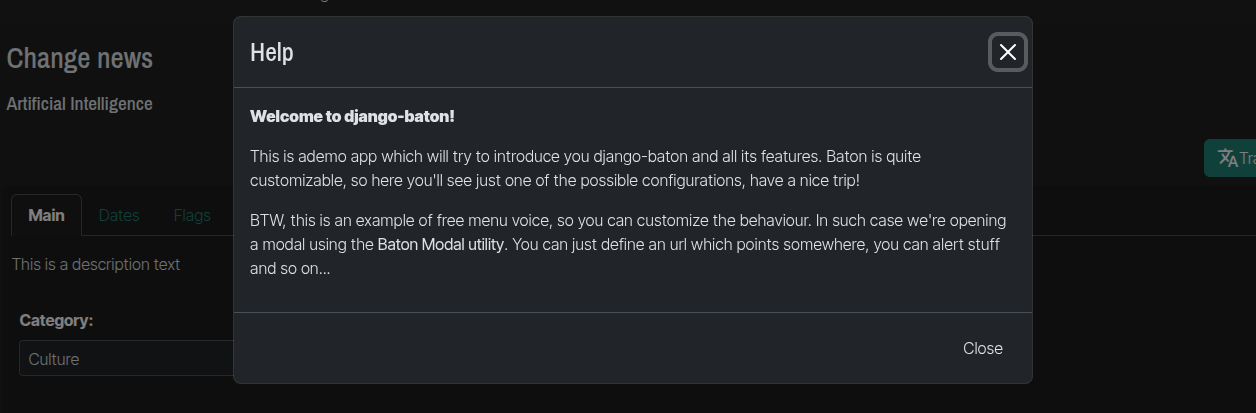
// Example Modal Configuration Object:
// let config = {
//     title: 'My modal title',
//     subtitle: 'My subtitle', // optional
//     content: '
my html content
', // alternative to url
//     url: '/my/url', // fetches content via AJAX; alternative to content.
//     hideFooter: false, // optional
//     showBackBtn: false, // optional, show a back button
//     backBtnCb: function () {}, // optional, back button click callback
//     actionBtnLabel: 'save', // optional, default 'save'
//     actionBtnCb: null, // optional, action button callback
//     onUrlLoaded: function () {}, // optional, callback after AJAX content loads
//     size: 'lg', // optional: sm, md, lg, xl
//     onClose: function () {} // optional, callback when modal closes
// };

let myModal = new Baton.Modal({
    title: 'My Modal Title',
    content: '
Some HTML content for the modal body.
',
    size: 'lg' // Example size
});

myModal.open();
// myModal.close();
// myModal.toggle();
// myModal.update({ title: 'New Modal Title', content: '
Updated content here.
' });
🌐 JS Translations
Baton includes en and it translations for its JS messages. It detects user locale from `` tag's lang attribute. Add/override translations by defining Baton.translations before Baton.init():
// Place in admin/base_site.html before init_baton.js
Baton.translations = {
  // Default English, override or add other locales
  en: {
    unsavedChangesAlert: 'You have some unsaved changes.',
    uploading: 'Uploading...',
    filter: 'Filter',
    close: 'Close',
    save: 'Save',
    search: 'Search',
    cannotCopyToClipboardMessage: 'Cannot copy to clipboard, please do it manually: Ctrl+C, Enter',
    retrieveDataError: 'There was an error retrieving the data',
    lightTheme: 'Light theme',
    darkTheme: 'Dark theme'
  },
  it: { // Example for Italian
    unsavedChangesAlert: 'Ci sono modifiche non salvate.',
    uploading: 'Caricamento...',
    // ... other Italian translations
  }
  // Add other locales as needed, e.g. 'es': { ... }
};
Baton defaults to en if a translation for the user's locale is not found.
📊 List Filters
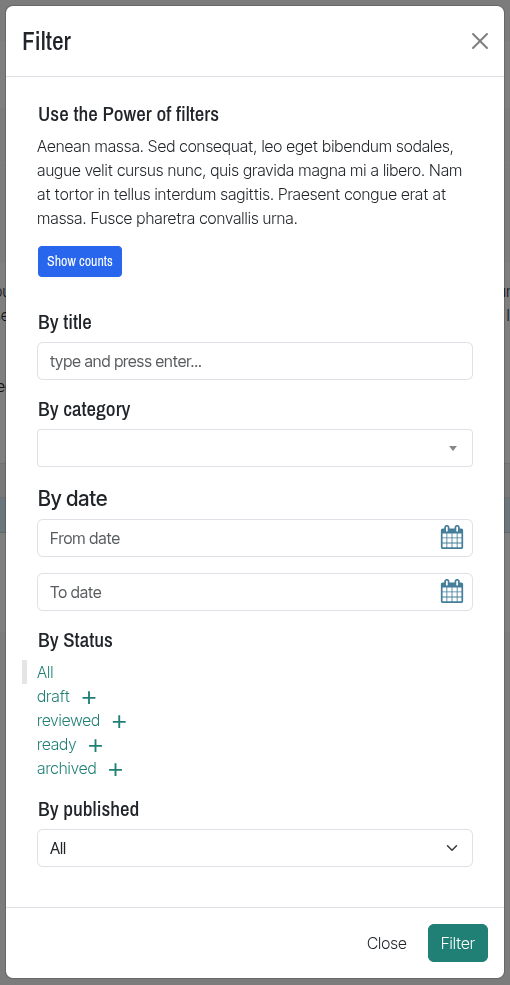
Input Text Filters
Create text input filters in your ModelAdmin. (Adapted from this article).
# admin.py
from baton.admin import InputFilter
from django.contrib import admin # If not already imported

class MyModelIdFilter(InputFilter):
    parameter_name = 'id' # URL query parameter
    title = 'ID'          # Display title for the filter

    def queryset(self, request, queryset):
        if self.value() is not None:
            # Ensure value is treated as expected type, e.g., int for ID
            try:
                search_term = int(self.value())
                return queryset.filter(id=search_term)
            except ValueError:
                return queryset.none() # Or handle error appropriately
        return queryset

class MyModelAdmin(admin.ModelAdmin):
    list_display = ('id', 'name', 'other_field') # Example
    list_filter = (MyModelIdFilter, 'other_field')
Dropdown Filters
Provides dropdown versions of standard Django admin list filters if a filter has at least 3 options. (Inspired by django-admin-list-filter-dropdown).
| Django Admin Filter | Baton Equivalent |
|---|---|
SimpleListFilter |
SimpleDropdownFilter |
AllValuesFieldListFilter |
DropdownFilter |
ChoicesFieldListFilter |
ChoicesDropdownFilter |
RelatedFieldListFilter |
RelatedDropdownFilter |
RelatedOnlyFieldListFilter |
RelatedOnlyDropdownFilter |
Usage:
# admin.py
from baton.admin import DropdownFilter, RelatedDropdownFilter, ChoicesDropdownFilter
# from myapp.models import MyModel, MyRelatedModel # Your models

class MyModelAdmin(admin.ModelAdmin):
    # list_display = ('name', 'char_field', 'choice_field', 'foreign_key_field') # Example
    list_filter = (
        ('char_field', DropdownFilter), # For CharField, TextField etc.
        ('choice_field', ChoicesDropdownFilter), # For fields with choices
        ('foreign_key_field', RelatedDropdownFilter), # For ForeignKey, ManyToManyField
    )
Multiple Choice Filters
Filter on multiple options for a field.
# admin.py
from baton.admin import MultipleChoiceListFilter
# from myapp.models import News # Assuming News model with Status choices

class NewsStatusListFilter(MultipleChoiceListFilter):
    title = 'Status'
    parameter_name = 'status__in' # Query parameter for __in lookup

    def lookups(self, request, model_admin):
        # Example assuming News.Status has .choices attribute
        # return News.Status.choices
        return (('draft', 'Draft'), ('published', 'Published'), ('archived', 'Archived')) # Example choices

class NewsAdmin(admin.ModelAdmin):
    # list_display = ('title', 'status') # Example
    list_filter = (NewsStatusListFilter, 'publication_date')
➕ Changelist Includes
Requires browser support for HTML `` tags.
Embed custom templates within the changelist page.
# admin.py
# from django.contrib import admin # If using @admin.register
# from myapp.models import News # Your model

# @admin.register(News)
class NewsAdmin(admin.ModelAdmin):
    # ...
    baton_cl_includes = [
        ('myapp/admin_includes/cl_top_banner.html', 'top'),
        ('myapp/admin_includes/cl_below_table.html', 'below'),
    ]
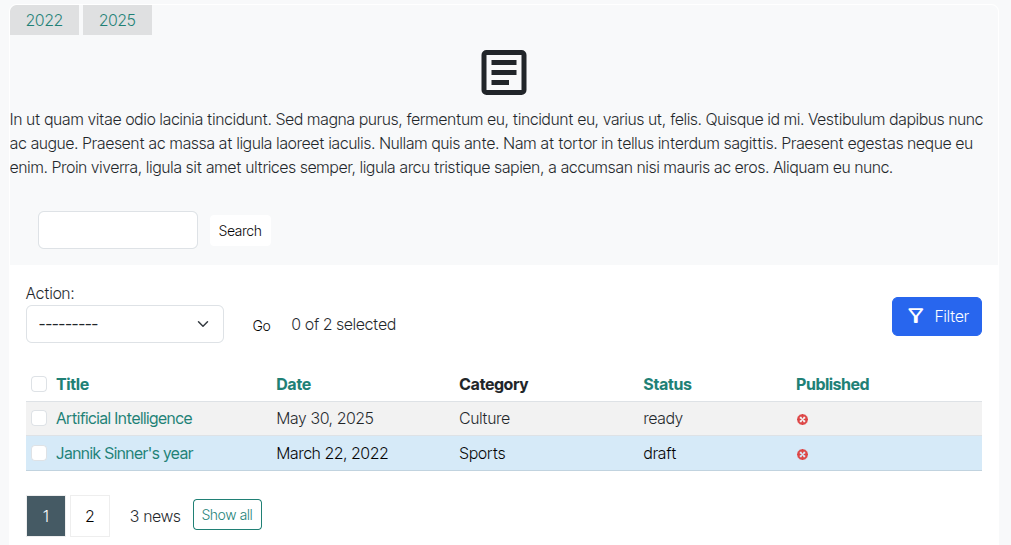
Positions:
| Position | Description |
|---|---|
top |
Inside changelist form, at the top. |
bottom |
Inside changelist form, at the bottom. |
above |
Above the entire changelist form. |
below |
Below the entire changelist form. |
Changelist view context variables are available in your included template.
Object Tools Includes: Inject templates into the object tools bar (top right of changelist). Templates are injected inside a ``.
# admin.py
class NewsAdmin(admin.ModelAdmin):
    # ...
    baton_cl_object_tools_include = ('myapp/admin_includes/custom_cl_action.html', 'left') # or 'right'
☰ Changelist Filters Includes
Requires browser support for HTML `` tags.
Embed custom templates within the changelist filter container.
# admin.py
class NewsAdmin(admin.ModelAdmin):
    # ...
    baton_cl_filters_includes = [
        ('myapp/admin_includes/filters_top_custom_filter.html', 'top'),
        ('myapp/admin_includes/filters_bottom_info.html', 'bottom'),
    ]

Positions:
| Position | Description |
|---|---|
top |
Inside filter container, at the top. |
bottom |
Inside filter container, at the bottom. |
Changelist view context variables are available.
↔️ Changelist Row Attributes
Requires browser support for HTML `` tags.
Add HTML attributes (classes, data-*, title, etc.) to elements in the changelist table (rows, cells).

- Define
baton_cl_rows_attributesmethod in yourModelAdmin. It takesrequestandcl(changelist instance) as arguments. - Return a JSON string dictionary. Keys usually match instance IDs. Values are dicts specifying attributes and selectors.
# admin.py
import json
from django.utils.safestring import mark_safe
# from myapp.models import News # Assuming News model

class NewsAdmin(admin.ModelAdmin):
    list_display = ('title', 'get_category_display', 'status') # Use the method name

    def get_category_display(self, instance):
        # Helper for targeting specific cells if needed by selector
        if instance.category: # Check if category exists
            return mark_safe(f'{instance.category.name}')
        return "-" # Fallback if no category
    get_category_display.short_description = 'Category'
    get_category_display.admin_order_field = 'category' # Optional: if you want to allow ordering

    def baton_cl_rows_attributes(self, request, cl):
        data = {}
        # Example 1: Add 'table-info' class to rows of news items in category ID 2
        for news_item in cl.queryset.filter(category__id=2):
            data[str(news_item.id)] = { # Ensure key is string for JSON
                'class': 'table-info',
            }

        # Example 2: More complex - target a specific cell for a specific news item
        # This example assumes you want to style a cell for a news item with ID=1 and category_id=1
        try:
            news_to_style = cl.queryset.get(id=1, category__id=1) # More specific lookup
            data[f"customkey_cell_{news_to_style.id}"] = { # Key can be arbitrary if selector is specific
                'class': 'table-success font-weight-bold', # Example: bold success
                'data-category-name': news_to_style.category.name if news_to_style.category else '',
                'title': f'Special: {news_to_style.title}',
                # This selector targets the span created by get_category_display
                # It assumes the changelist renders the output of get_category_display in a cell
                'selector': f'#result_list tr input[name=_selected_action][value="{news_to_style.pk}"] ~ td .category-span-{news_to_style.category_id}',
                'getParent': 'td', # Applies attributes to the parent
 of the found span
            }
        except cl.model.DoesNotExist: # Or your specific model DoesNotExist
            pass # Item not found, or doesn't match criteria

        return json.dumps(data)
Rules for the returned dictionary values:
- Keys: Typically the primary key of the model instance (as a string). If using a custom
selectorthat doesn't rely on the instance ID, the key can be any unique string. selector(optional): CSS selector to find the target element.- Default:
'#result_list tr input[name=_selected_action][value="' + key + '"]'(targets the checkbox for the row of instancekey). This works ifactionsare enabled.
- Default:
getParent(optional):- Default:
'tr'(attributes are applied to the row). - You can specify another selector (e.g.,
'td','.field-my_field') to find a parent of the element matched byselector. - Set to
false(boolean, not string) or an empty string to apply attributes directly to the element matched byselector.
- Default:
- Other keys: Treated as HTML attributes to be added to the target element.
📑 Form Tabs
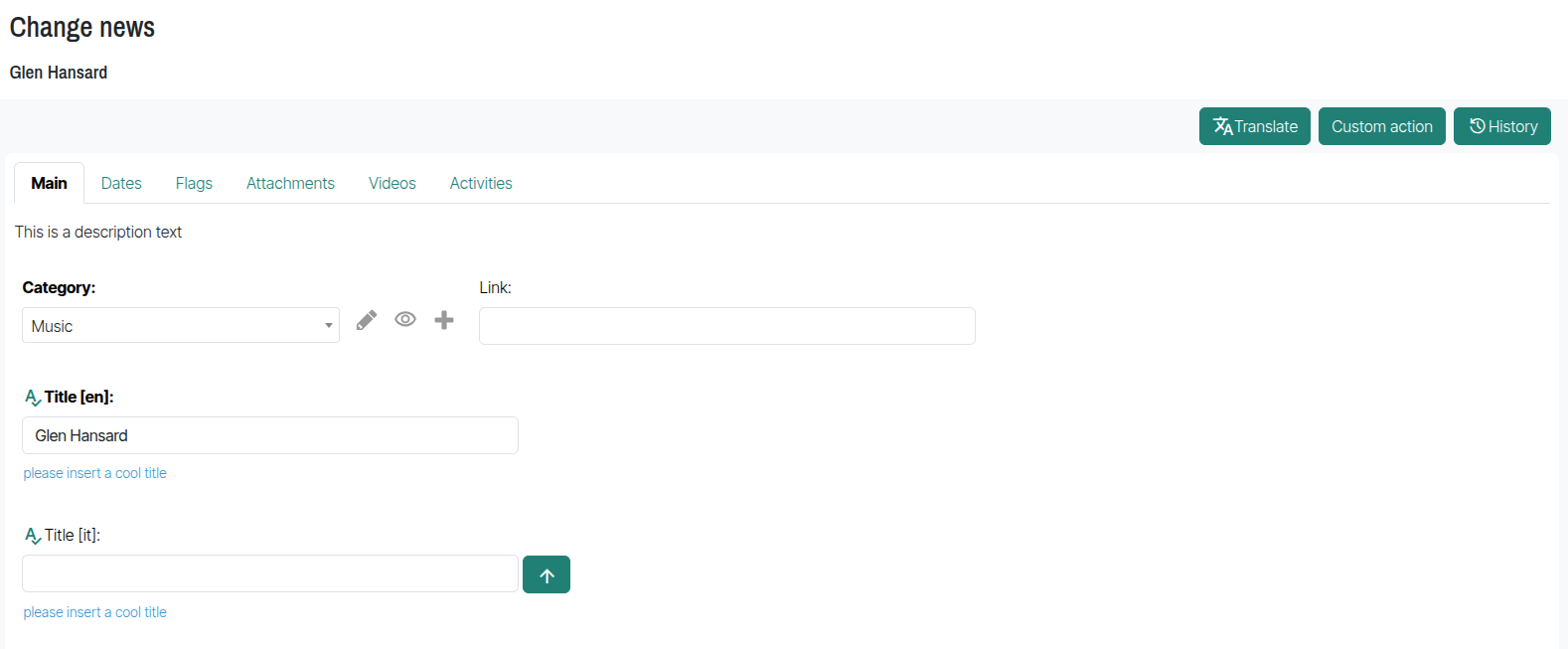 Organize your admin forms with tabs for fieldsets and inlines. Titles are derived automatically.
Configuration (in ModelAdmin.fieldsets or ModelAdmin.inlines):
# admin.py
# from myapp.models import Attribute, Feature # Your models

# class AttributeInline(admin.StackedInline):
#     model = Attribute # Your model
#     extra = 1

# class FeatureInline(admin.StackedInline):
#     model = Feature # Your model
#     extra = 1

class ItemAdmin(admin.ModelAdmin):
    # list_display = ('label', 'description', 'main_feature')
    # inlines = [AttributeInline, FeatureInline] # Order of inlines matters for grouping

    fieldsets = (
        ('Main Info', { # This fieldset will be the first tab (or part of it)
            'fields': ('label', 'description'),
            'classes': ('baton-tabs-init', 'order-0', 'baton-tab-group-main--inline-attribute'),
            # 'baton-tabs-init': REQUIRED on the first fieldset to enable tabs.
            # 'order-X': (Optional) Defines the tab order for this fieldset. Default 0.
            # 'baton-tab-inline-MODELNAME': Creates a tab for the inline 'attribute' (lowercase model name).
            # 'baton-tab-fs-CUSTOMNAME': Creates a tab for this fieldset (Main Info -> content_tab).
            # 'baton-tab-group-GROUPNAME--item1type-ITEMNAME--item2type-ITEMNAME': Creates a group tab.
            #    GROUPNAME is arbitrary. ITEMNAME can be fs-FIELDSETNAME or inline-INLINEMODELNAME.
            #    Example: 'baton-tab-group-overview--fs-main_info--inline-attribute'
            #    This creates a group tab named "Overview" containing the "Main Info" fieldset and the "Attribute" inline.
            'description': 'This is the main information for the item.'
        }),
        ('Content Details', {
            'fields': ('text', ),
            'classes': ('baton-tab-fs-content', ), # This fieldset becomes a tab named "Content"
            'description': 'Detailed content for the item.'
        }),
        ('Technical Specs', {
            'fields': ('main_feature', ),
            # This fieldset is part of a group tab defined in the "Main Info" fieldset:
            # e.g. 'baton-tab-group-main--inline-attribute--fs-tech--inline-feature' in 'Main Info' would group this.
            'classes': ('baton-tab-fs-tech', ),
            'description': 'Technical specifications and features.'
        }),
    )
Rules for Tab Classes (applied to a fieldset's classes tuple):
baton-tabs-init: Required on the first fieldset definition to activate the tabbing system.order-X: (Optional, on the first fieldset) Sets the display order of the tab generated by the first fieldset itself.Xis a number (e.g.,order-0,order-1).baton-tab-inline-MODELNAME: Creates a separate tab for the inline whose model isMODELNAME(lowercase). If you usedrelated_namefor the inline, usebaton-tab-inline-RELATEDNAME.baton-tab-fs-CUSTOMNAME: Creates a separate tab for the fieldset that also has the classtab-fs-CUSTOMNAME.CUSTOMNAMEis an arbitrary name you choose.baton-tab-group-GROUPNAME--item1type-ITEM1NAME--item2type-ITEM2NAME...: Creates a group tab.GROUPNAMEis an arbitrary name for your tab.itemXtypeis eitherfs(for fieldset) orinline.ITEMXNAMEis yourCUSTOMNAME(for fieldsets) orMODELNAME/RELATEDNAME(for inlines).- Example:
baton-tab-group-overview--fs-main_content--inline-attributes
- Fieldsets without a
baton-tab-fs-*class that are not part of a group will be appended to the first tab. - To make a fieldset always visible (not part of any tab), add the class
tab-fs-noneto that fieldset.
Other Tab Features:
- If a form field has an error, the first tab containing that field is automatically opened.
- Deep link to a tab by adding its hash to the URL (e.g.,
#inline-feature,#fs-content,#group-overview--fs-main_content--inline-attributes). The hash is derived from the tab class names.
📎 Form Includes
Requires browser support for HTML `` tags.
Embed custom templates near specific fields in change forms.
# admin.py
class NewsAdmin(admin.ModelAdmin):
    # ...
    baton_form_includes = [
        ('myapp/admin_includes/datetime_helper.html', 'publication_date', 'top'),
        ('myapp/admin_includes/content_notes.html', 'body_content', 'above'),
        ('myapp/admin_includes/field_icon.html', 'title', 'right'),
    ]
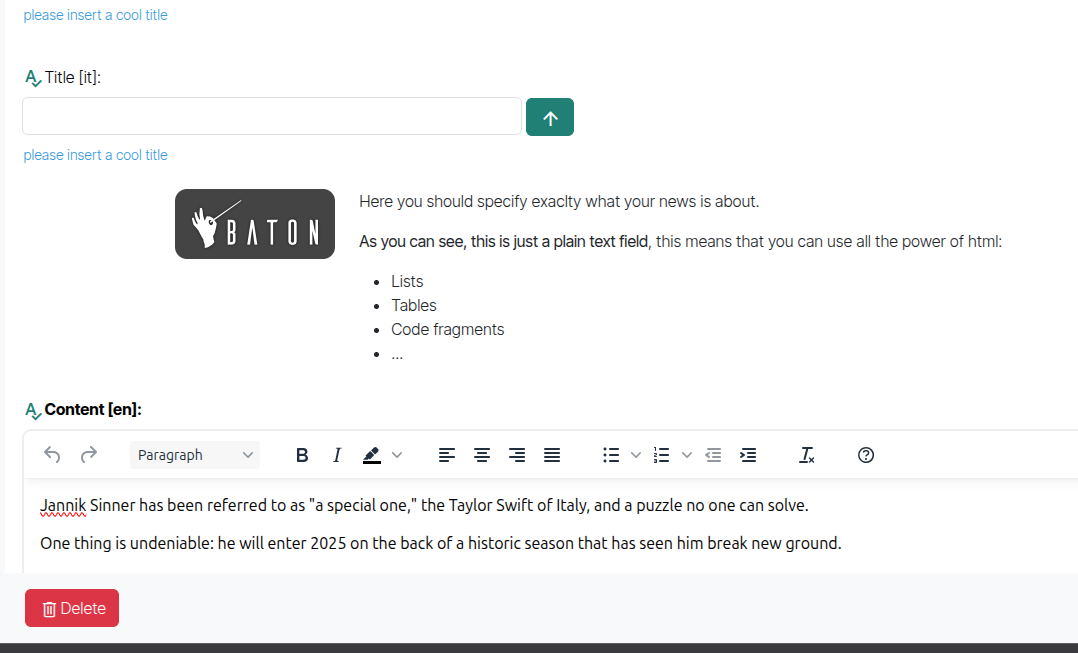
Positions:
| Position | Description |
|---|---|
top |
Inside the field's form row, at the top. |
bottom |
Inside the field's form row, at the bottom. |
above |
Above the field's form row. |
below |
Below the field's form row. |
right |
Inline, to the right of the input field. |
The {{ original }} object (the model instance) is available in your included template. Works with tabs.
Object Tools Includes: Inject templates into the object tools bar (top right of change form). Templates are injected inside a ``.
# admin.py
class NewsAdmin(admin.ModelAdmin):
    # ...
    baton_form_object_tools_include = ('myapp/admin_includes/custom_object_action.html', 'left') # or 'right'

🤏 Collapsable Stacked Inlines
 Make individual entries in
 admin.StackedInline collapsable.
Add collapse-entry to the inline's classes:
# admin.py
class VideoInline(admin.StackedInline):
    # model = Video # Your model
    extra = 1
    classes = ('collapse-entry', ) # Can be combined with Django's 'collapse'
To have the first entry expanded by default:
# admin.py
class VideoInline(admin.StackedInline):
    # model = Video # Your model
    extra = 1
    classes = ('collapse-entry', 'expand-first')
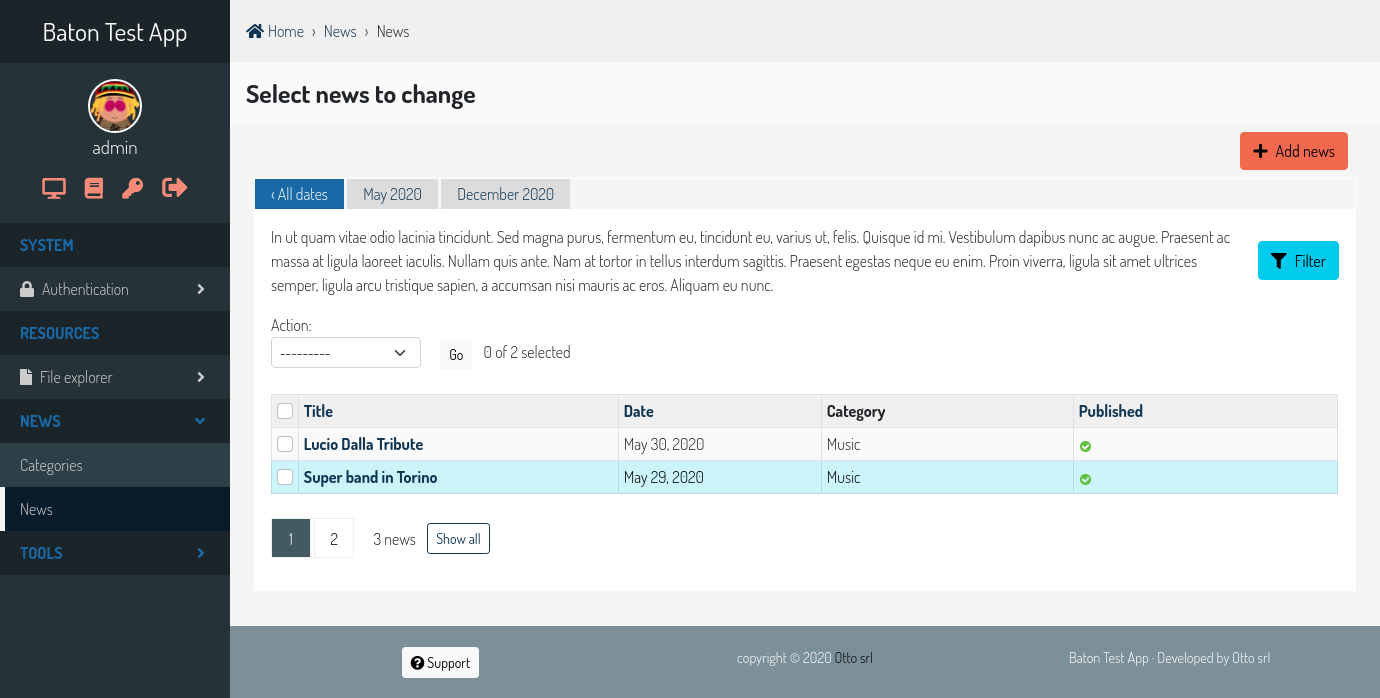
🎨 Themes & Customization
Easily customize Baton's appearance:
-
CSS Variables: Create a
baton/css/root.cssfile in one of your app's static directories (ensure this app is listed beforebatoninINSTALLED_APPS). Override any CSS variables defined in Baton's default root.css. Example:/* myapp/static/baton/css/root.css */ :root { --bs-primary: #FF6347; --bs-primary-rgb: 255,99,71; --baton-sidebar-active-bg: #FF6347; } -
Admin Themes: Create and manage themes directly from the admin site at
/admin/baton/batontheme/. Only one theme can be active. Its CSS content (which should define CSS variables) will override thebaton/css/root.cssfile.Caution: Theme content is marked safe and injected as-is. Be careful. ✨ Find ready-to-use themes at django-baton-themes.
-
Heavy Customization (Recompiling JS App): For changes to primary/secondary Bootstrap colors or extensive modifications, you can recompile Baton's JavaScript application.
- Clone
django-baton. - Navigate to
django-baton/baton/static/baton/app/. - Run
npm install. - Edit
src/styles/_variables.scss(and other SCSS/JS files as needed). - Run
npm run compile. - Copy the compiled
dist/baton.min.jsto your project:YOUR_APP/static/baton/app/dist/. - Ensure
YOUR_APPis listed beforebatoninINSTALLED_APPS.
For live development with automatic recompilation:
-
cd django-baton/baton/static/baton/app/ -
Run
npm run dev:baton(starts Webpack dev server, usually onhttp://localhost:8080). -
In your project's
admin/base_site.html(you might need to override it), change the script source to point to the dev server:{# #}
Now, changes in the JS app will auto-update, just refresh your Django admin page.
- Clone
🧪 Tests
Baton includes unit and end-to-end (e2e) tests using Selenium. To run e2e tests, ensure the test application (found in the testapp directory of the Baton repository) is running on localhost:8000.
💻 Development
To contribute or develop locally:
-
Set up the test app:
cd testapp
python3 -m venv .virtualenv
source .virtualenv/bin/activate # On Windows: .virtualenv\Scripts\activate
pip install -e .. # django-baton itself
pip install Django
pip install -r test-requirements.txt
cd app
python manage.py migrate
python manage.py createsuperuser # If needed
python manage.py runserver
(Default login after
createsuperuser:admin/admin, or as you defined). -
Enable live JS recompilation for development:
-
In
testapp/app/templates/admin/base_site.html, switch the script source to Webpack dev server:{# #} -
In a new terminal, navigate to Baton's frontend app directory and start the dev server:
cd /path/to/your/django-baton/baton/static/baton/app/
npm install
npm run dev # For continuous development, watches for changes
Changes to Baton's frontend app will now auto-recompile. Refresh your browser to see them.
-
Commands
Install invoke and sphinx_rtd_theme in your Python environment for documentation generation:
pip install invoke sphinx_rtd_theme
To generate documentation locally (from the root directory of the django-baton repository):
invoke docs
🤝 Contributing
Please read CONTRIBUTING.md for details on our code of conduct and the process for submitting pull requests. We welcome contributions!