Open Deep Research
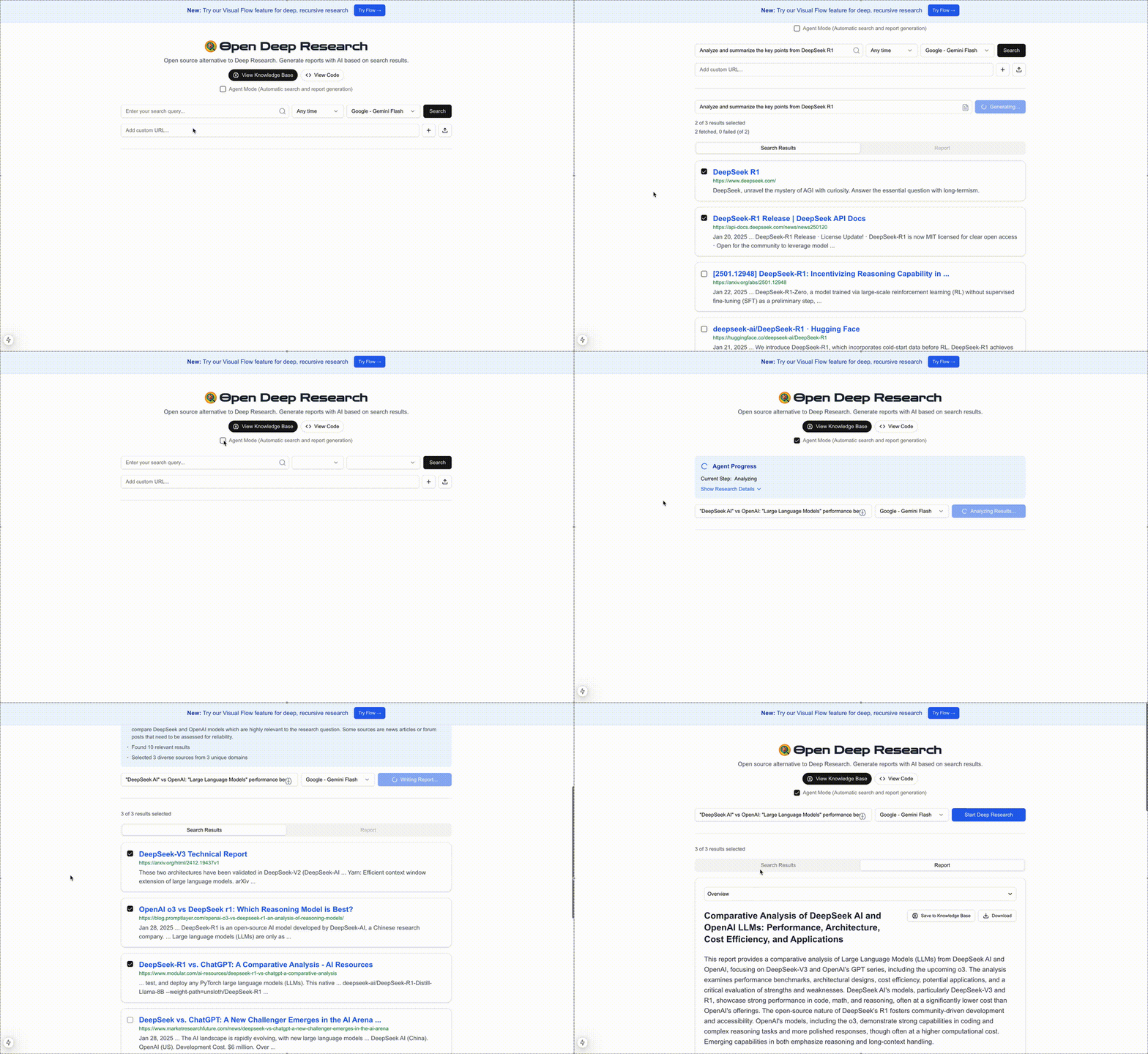
Note: Demo is sped up for brevity
A powerful open-source research assistant that generates comprehensive AI-powered reports from web search results. Unlike other Deep Research solutions, it provides seamless integration with multiple AI platforms including Google, OpenAI, Anthropic, DeepSeek, and even local models - giving you the freedom to choose the perfect AI model for your specific research requirements.
This app functions in three key steps:
- Search Results Retrieval: Using either Google Custom Search or Bing Search API (configurable), the app fetches comprehensive search results for the specified search term.
- Content Extraction: Leveraging JinaAI, it retrieves and processes the contents of the selected search results, ensuring accurate and relevant information.
- Report Generation: With the curated search results and extracted content, the app generates a detailed report using your chosen AI model (Gemini, GPT-4, Sonnet, etc.), providing insightful and synthesized output tailored to your custom prompts.
- Knowledge Base: Save and access your generated reports in a personal knowledge base for future reference and easy retrieval.
Open Deep Research combines powerful tools to streamline research and report creation in a user-friendly, open-source platform. You can customize the app to your needs (select your preferred search provider, AI model, customize prompts, update rate limits, and configure the number of results both fetched and selected).
Features
- 🔍 Flexible web search with Google or Bing APIs
- ⏱️ Time-based filtering of search results
- 📄 Content extraction from web pages
- 🤖 Multi-platform AI support (Google Gemini, OpenAI GPT, Anthropic Sonnet)
- 🎯 Flexible model selection with granular configuration
- 📊 Multiple export formats (PDF, Word, Text)
- 🧠 Knowledge Base for saving and accessing past reports
- ⚡ Rate limiting for stability
- 📱 Responsive design
Local File Support
The app supports analyzing local files for research and report generation. You can:
- Upload TXT, PDF, and DOCX files directly through the interface
- Process local documents alongside web search results
- Generate reports from local files without requiring web search
- Combine insights from both local files and web sources
To use local files:
- Click the upload button (⬆️) in the search interface
- Select your file (supported formats: TXT, PDF, DOCX)
- The file will appear as a custom source in your results
- Select it and click "Generate Report" to analyze its contents
Knowledge Base
The Knowledge Base feature allows you to:
- Save generated reports for future reference (reports are saved in the browser's local storage)
- Access your research history
- Quickly load and review past reports
- Build a personal research library over time
Flow: Deep Research & Report Consolidation
🎥 Watch the full demo video on Loom
The Flow feature enables deep, recursive research by allowing you to:
- Create visual research flows with interconnected reports
- Generate follow-up queries based on initial research findings
- Dive deeper into specific topics through recursive exploration
- Consolidate multiple related reports into comprehensive final reports
Key capabilities:
- 🌳 Deep Research Trees: Start with a topic and automatically generate relevant follow-up questions to explore deeper aspects
- 🔄 Recursive Exploration: Follow research paths down various "rabbit holes" by generating new queries from report insights
- 🔍 Visual Research Mapping: See your entire research journey mapped out visually, showing connections between different research paths
- 🎯 Smart Query Generation: AI-powered generation of follow-up research questions based on report content
- 🔗 Report Consolidation: Select multiple related reports and combine them into a single, comprehensive final report
- 📊 Interactive Interface: Drag, arrange, and organize your research flows visually
The Flow interface makes it easy to:
- Start with an initial research query
- Review and select relevant search results
- Generate detailed reports from selected sources
- Get AI-suggested follow-up questions for deeper exploration
- Create new research branches from those questions
- Finally, consolidate related reports into comprehensive summaries
This feature is perfect for:
- Academic research requiring deep exploration of interconnected topics
- Market research needing multiple angles of investigation
- Complex topic analysis requiring recursive deep dives
- Any research task where you need to "follow the thread" of information
Configuration
The app's settings can be customized through the configuration file at lib/config.ts. Here are the key parameters you can adjust:
Rate Limits
Control rate limiting and the number of requests allowed per minute for different operations:
rateLimits: {
  enabled: true,         // Enable/disable rate limiting (set to false to skip Redis setup)
  search: 5,            // Search requests per minute
  contentFetch: 20,     // Content fetch requests per minute
  reportGeneration: 5,  // Report generation requests per minute
}
Note: If you set enabled: false, you can run the application without setting up Redis. This is useful for local development or when you don't need rate limiting.
Search Provider Configuration
The app supports both Google Custom Search and Bing Search APIs. You can configure your preferred search provider in lib/config.ts:
search: {
  resultsPerPage: 10,
  maxSelectableResults: 3,
  provider: 'google', // 'google' or 'bing'
  safeSearch: {
    google: 'active',  // 'active' or 'off'
    bing: 'moderate'   // 'moderate', 'strict', or 'off'
  },
  market: 'en-US',
}
To use Google Custom Search:
- Get your API key from Google Cloud Console
- Create a Custom Search Engine and get your CX ID from Google Programmable Search
- Add the credentials to your
.env.localfile:
GOOGLE_SEARCH_API_KEY="your-api-key"
GOOGLE_SEARCH_CX="your-cx-id"
To use Bing Search:
- Get your API key from Azure Portal
- Add the credential to your
.env.localfile:
AZURE_SUB_KEY="your-azure-key"
Knowledge Base
The Knowledge Base feature allows you to build a personal research library by:
- Saving generated reports with their original search queries
- Accessing and loading past reports instantly
- Building a searchable archive of your research
- Maintaining context across research sessions
Reports saved to the Knowledge Base include:
- The full report content with all sections
- Original search query and prompt
- Source URLs and references
- Generation timestamp
You can access your Knowledge Base through the dedicated button in the UI, which opens a sidebar containing all your saved reports.
AI Platform Settings
Configure which AI platforms and models are available. The app supports multiple AI platforms (Google, OpenAI, Anthropic, DeepSeek) with various models for each platform. You can enable/disable platforms and individual models based on your needs:
platforms: {
  google: {
    enabled: true,
    models: {
      'gemini-flash': {
        enabled: true,
        label: 'Gemini Flash',
      },
      'gemini-flash-thinking': {
        enabled: true,
        label: 'Gemini Flash Thinking',
      },
      'gemini-exp': {
        enabled: false,
        label: 'Gemini Exp',
      },
    },
  },
  openai: {
    enabled: true,
    models: {
      'gpt-4o': {
        enabled: false,
        label: 'GPT-4o',
      },
      'o1-mini': {
        enabled: false,
        label: 'o1-mini',
      },
      'o1': {
        enabled: false,
        label: 'o1',
      },
    },
  },
  anthropic: {
     enabled: true,
    models: {
      'claude-3-7-sonnet-latest': {
        enabled: false,
        label: 'Claude 3.7 Sonnet',
      },
      'claude-3-5-haiku-latest': {
        enabled: false,
        label: 'Claude 3.5 Haiku',
      },
    },
  },
  deepseek: {
    enabled: true,
    models: {
      'chat': {
        enabled: false,
        label: 'DeepSeek V3',
      },
      'reasoner': {
        enabled: false,
        label: 'DeepSeek R1',
      },
    },
  },
  openrouter: {
    enabled: true,
    models: {
      'openrouter/auto': {
        enabled: false,
        label: 'Auto',
      },
    },
  },
}
For each platform:
enabled: Controls whether the platform is available- For each model:
enabled: Controls whether the specific model is selectablelabel: The display name shown in the UI
Disabled models will appear grayed out in the UI but remain visible to show all available options. This allows users to see the full range of available models while clearly indicating which ones are currently accessible.
To modify these settings, update the values in lib/config.ts. The changes will take effect after restarting the development server.
OpenRouter Integration
OpenRouter provides access to various AI models through a unified API. By default, it's set to 'auto' mode which automatically selects the most suitable model, but you can configure it to use specific models of your choice by modifying the models section in the configuration.
Important Note for Reasoning Models
When using advanced reasoning models like OpenAI's o1 or DeepSeek Reasoner, you may need to increase the serverless function duration limit as these models typically take longer to generate comprehensive reports. The default duration might not be sufficient.
For Vercel deployments, you can increase the duration limit in your vercel.json:
{
  "functions": {
    "app/api/report/route.ts": {
      "maxDuration": 120
    }
  }
}
Or modify the duration in your route file:
// In app/api/report/route.ts
export const maxDuration = 120 // Set to 120 seconds or higher
Note: The maximum duration limit may vary based on your hosting platform and subscription tier.
Local Models with Ollama
The app supports local model inference through Ollama integration. You can:
- Install Ollama on your machine
- Pull your preferred models using
ollama pull model-name - Configure the model in
lib/config.ts:
platforms: {
  ollama: {
    enabled: true,
    models: {
      'your-model-name': {
        enabled: true,
        label: 'Your Model Display Name'
      }
    }
  }
}
Local models through Ollama bypass rate limiting since they run on your machine. This makes them perfect for development, testing, or when you need unlimited generations.
Getting Started
Prerequisites
- Node.js 20+
- npm, yarn, pnpm, or bun
Installation
- Clone the repository:
git clone https://github.com/btahir/open-deep-research
cd open-deep-research
- Install dependencies:
npm install
# or
yarn install
# or
pnpm install
# or
bun install
- Create a
.env.localfile in the root directory:
# Google Gemini Pro API key (required for AI report generation)
GEMINI_API_KEY=your_gemini_api_key

# OpenAI API key (optional - required only if OpenAI models are enabled)
OPENAI_API_KEY=your_openai_api_key

# Anthropic API key (optional - required only if Anthropic models are enabled)
ANTHROPIC_API_KEY=your_anthropic_api_key

# DeepSeek API key (optional - required only if DeepSeek models are enabled)
DEEPSEEK_API_KEY=your_deepseek_api_key

# OpenRouter API Key (Optional - if using OpenRouter as AI platform)
OPENROUTER_API_KEY="your-openrouter-api-key"

# Upstash Redis (required for rate limiting)
UPSTASH_REDIS_REST_URL=your_upstash_redis_url
UPSTASH_REDIS_REST_TOKEN=your_upstash_redis_token

# Bing Search API (Optional - if using Bing as search provider)
AZURE_SUB_KEY="your-azure-subscription-key"

# Google Custom Search API (Optional - if using Google as search provider)
GOOGLE_SEARCH_API_KEY="your-google-search-api-key"
GOOGLE_SEARCH_CX="your-google-search-cx"

# EXA API Key (Optional - if using EXA as search provider)
EXA_API_KEY="your-exa-api-key"
Note: You only need to provide API keys for the platforms you plan to use. If a platform is enabled in the config but its API key is missing, those models will appear disabled in the UI.
Running the Application
You can run the application either directly on your machine or using Docker.
Option 1: Traditional Setup
- Start the development server:
npm run dev
# or
yarn dev
# or
pnpm dev
# or
bun dev
- Open http://localhost:3000 in your browser.
Option 2: Docker Setup
If you prefer using Docker, you can build and run the application in a container after setting up your environment variables:
- Build the Docker image:
docker build -t open-deep-research:v1 .
- Run the container:
docker run -p 3000:3000 open-deep-research
The application will be available at http://localhost:3000.
Getting API Keys
Azure Bing Search API
- Go to Azure Portal
- Create a Bing Search resource
- Get the subscription key from "Keys and Endpoint"
Google Custom Search API
You'll need two components to use Google Custom Search:
-
Get API Key:
- Visit Get a Key page
- Follow the prompts to get your API key
- Copy it for the
GOOGLE_SEARCH_API_KEYenvironment variable
-
Get Search Engine ID (CX):
- Visit Programmable Search Engine Control Panel
- Create a new search engine
- After creation, find your Search Engine ID in the "Overview" page's "Basic" section
- Copy the ID (this is the
cxparameter) for theGOOGLE_SEARCH_CXenvironment variable
EXA API Key
- Visit EXA Platform
- Sign up or log in to your account
- Go to API Keys section
- Create a new API key
Google Gemini API Key
- Visit Google AI Studio
- Create an API key
- Copy the API key
OpenAI API Key
- Visit OpenAI Platform
- Sign up or log in to your account
- Go to API Keys section
- Create a new API key
Anthropic API Key
- Visit Anthropic Console
- Sign up or log in to your account
- Go to API Keys section
- Create a new API key
DeepSeek API Key
- Visit DeepSeek Platform
- Sign up or log in to your account
- Go to API Keys section
- Create a new API key
OpenRouter API Key
- Visit OpenRouter Platform
- Sign up or log in to your account
- Go to API Keys section
- Create a new API key
Upstash Redis
- Sign up at Upstash
- Create a new Redis database
- Copy the REST URL and REST Token
Tech Stack
- Next.js 15 - React framework
- TypeScript - Type safety
- Tailwind CSS - Styling
- shadcn/ui - UI components
- JinaAI - Content extraction
- Azure Bing Search - Web search
- Google Custom Search - Web search
- Upstash Redis - Rate limiting
- jsPDF & docx - Document generation
The app will use the configured provider (default: Google) for all searches. You can switch providers by updating the provider value in the config file.
Demo
Try it out at: Open Deep Research
Contributing
Pull requests are welcome. For major changes, please open an issue first to discuss what you would like to change.
License
Acknowledgments
- Inspired by Google's Gemini Deep Research feature
- Built with amazing open source tools and APIs
Follow Me
If you're interested in following all the random projects I'm working on, you can find me on Twitter: