StoryGen Atelier
AI-assisted storyboard and video generation tool. Uses Gemini for generating storyboard text and frames, Vertex AI Veo for generating transition clips, and ffmpeg for stitching the final video. Built-in logs and gallery management.
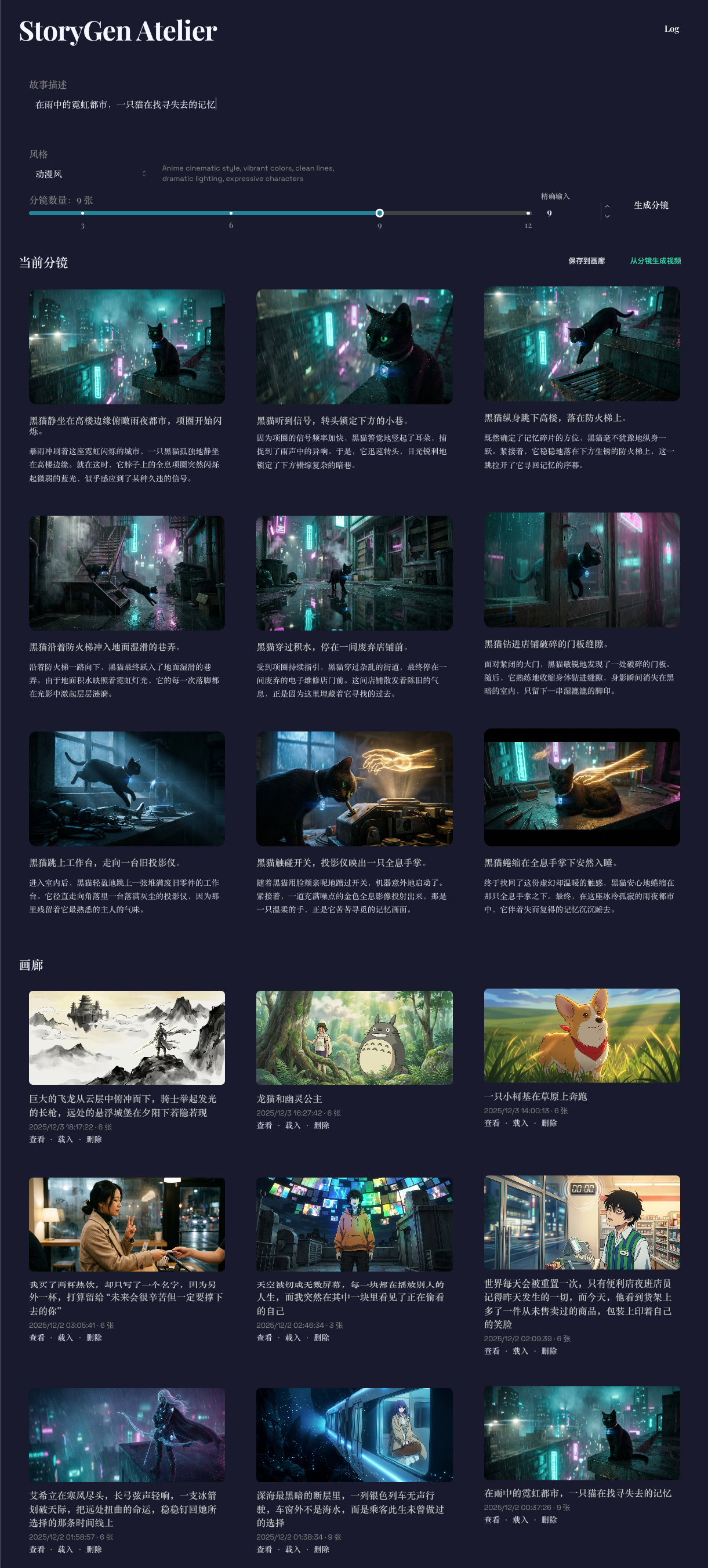
Features
- Storyboard Generation: Gemini text model generates storyboard scripts, and Gemini image model generates frames; supports custom styles and shot counts.
- Video Generation: Based on the Interpolation Chain of the storyboard, calls Vertex Veo to generate clips and stitches them into a full video using ffmpeg.
- Logs Dashboard: Video logs + Storyboard logs (SQLite persistence), supports viewing, exporting, and clearing.
- Gallery: Save, load, and delete generated storyboards + videos.
- Prompt Guide: Built-in
guide/VideoGenerationPromptGuide.mdfor model prompting reference.
Core Technology: Video Generation & Stitching Algorithm
This project uses an "Interpolation Chain" (Sliding Window) strategy to transform static storyboard images into a coherent video story. The process is fully automated and consists of three main phases:
1. Transition Analysis - Gemini
The system first iterates through the storyboard list using a sliding window to process each pair of adjacent shots (Shot A → Shot B).
- Intelligent Analysis: Calls the Gemini model to analyze the visual content of Shot A and Shot B.
- Instruction Generation: Gemini outputs a specific Transition Prompt and a suggested Duration, detailing how to smoothly transition from the first frame to the second (e.g., "Slow dolly zoom in while panning right...").
2. Clip Generation - Vertex AI Veo
Based on the analysis from step 1, Vertex AI (Veo model) is called in parallel to generate video clips.
- Intermediate Transitions: For each pair of shots (A, B), the Gemini-generated prompt + Shot A (start frame) + Shot B (end frame) are sent to Veo to generate a connecting video clip.
- Closing Shot: For the final shot (Shot N), the system generates a separate "Closing Shot" clip, using prompts like "Hold on the final frame with a gentle cinematic finish" to give the story an elegant static or subtle ending.
3. Final Assembly - FFmpeg
Once all clips (transition clips + closing clip) are generated, the backend uses FFmpeg for lossless stitching.
- Sequence Assembly: All generated
.mp4clips are written to a list in chronological order. - Stream Copy: Uses the
concatprotocol and copy mode (-c copy) to quickly merge video streams, avoiding quality loss from re-encoding, and finally outputs the completefull_story_xxx.mp4file.
Tech Stack
- Frontend: React, Vite, Mantine UI (Component Library)
- Backend: Node.js (Express), better-sqlite3 (High-performance data storage), fluent-ffmpeg (Video stitching)
- AI Services: Google Gemini (Text/Image), Google Vertex AI Veo (Video Generation)
Directory Structure
backend/    Node.js + Express API, calls Gemini/Vertex, manages logs & data
frontend/   React + Vite + Mantine UI
guide/      Prompt guides
exampleImg/ Example storyboard frames for README (exported from local data)
backend.log / frontend.log Runtime logs
Requirements
- Node.js 18+, npm
- ffmpeg
- Google Cloud Project: Must enable Vertex AI API (Veo model used for video generation)
- Gemini API Key: Used for storyboard script and image generation
- MiniMax API Key (optional): Switch text, frames, or clips to MiniMax-M3 / image-01 / MiniMax-H3
Environment Variables
Configure in backend/.env (copy from .env.example):
PORT=3005
GEMINI_API_KEY=your_gemini_api_key
GEMINI_TEXT_MODEL=gemini-3-pro-preview
GEMINI_IMAGE_MODEL=gemini-3-pro-image-preview
# Vertex AI (Required for video generation)
VERTEX_PROJECT_ID=your_gcp_project_id
VERTEX_LOCATION=us-central1
VERTEX_VEO_MODEL=veo-3.1-generate-preview

# MiniMax (optional text / image / video provider)
MINIMAX_API_KEY=
MINIMAX_API_REGION=global_en   # global_en -> api.minimax.io, cn_zh -> api.minimaxi.com
LLM_PROVIDER=                  # "minimax" routes storyboard + transition text to MiniMax-M3
MINIMAX_TEXT_MODEL=MiniMax-M3
IMAGE_PROVIDER=                # "minimax" uses image-01 for storyboard frames
MINIMAX_IMAGE_MODEL=image-01
VIDEO_PROVIDER=                # "minimax" generates clips with MiniMax-H3 instead of Vertex Veo
MINIMAX_VIDEO_MODEL=MiniMax-H3
MINIMAX_VIDEO_RESOLUTION=2K
MiniMax is optional: leave LLM_PROVIDER / IMAGE_PROVIDER / VIDEO_PROVIDER empty to keep Gemini and Vertex, and image/video switch to MiniMax automatically once MINIMAX_API_KEY is set. backend/.env.example lists the remaining knobs (M3 thinking control, regional/host overrides, duration/ratio, callback URL).
Quick Start (Recommended)
No need to start backend and frontend separately. Run from the root directory:
# Grant execution permission (only needed once)
chmod +x start_servers.sh
# Start servers
./start_servers.sh
On macOS you can also double-click start_macos.command (run chmod +x once). The script will:
- Check Node.js 18+ / npm (and warn when ffmpeg is missing)
- Install backend + frontend dependencies automatically on the first run
- Start the backend API on port 3005 and the frontend on port 5180
- Wait until both ports answer before printing the URL; logs go to
backend.log/frontend.log
On failure it prints the reason plus the tail of the failing log and keeps the window open — the old script backgrounded both servers and exited, so a missing dependency surfaced only as a window that flashed and closed (Cannot find module 'express' stayed hidden in the log).
Manual Install & Start
Backend:
cd backend
npm install
cp .env.example .env  # And fill in real keys
npm run dev           # Or npm start
Frontend (Default port 5180):
cd frontend
npm install
npm run dev
Build:
cd frontend && npm run build
Examples
- Storyboard Style Examples:
- Anime Style Example:
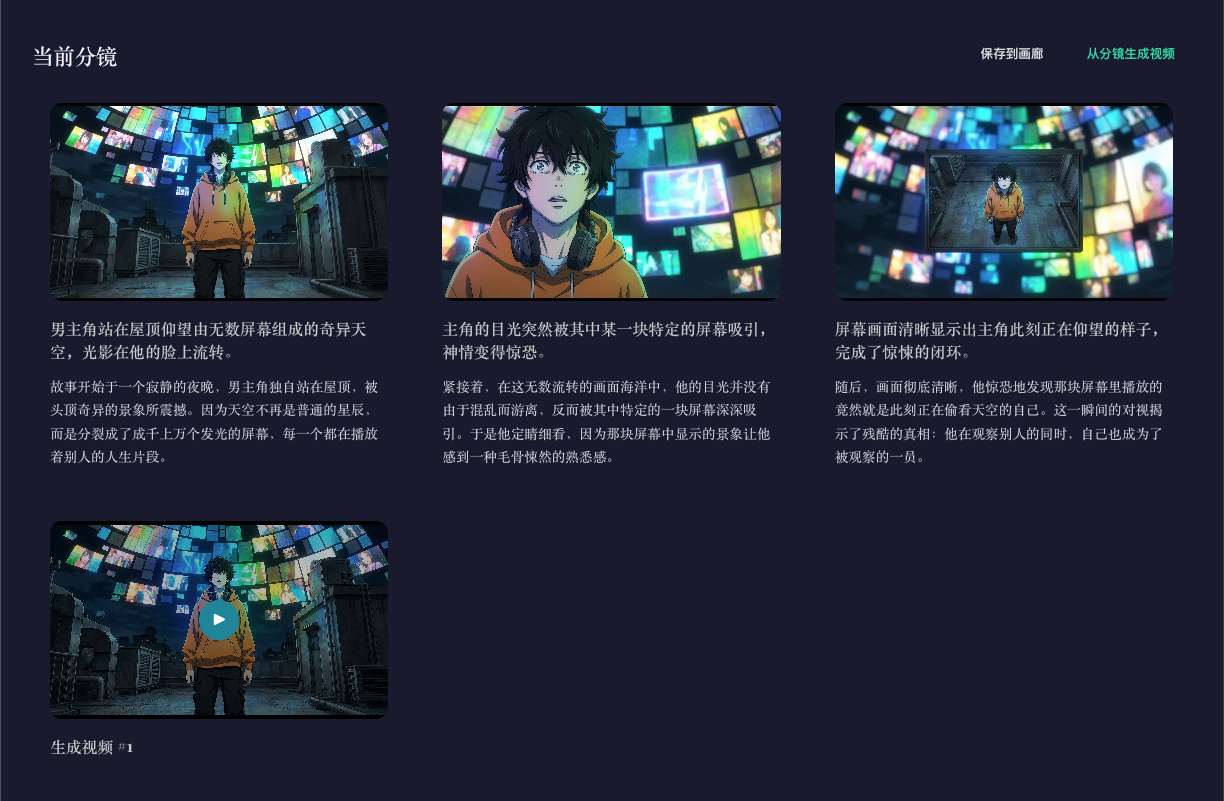
- Anime Style Example:
https://github.com/user-attachments/assets/a70279b0-80f7-4b9a-96fb-173e5912d43a
https://github.com/user-attachments/assets/66bbe81e-34f1-44dd-b648-2a8cb84e5eba
- Cyberpunk Example:
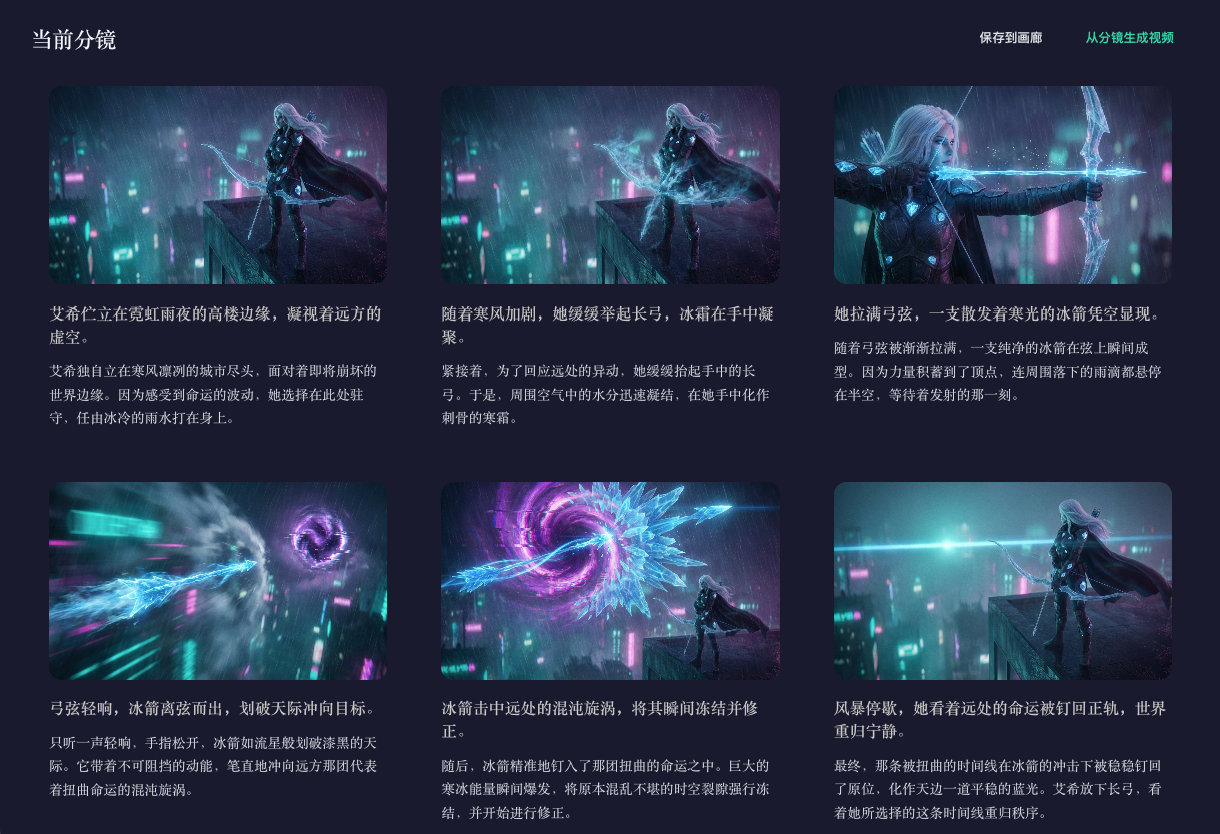
https://github.com/user-attachments/assets/ad56e3c8-c14e-48fb-8366-ad22c4e8ea60
- Ghibli Style Example:
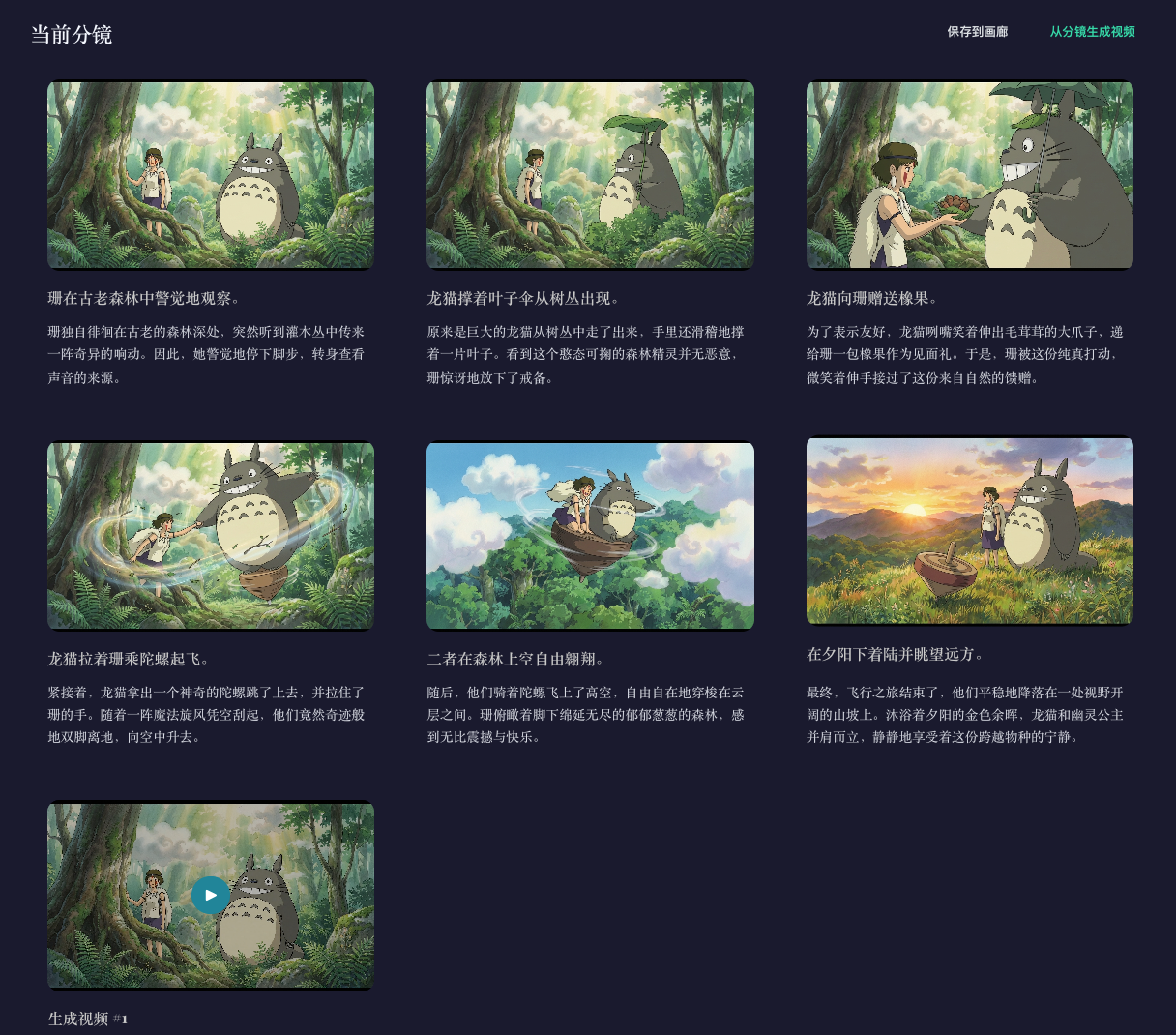
https://github.com/user-attachments/assets/fe6c57fa-0bb5-4c81-8efb-1c7c52011948
- Realism Example:
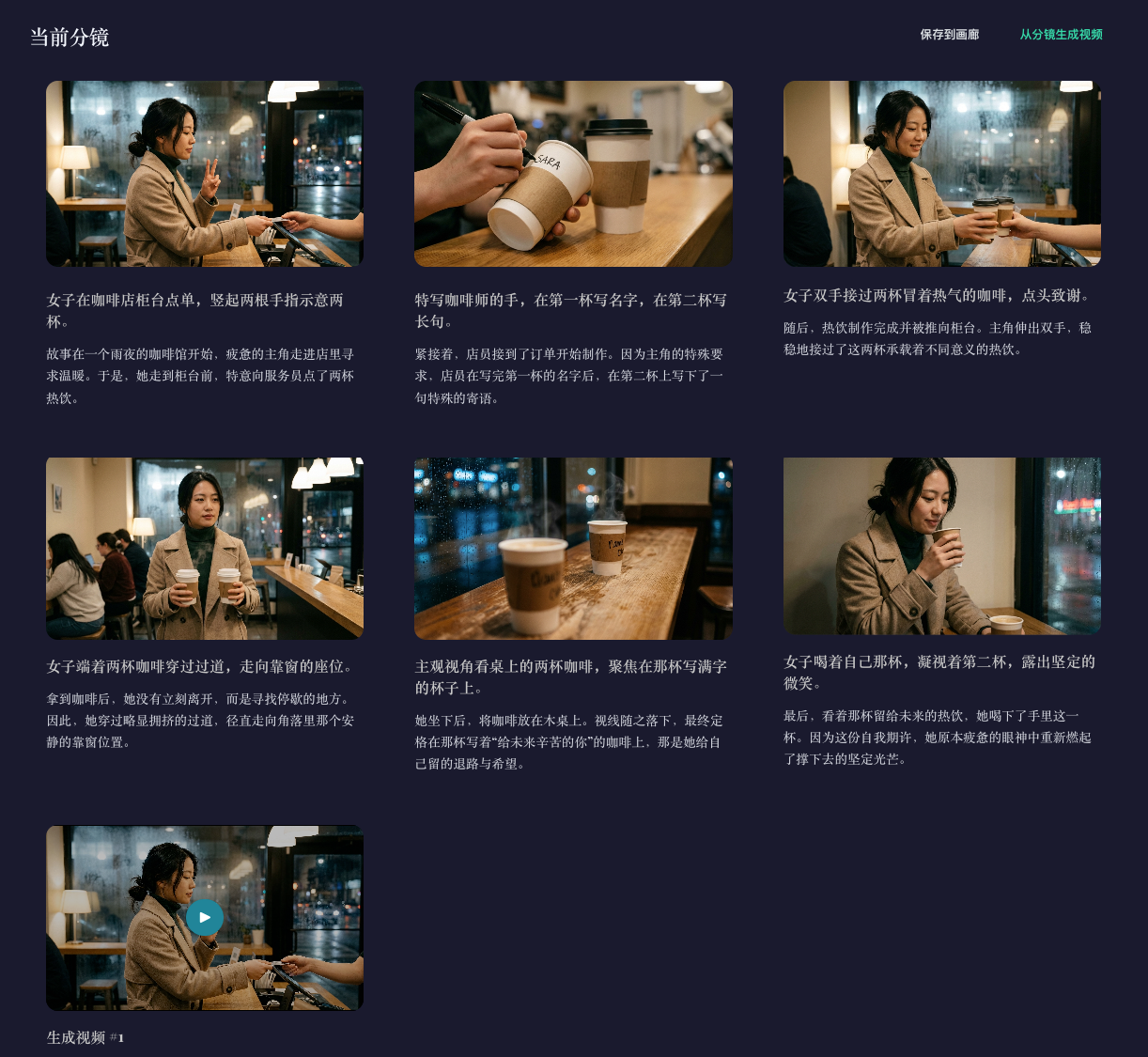
https://github.com/user-attachments/assets/2ca41cbf-2765-4e6b-8e85-8ba0e8e191f5
- Chinese Ink Example:
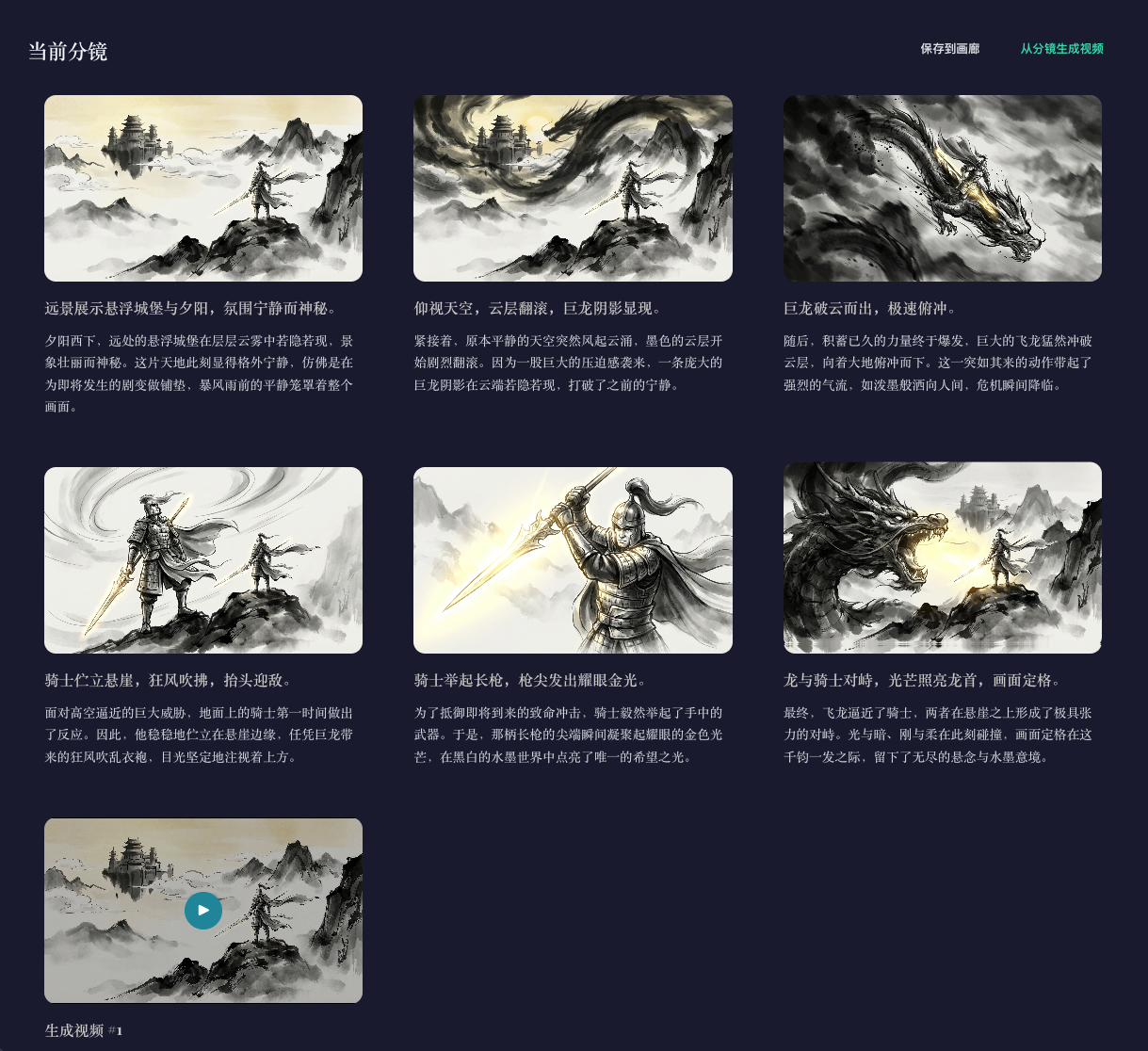
https://github.com/user-attachments/assets/99305353-a348-45ca-add7-f9692bccdc95