Claude Code skill: turn long videos into social-ready clips. Auto-find funny moments, cut, reframe to 9:16 with face-tracking, and burn opus-style captions.
Fast voice assistant powered by Groq, Cartesia, and Vercel.
Key parameters and specifications
Key parameters and specifications
Parameter
Value
Language
Rust
Category
Applications
Subcategory
Personal
Keywords
Assistant, MCP, Voice
Stars
592
Forks
82
Contributors
5
Created date
2025-02-26
Updated date
2026-10-06
Stars in 1 day
0
Stars in 7 days
0
Rank
16,427
Previous rank
16,218
Rank change
-209
7-day stars rank
15,526
Previous 7-day stars rank
15,537
7-day stars rank change
11
Total stars rank
16,955
Previous total stars rank
16,932
Total stars rank change
-23
Country
USA
README summary
EchoKit Server EchoKit Server is the central component that manages communication between the EchoKit device and AI services. It can be deployed locally or connected to preset servers, allowing developers to customize LLM endpoints, plan the LLM prompt, configure speech models, and integrate additional AI features like MCP servers. You will need an EchoKit device, or create your own ESP32 device with the EchoKit firmware. Features EchoKit Server powers the full voice–AI interaction loop, making it easy for developers
to run end-to-end speech pipelines with flexible model choices and custom integrations. ASR → LLM → TTS Pipeline Seamlessly connect **ASR → LLM → TTS** for real-time, natural conversations. Each stage can be configured independently with your preferred models or APIs. Model Compatibility **ASR (Speech Recognition):** Works with any API that’s *OpenAI-compatible*. **TTS (Text-to-Speech):** Use any *OpenAI-spec* voice model for flexible deployment. **Note for aarch64 (ARM64) builds:** When cross-compiling for aarch64, the required target feature
is automatically enabled via . If building natively on aarch64, you may need to set: Configure AI services The can use any combination of open-source or proprietary AI services, as long as they offer OpenAI-compatible API endpoints. Here are instructions to start open source AI servers for the EchoKit server. ASR: LLM: Streaming TTS: Alternatively, you could use Google Gemini Live services for VAD + ASR + LLM, and even optionally, TTS. You can also configure MCP servers to give the
EchoKit server tool use capabilities. Configure the voice prompt The file on the server is sent to the EchoKit device when it connects. It is the voice prompt the device will say to tell the user that it is ready. Run the EchoKit server Test on a web page Go here: Click on the link to save the file to your local hard disk. Double click the local file and open it in your browser. In the web page, set
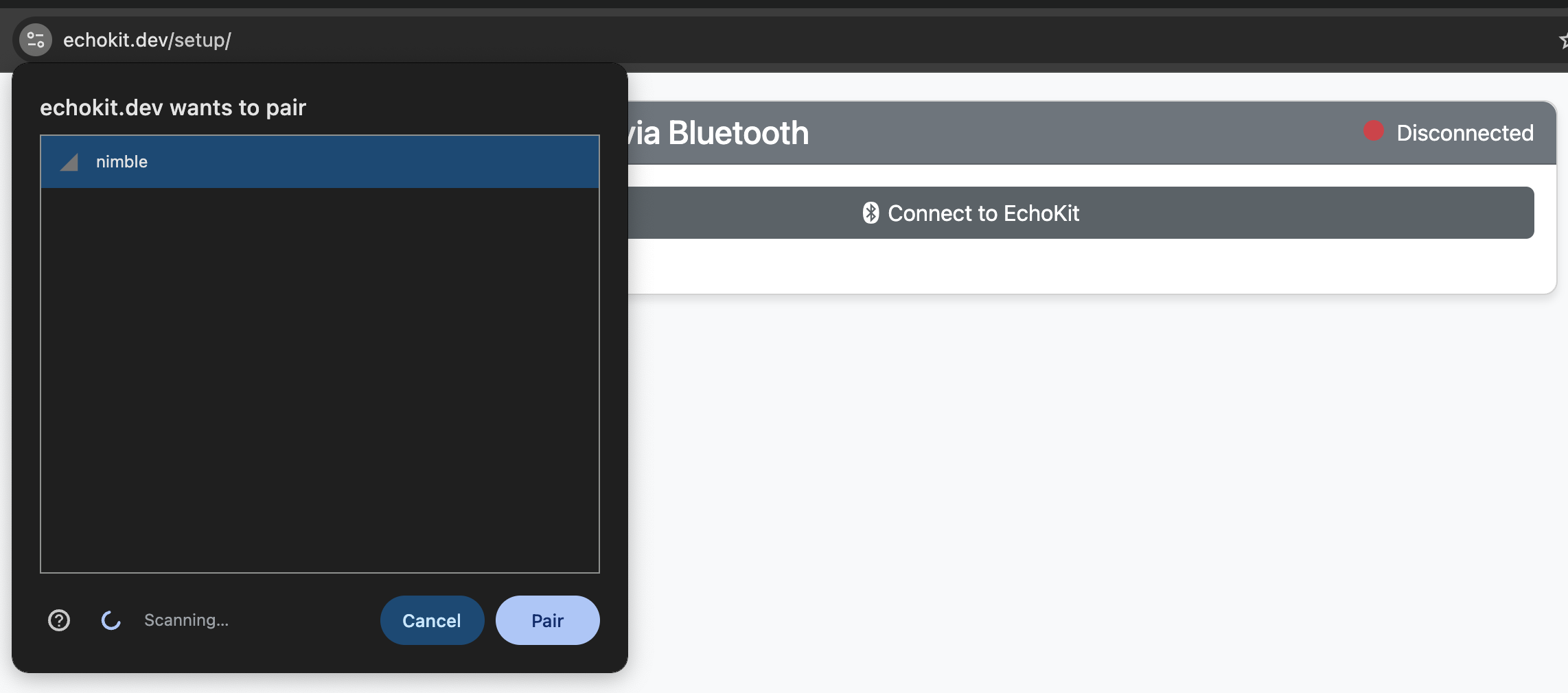
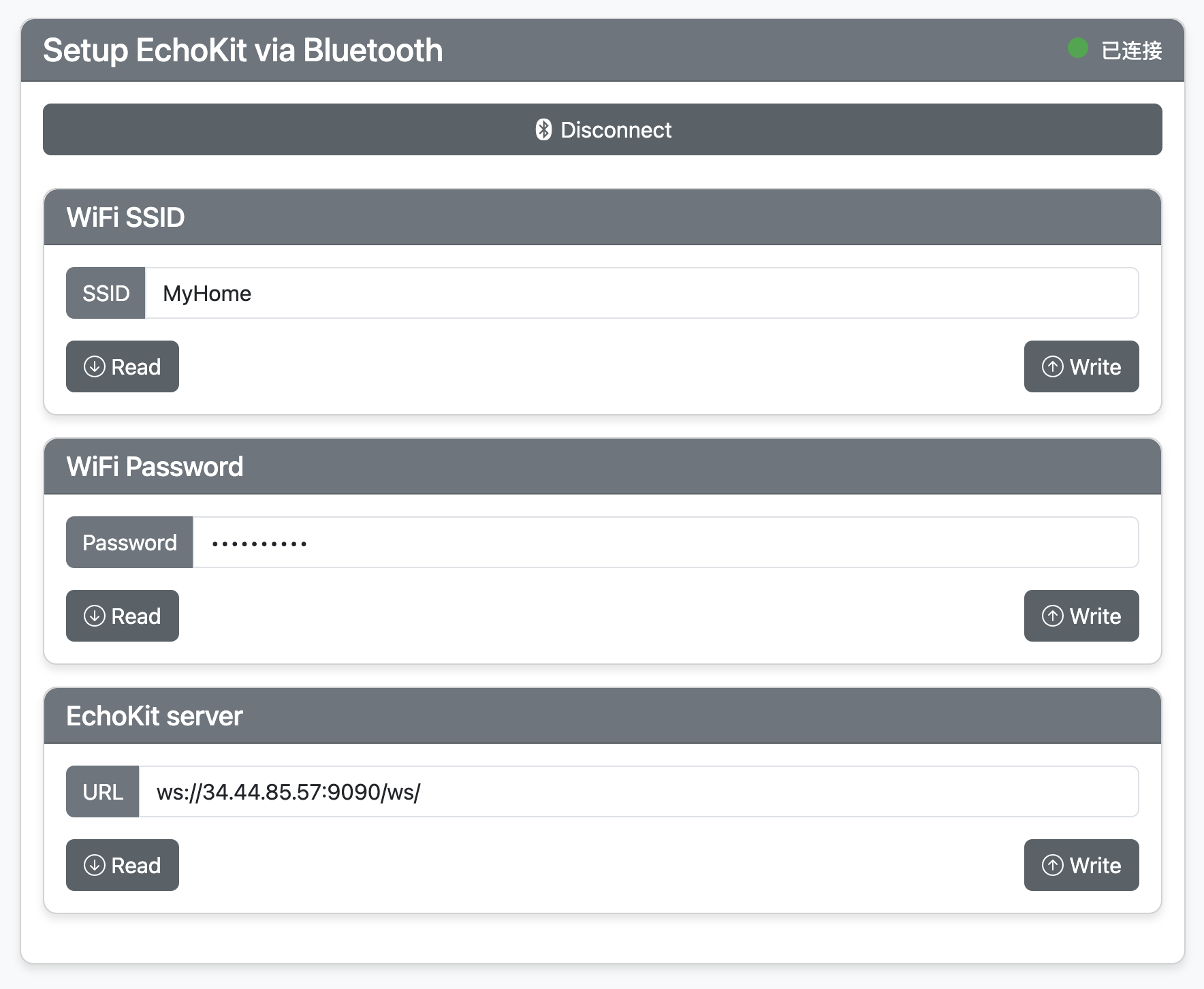
the URL to your own EchoKit server address, and start chatting! Configure a new device Go to web page: and use Bluetooth to connect to the device. , ) Web Socket server URL for Use the device **Chat:** press the button once or multiple times until the status bar shows "Ready". You can now speak and it will show "Listening . The device answers after it decides that you have done speaking. While it is restarting, press and hold to enter the configuration
mode. Then open the configuration UI to connect to the device via BT.
Frequently asked questions
How many stars and forks are recorded?
second-state/echokit_server has 592 stars and 82 forks.
What is the repository rank?
second-state/echokit_server is ranked 16,427.
What language and category are recorded?
second-state/echokit_server has 592 stars, uses Rust and belongs to Applications.
Which repository is closest in rank?
second-state/echokit_server is compared with zhsama/claude-sub-agent, ranked 16,430 with 592 stars.
README
EchoKit Server
EchoKit Server is the central component that manages communication between the EchoKit device and AI services. It can be deployed locally or connected to preset servers, allowing developers to customize LLM endpoints, plan the LLM prompt, configure speech models, and integrate additional AI features like MCP servers.
EchoKit Server powers the full voice–AI interaction loop, making it easy for developers to run end-to-end speech pipelines with flexible model choices and custom integrations.
ASR → LLM → TTS Pipeline
Seamlessly connect ASR → LLM → TTS for real-time, natural conversations.
Each stage can be configured independently with your preferred models or APIs.
Model Compatibility
ASR (Speech Recognition): Works with any API that’s OpenAI-compatible.
LLM (Language Model): Connect to any OpenAI-spec endpoint — local or cloud.
TTS (Text-to-Speech): Use any OpenAI-spec voice model for flexible deployment.
ElevenLabs (Streaming Mode)
End-to-End Model Pipelines
Out-of-the-box support for:
Gemini — Google’s multimodal model
Qwen Real-Time — Alibaba’s powerful open LLM
Developer Customization
Deploy locally or connect to remote inference servers
Define your own LLM prompts and response workflows
Configure speech and voice models for different personas or use cases
Edit config.toml to customize the VAD, ASR, LLM, TTS services, as well as prompts and MCP servers. You can see many examples.
cargo build --release
Note for aarch64 (ARM64) builds: When cross-compiling for aarch64, the required fp16 target feature is automatically enabled via .cargo/config.toml. If building natively on aarch64, you may need to set:
The config.toml can use any combination of open-source or proprietary AI services, as long as they offer OpenAI-compatible API endpoints. Here are instructions to start open source AI servers for the EchoKit server.
Alternatively, you could use Google Gemini Live services for VAD + ASR + LLM, and even optionally, TTS. See config.toml examples.
You can also configure MCP servers to give the EchoKit server tool use capabilities.
Configure the voice prompt
The hello.wav file on the server is sent to the EchoKit device when it connects. It is the voice prompt the device will say to tell the user that it is ready.
Chat: press the K0 button once or multiple times until the status bar shows "Ready". You can now speak and it will show "Listening ...". The device answers after it decides that you have done speaking.
Config: press RST. While it is restarting, press and hold K0 to enter the configuration mode. Then open the configuration UI to connect to the device via BT.