
Your On-Device AI Assistant
| Demo | Quick Start | Release | Issues |
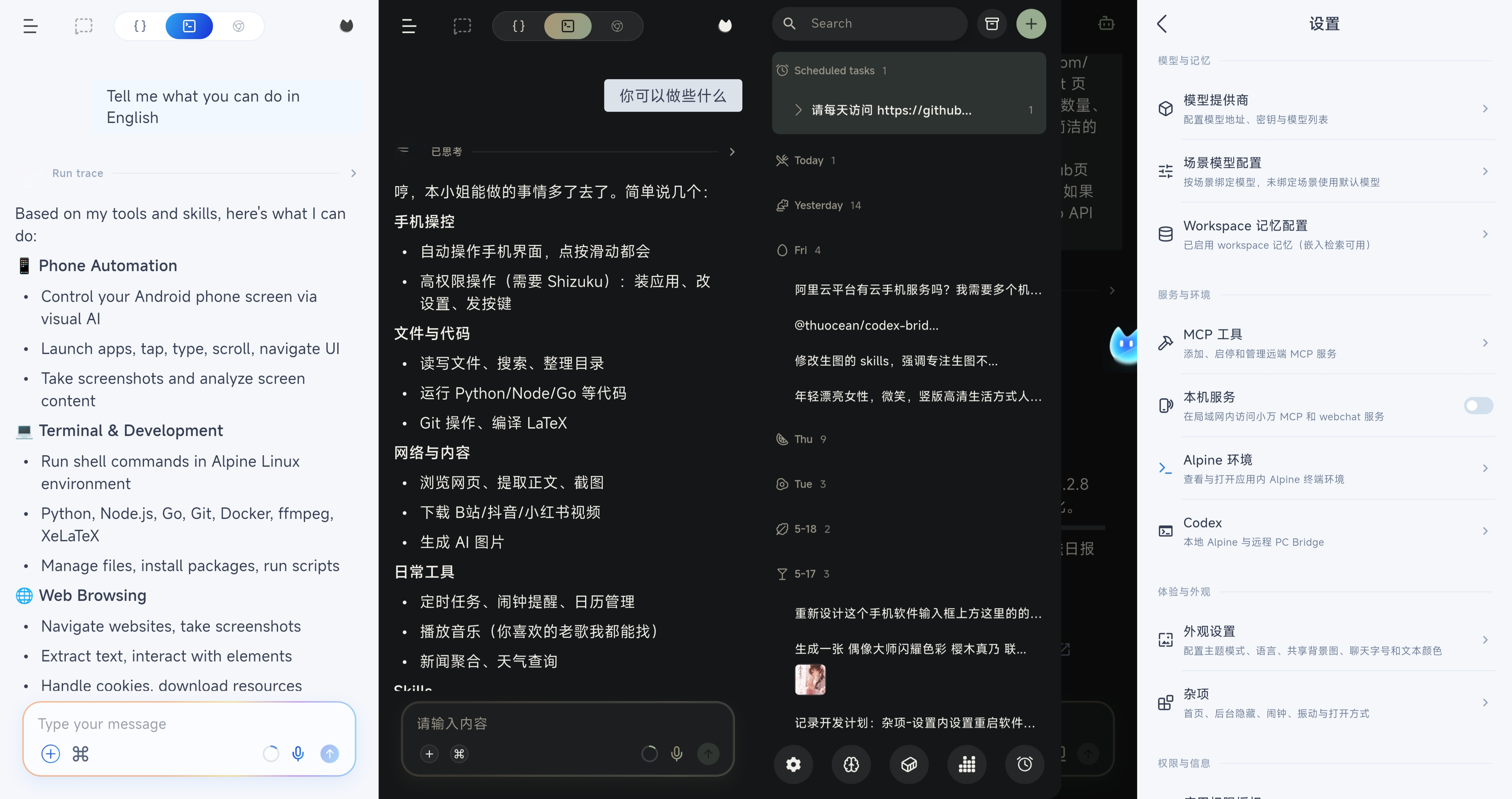
OmniBot runs directly on your Android device and combines chat, agent tools, local workspaces, and system integrations in one app. 🎉 Our iOS & macOS version: ViaVera
OmniBot is an on-device AI agent built with native Android Kotlin and Flutter. Instead of stopping at chat, it focuses on the full loop of understand -> decide -> execute -> reflect.
Core Capabilities
-
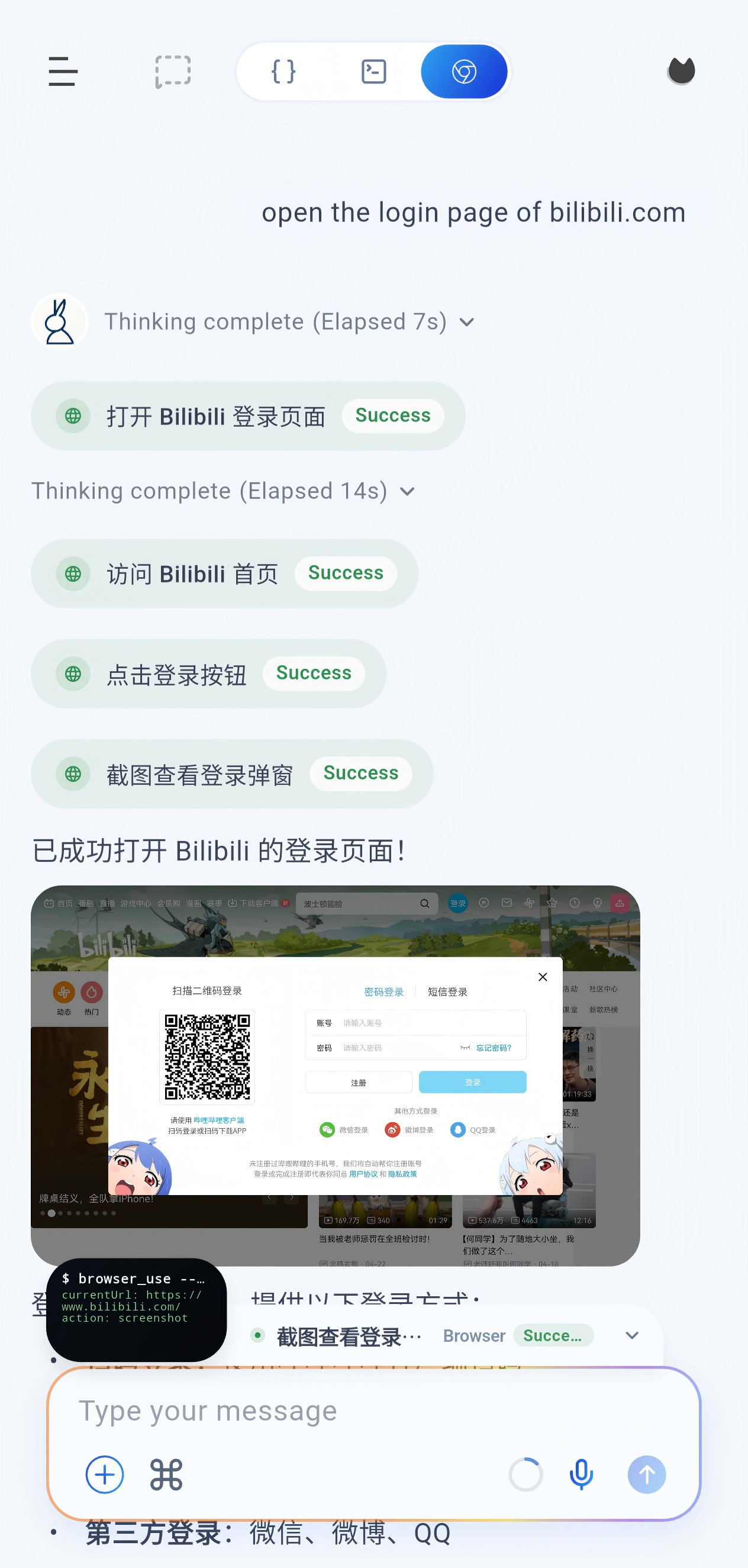
Extensible tool ecosystem: Skills, Alpine environment, browser access, MCP, and Android system-level tools.
-
System-level actions: Supports scheduled tasks, alarms, calendar creation/query/update, and audio playback control.
-
Personal context: Query authorized calendars, contacts, notifications, app usage, location, media, documents, SMS and call history without root, and manage calendar events and contacts.
-
Memory system: Short-term and long-term memory with embedding support.
-
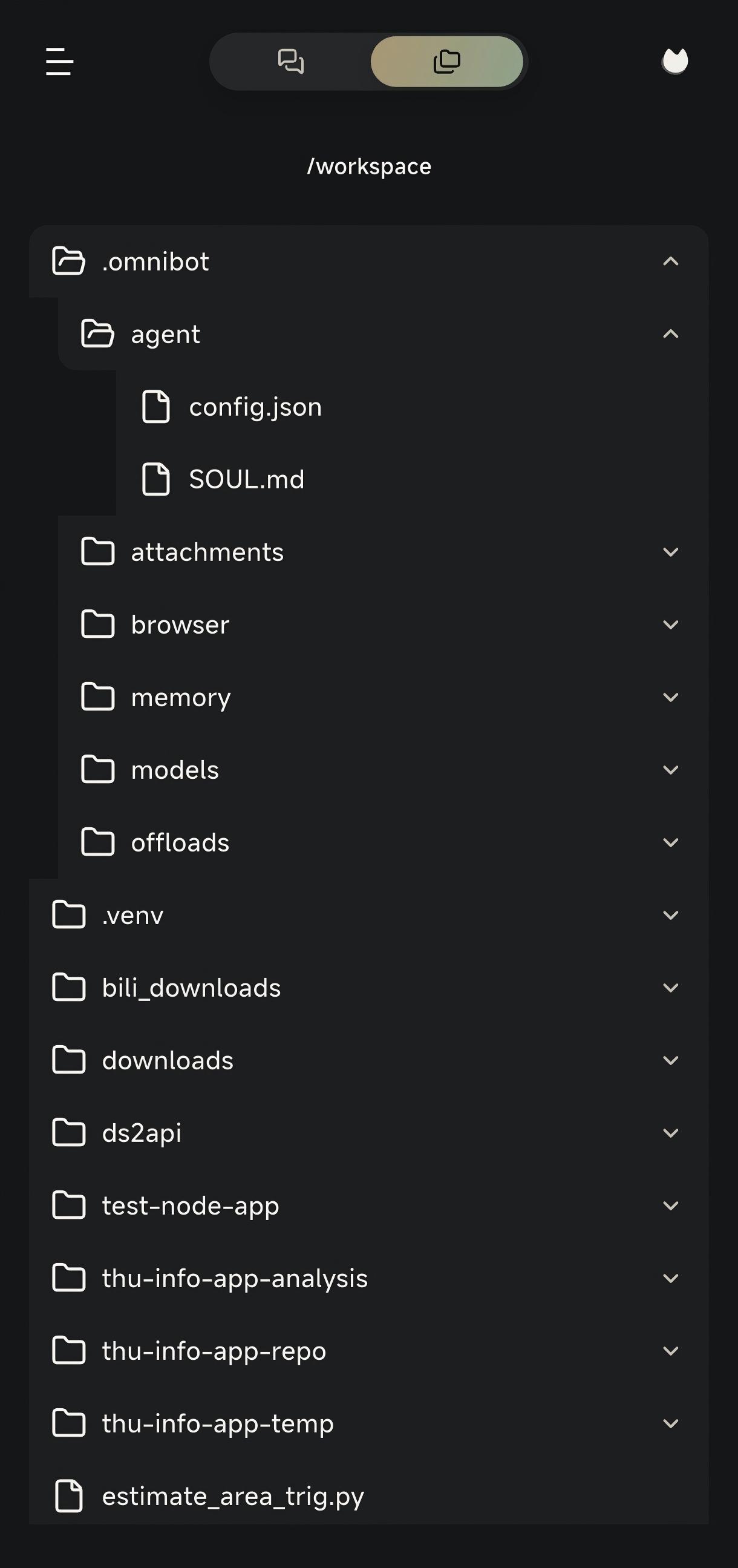
Productivity tools: Read and write files, browse the workspace, use the browser, and access the terminal.
Quick Start
Configure the app
Open the settings page from the left sidebar:
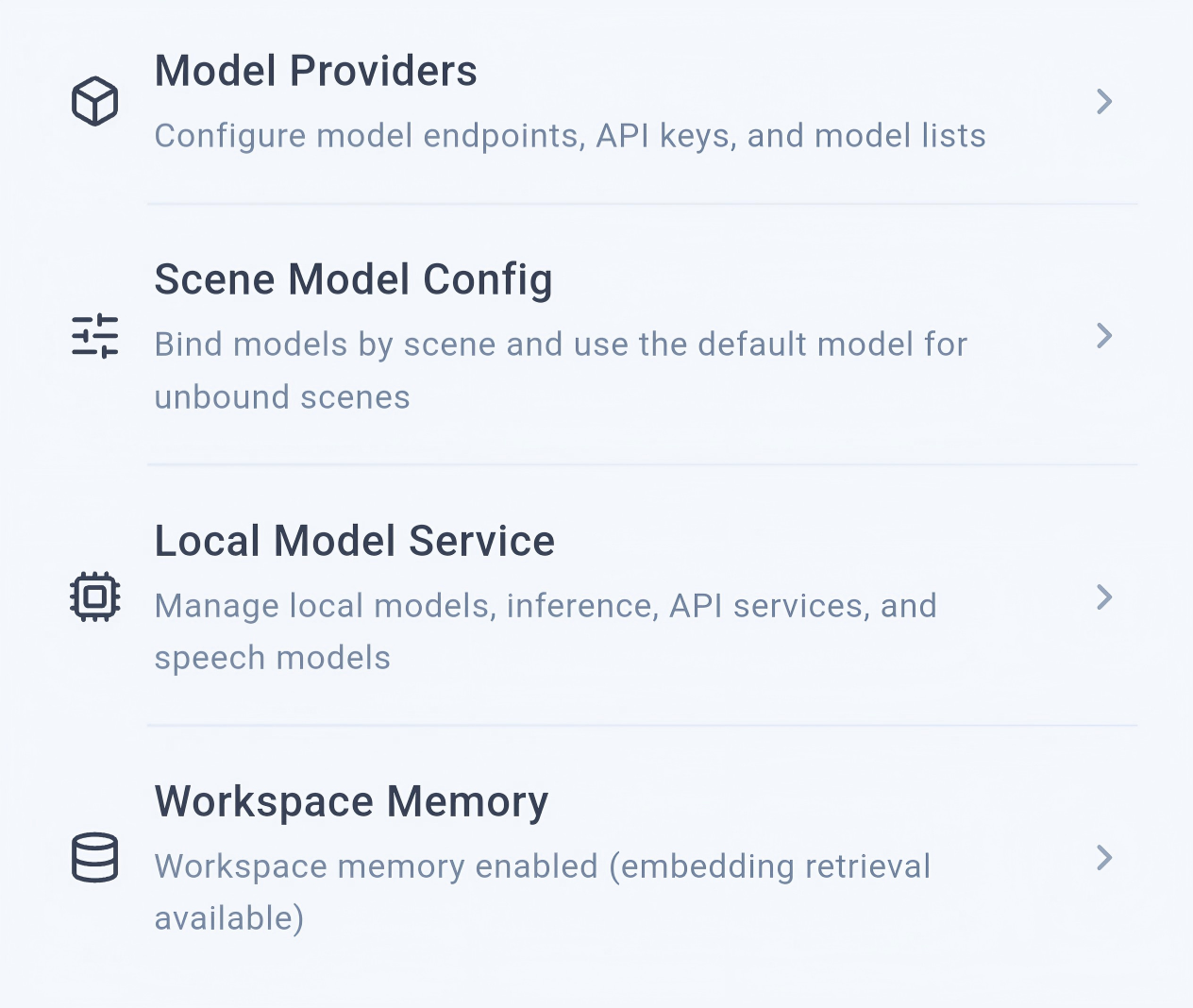
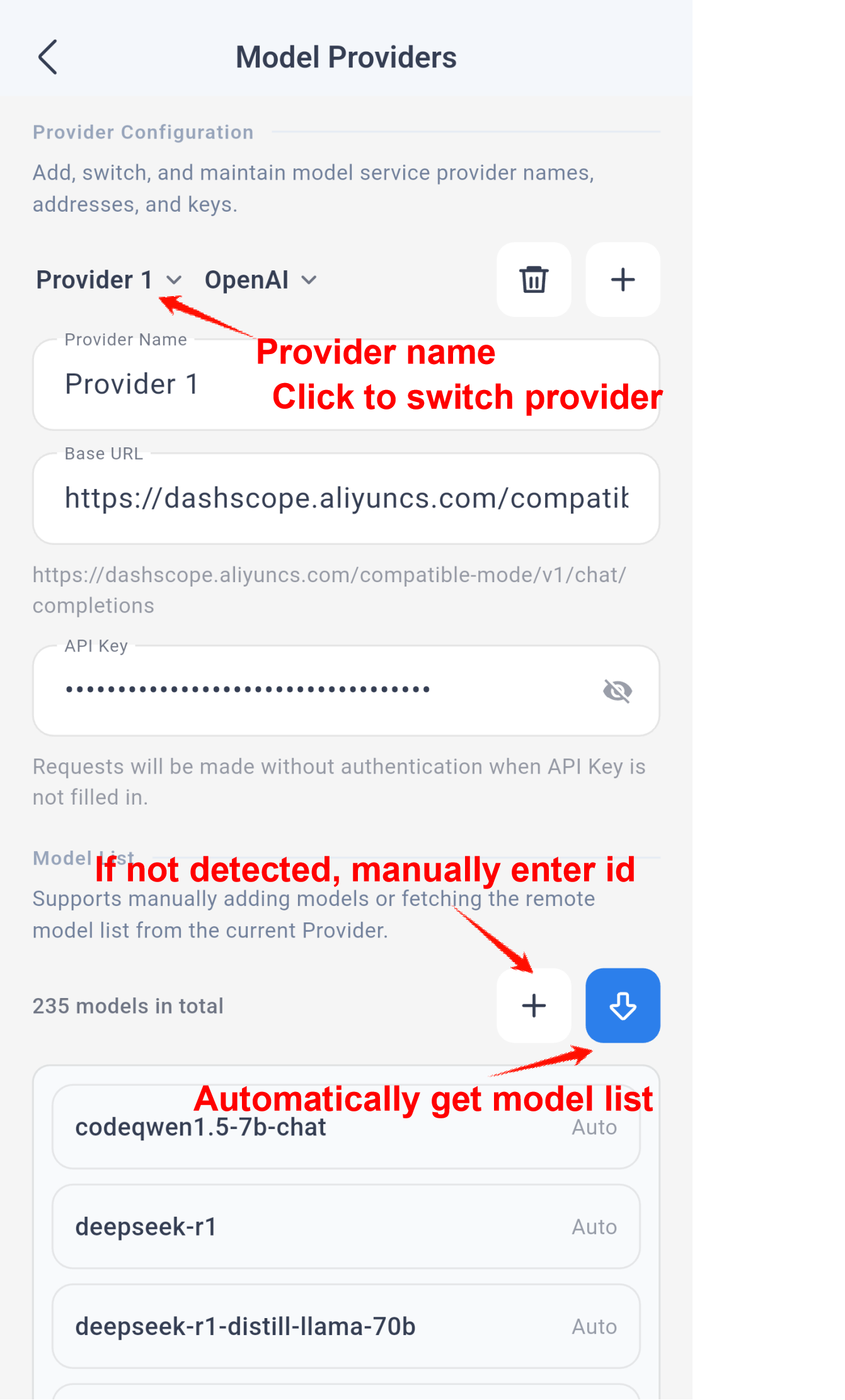
Then open the scenario model settings:
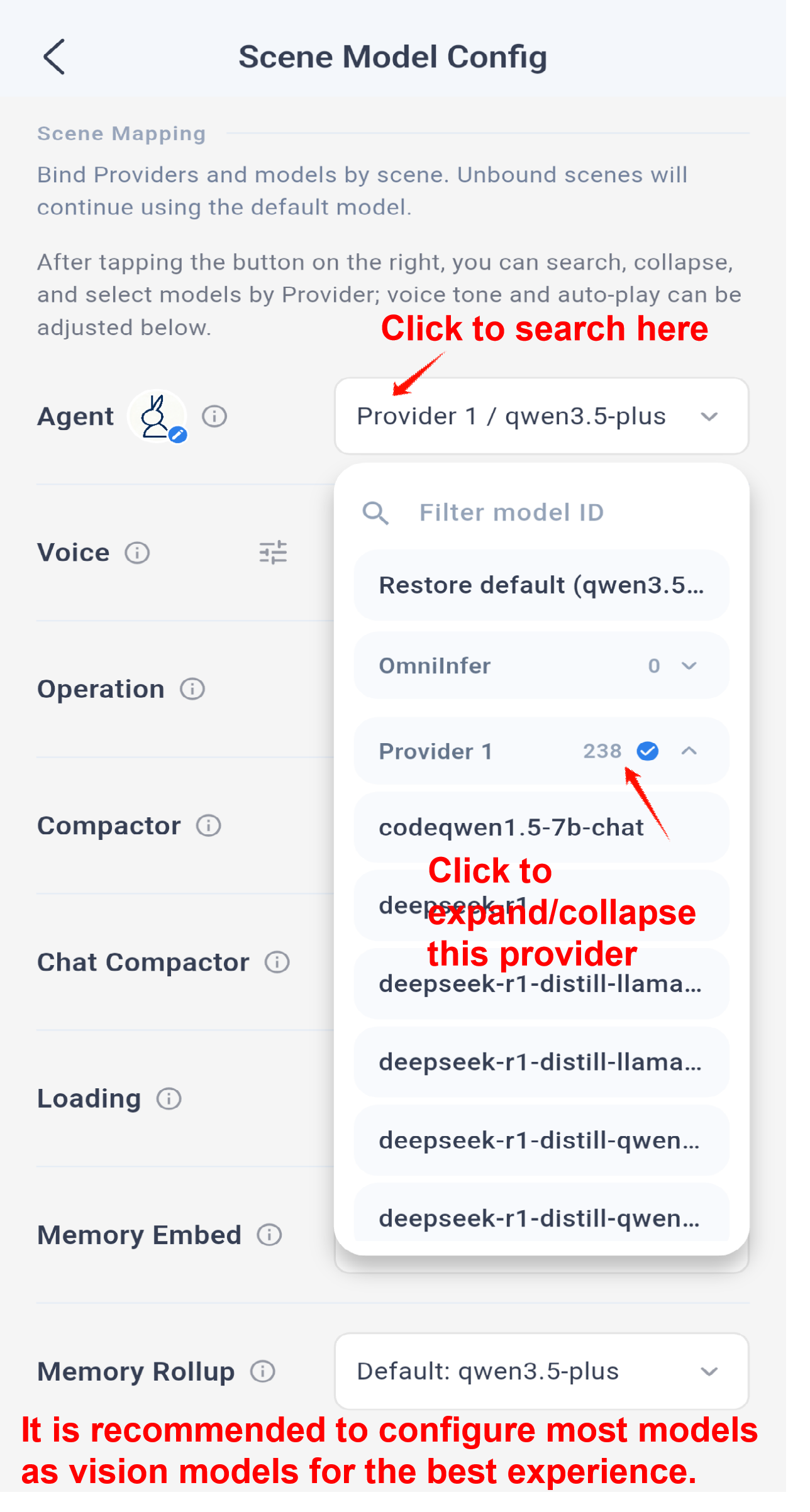
Note: Memory embedding requires an embedding model. For the best overall experience, the other scenarios should use multimodal or vision-capable models whenever possible.
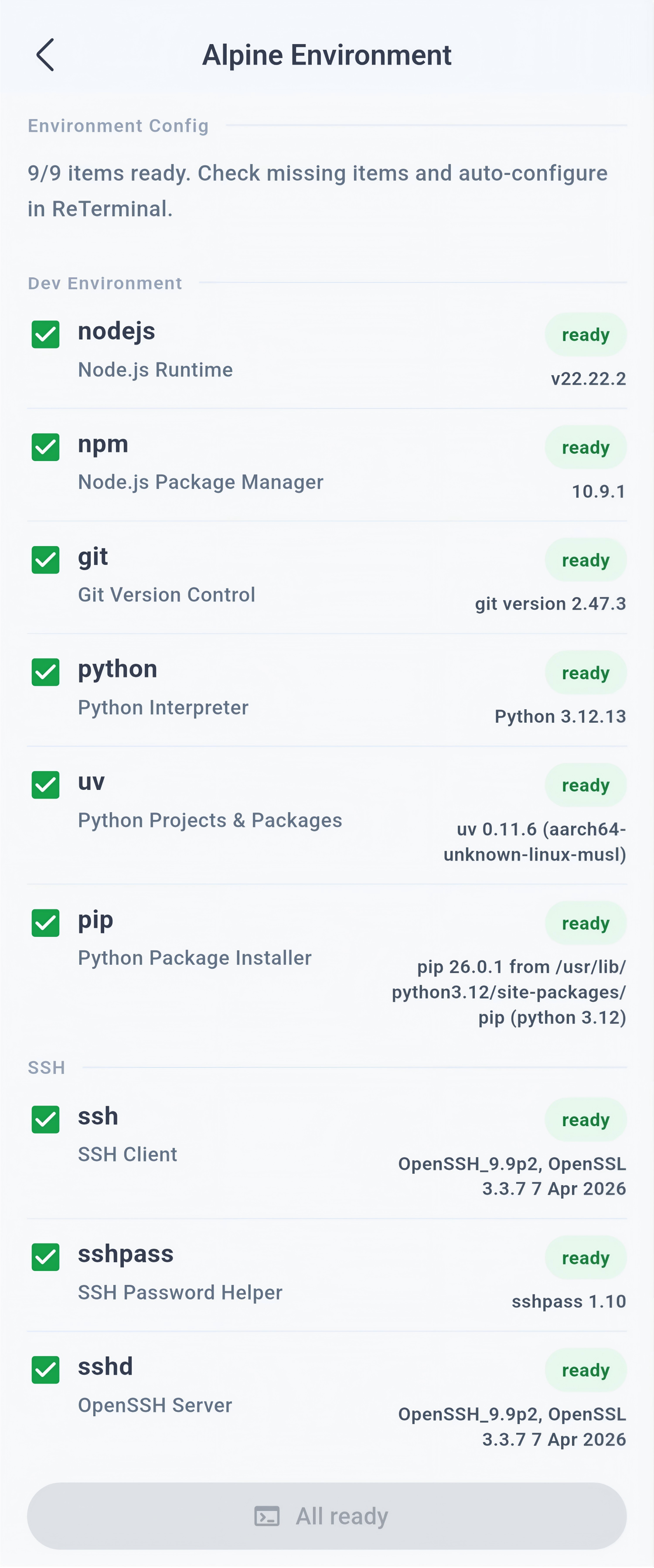
The app usually initializes the Alpine environment automatically on startup, and you can also manage that environment from the same settings area.
Use Cases
Personal context
Enable individual sources in Settings → App permissions → Personal context. AI queries shared device tools on demand; results may be sent to your configured model and are not automatically added to long-term memory. Calendar and contact read/write permissions are separate. Background location needs its own “Allow all the time” grant. Approximate location and selected-only photo access are supported.
Notification access is separate from receiving Omnibot notifications. Observed notifications are cached locally for up to 7 days and 10,000 records, excluded from system backups, and can be cleared manually. Previously dismissed notifications and system-redacted content cannot be recovered. Revocation stops recording and querying without deleting conversations.
File queries return metadata first; requested contents are imported into the existing file inbox. Files and folders can be selected and access removed through the system-picker entry. SMS and call history are read-only and depend on installer/system eligibility; Omnibot does not request default SMS, phone or assistant roles. These features require neither root, Shizuku nor accessibility and do not access other apps' private databases.
Device MCP and the built-in Agent share tool definitions and execution. context_capabilities reports actual access; missing permissions do not open dialogs or terminate ordinary chat. Contact mutations use rawContactId and version from queries and affect only the selected account record. Calendar queries accept an offset; all-day dates use UTC and an exclusive end date.
Skills
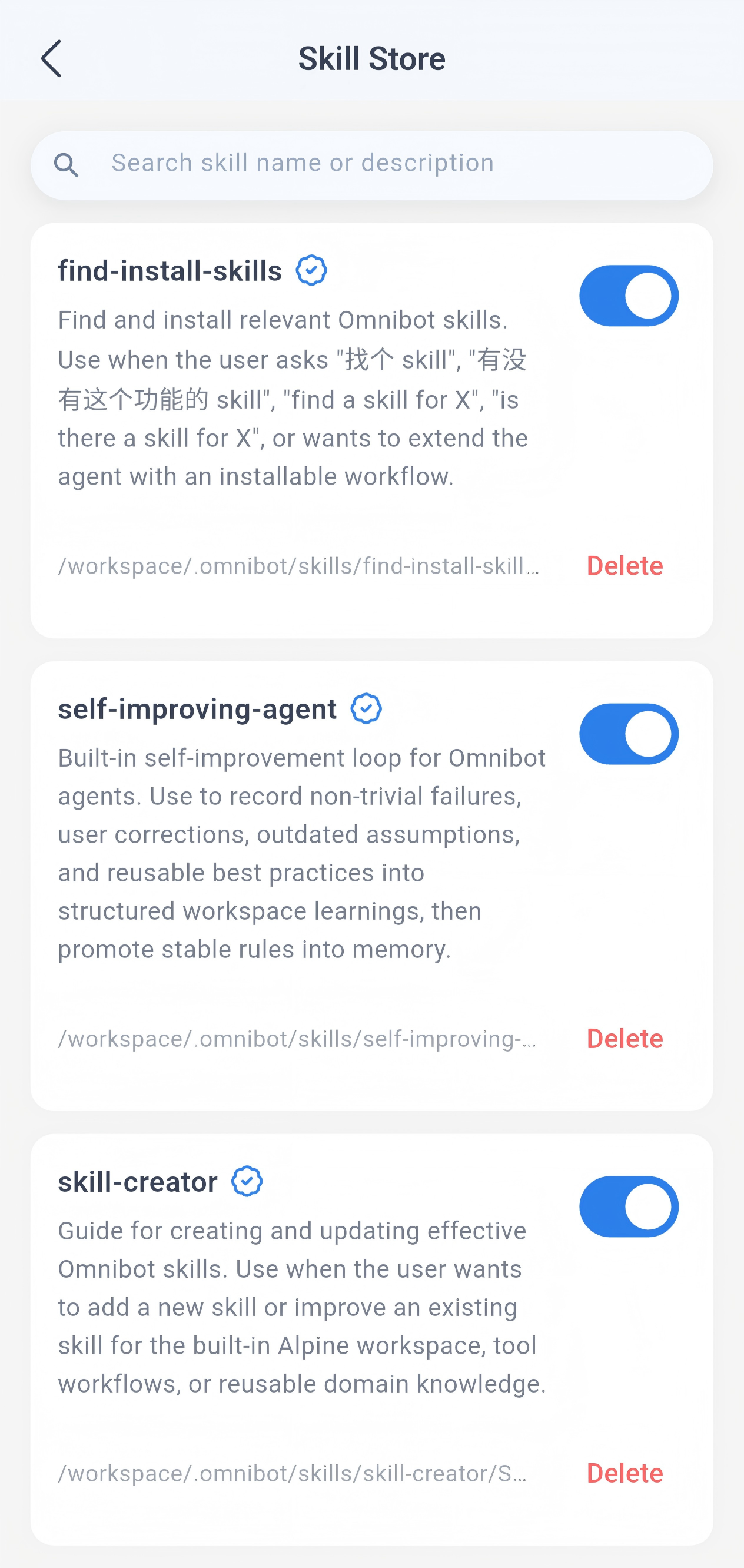
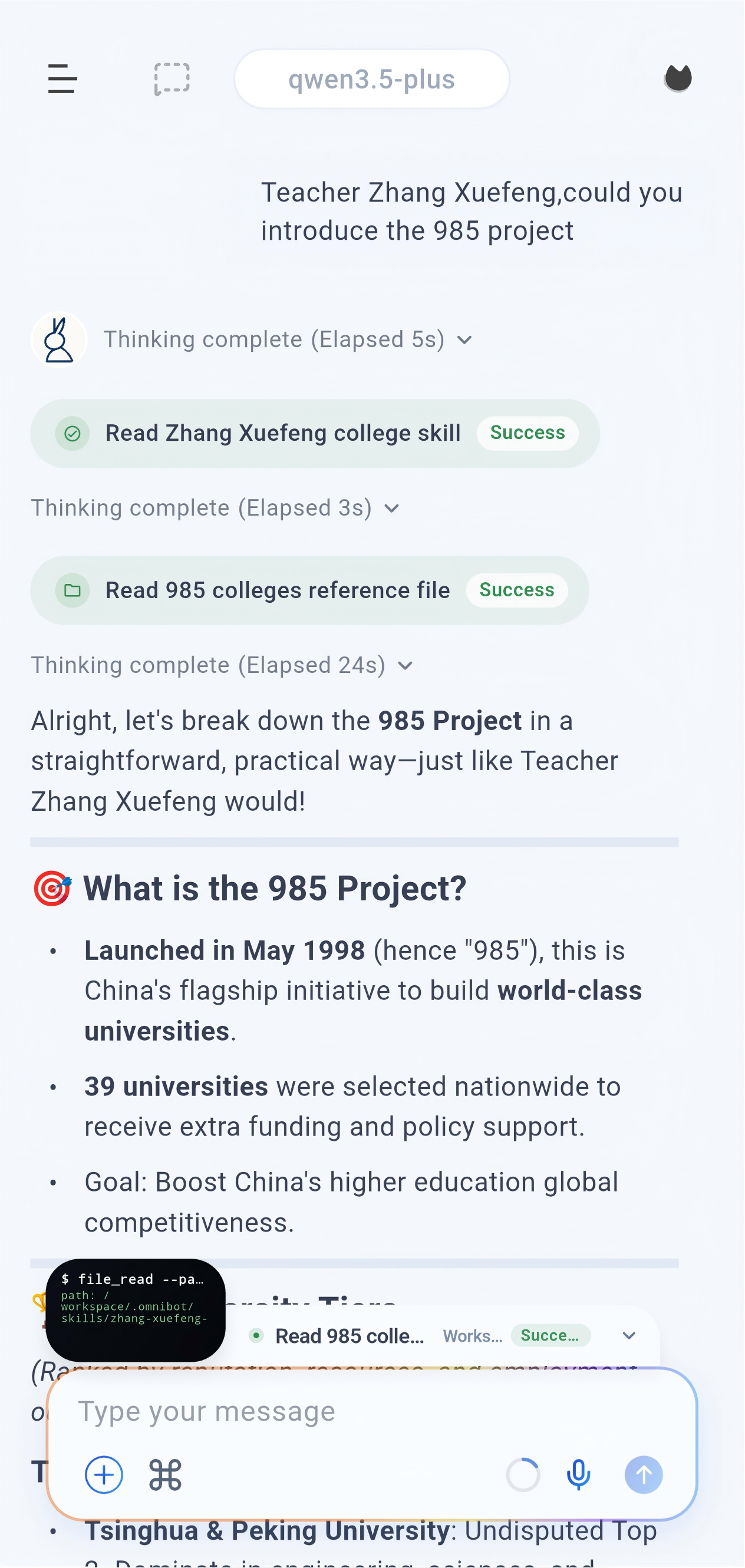
You can ask OmniBot to install a skill by simply sending it the repository link. Recommended collection: https://github.com/OpenMinis/MinisSkills
Enable or disable skills from the skill repository:
Scheduled tasks
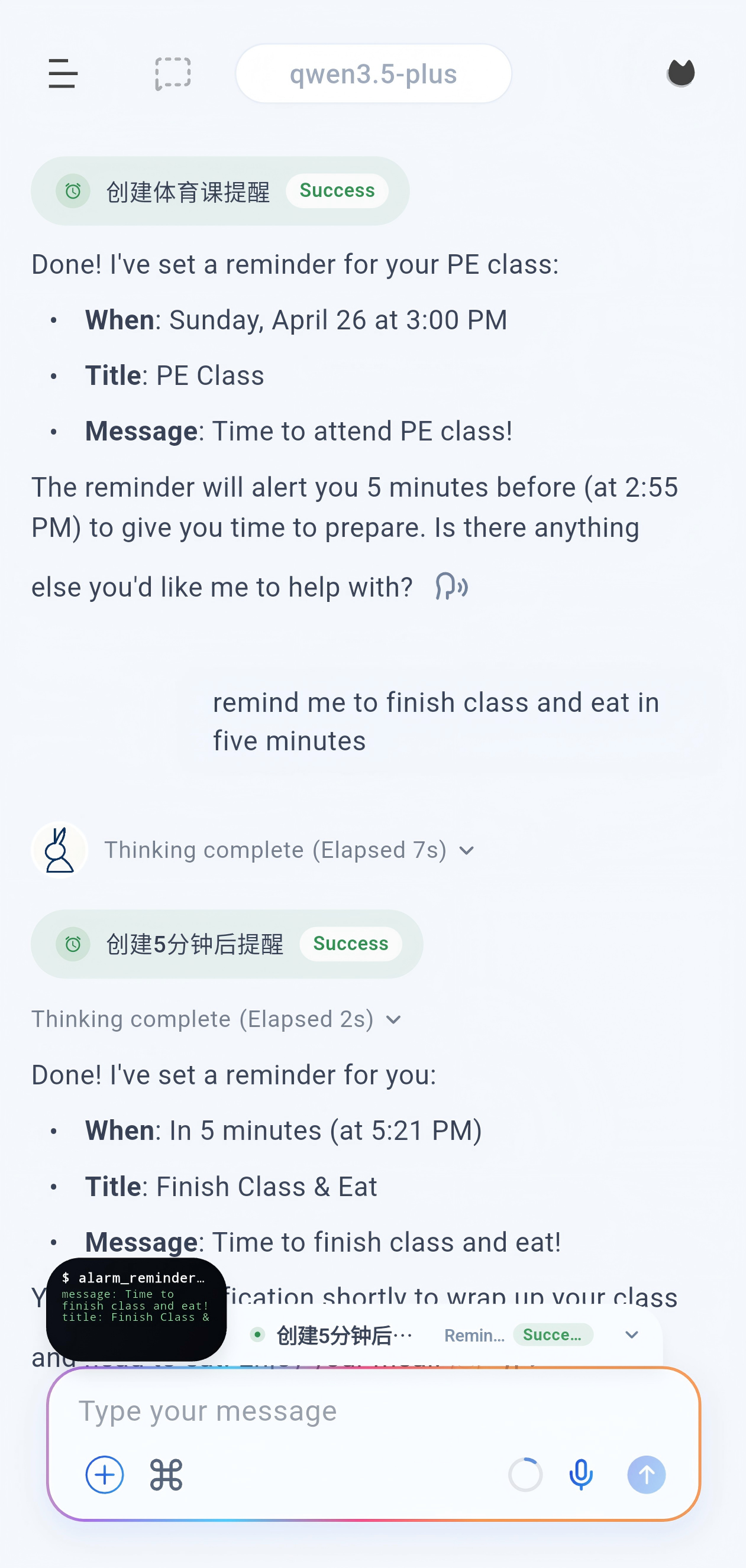
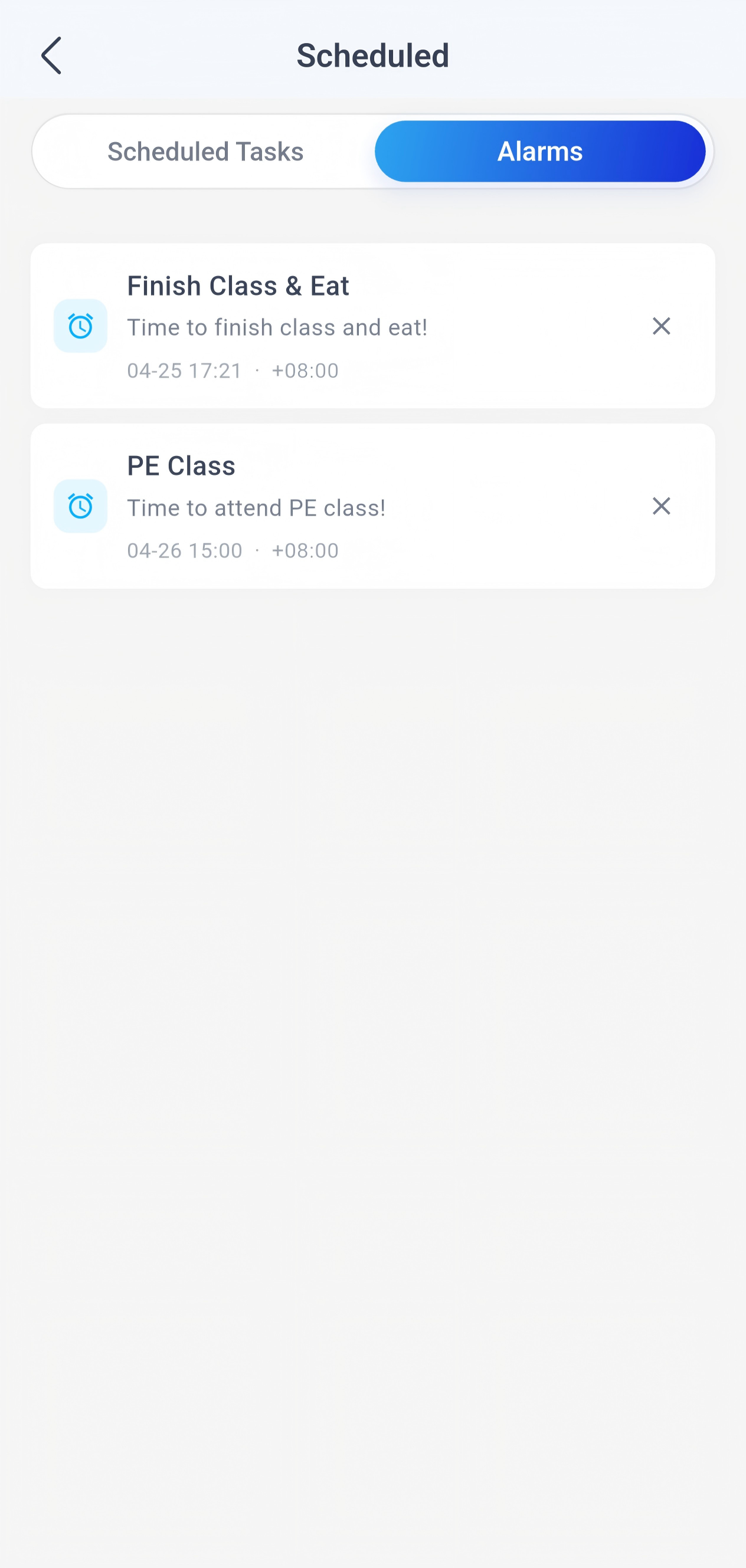
Scheduled tasks execute subagent flows. Alarms are reminder-only. A subagent can be assigned a complete task and behaves like a full agent.
Browser
Workspace
Remote Codex bridge
To use Codex mode with Codex running on a PC or Mac, start codex-bridge on the computer where the Codex CLI is installed and logged in:
npx @thuocean/codex-bridge
Choose the LAN address and token mode in the terminal setup UI, then scan the printed QR code from OpenOmniBot's Codex settings. For advanced options and troubleshooting, see the codex-bridge README.
Development Guide
Requirements
- Flutter SDK
3.47.2+ - JDK
17+ - Node.js
20.19+or22.12+and pnpm10.28.0(for WebUI development)
Get the code
git clone https://github.com/omnimind-ai/OpenOmniBot.git
cd OpenOmniBot

cd ui
flutter pub get
If Flutter reports Could not read script '.../ui/.android/include_flutter.groovy', run:
flutter clean
flutter pub get
Develop the WebUI locally
The WebUI in webchat/ is a standalone React + TypeScript + Vite project. During local development, Vite serves the frontend with hot reload and proxies /webchat/api requests to the Android app's local service.
- Install and start OpenOmniBot on an Android device. Keep the computer and device on the same trusted LAN.
- In the app, open Settings > Local Service, enable the service, and copy its address and Token. The default port is
8899, but always use the address shown by the app. - Start the WebUI development server from the repository root, replacing the sample address with the Android local-service address (do not append
/webchat):
cd webchat
pnpm install --frozen-lockfile

VITE_WEBCHAT_PROXY_TARGET=http://192.168.1.20:8899 pnpm dev
On PowerShell, set the proxy target first:
$env:VITE_WEBCHAT_PROXY_TARGET = "http://192.168.1.20:8899"
pnpm dev
Open the URL printed by Vite (normally http://localhost:5173) and enter the Token copied from the app. Use pnpm dev for end-to-end API/SSE testing; the proxy keeps session cookies, realtime events, workspace access, and browser mirroring on the same local origin.
Before submitting WebUI changes, run:
cd webchat
pnpm run typecheck
pnpm run build
The production files are generated in webchat/dist/. Both dist/ and node_modules/ are local outputs and must not be committed.
Android builds handle the WebUI automatically: Gradle runs the locked pnpm install, executes the Vite production build, clears stale WebChat assets, and copies only dist/ into the APK. To verify this step without building the full app, run:
./gradlew :app:syncWebChatBundle -Ptarget=lib/main_standard.dart
Flutter Web is not part of this workflow.
Build and install
Android builds use OMNIBOT_UPDATE_WORKER_URL for the website backend's update
checks, anonymous statistics, cloud policy, and official VLM proxy configuration.
It defaults to https://omnibot.omnimind.com.cn; upstream proxy credentials stay
on the backend. See the integration notes.
Debug APK builds use the OpenAI-compatible LLM API configured by
LLMTHU_API_BASE, LLMTHU_API_KEY, and LLMTHU_MODEL for normal LLM requests,
context compaction, and scene.vlm.operation.primary.
For local acceptance testing, Release builds can explicitly enable
-POOB_BUNDLE_LLMTHU_PROVIDER=1 to bundle the same LLMTHU_* configuration
for use out of the box. Regular Release and CI builds do not bundle this
configuration by default.
cd ..

./gradlew :app:installDevelopStandardDebug -Ptarget=lib/main_standard.dart
For acceptance testing on a physical device, use the repository's LLMTHU
installation script. It enables the LLMTHU provider by default and reads the
API key from LLMTHU_API_KEY in the current shell. If the key is missing, the
script fails immediately instead of producing an unusable test APK. Regular
Release and CI builds still do not automatically bundle the key.
export LLMTHU_API_KEY='your-api-key'
./scripts/install_release_llmthu_device.sh
Architecture Overview
OpenOmniBot/
├── app/                        # Android host app: entry point, agent orchestration, system abilities, MCP, services
├── ui/                         # Flutter Android UI: chat, settings, tasks, and memory
├── webchat/                    # React + TypeScript WebUI; Vite builds the static bundle packaged by Android
├── baselib/                    # Shared core libraries: database, storage, networking, model config, permissions
├── assists/                    # Shared task lifecycle and chat/model coordination
├── uikit/                      # Native overlay UI: floating ball, overlay panels, half-screen surfaces
└── ReTerminal/core/            # Embedded terminal experience modules
More
Thanks to developers from LINUX.DO and other communities for supporting OpenOmniBot.
Special thanks to these open-source projects:
-
 WeChat Group [Join the Discord community](https://discord.gg/WnBvBXgykD)