
Gemini CLI UI
A desktop and mobile UI for Gemini CLI, Google's official CLI for AI-assisted coding. You can use it locally or remotely to view your active projects and sessions in Gemini CLI and make changes to them the same way you would do it in Gemini CLI. This gives you a proper interface that works everywhere.
Screenshots
Chat View
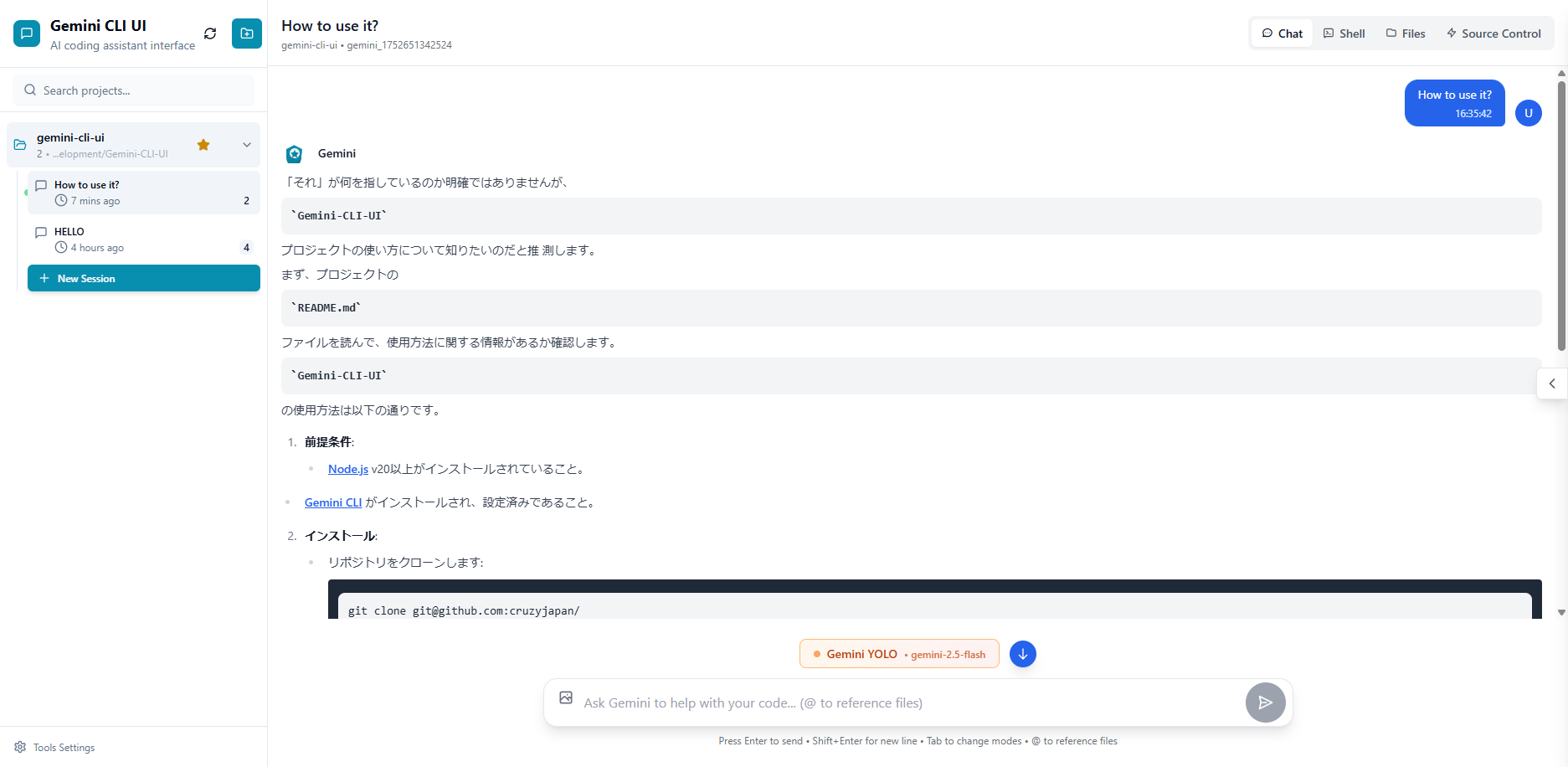
Main interface showing project overview and chat
Setting
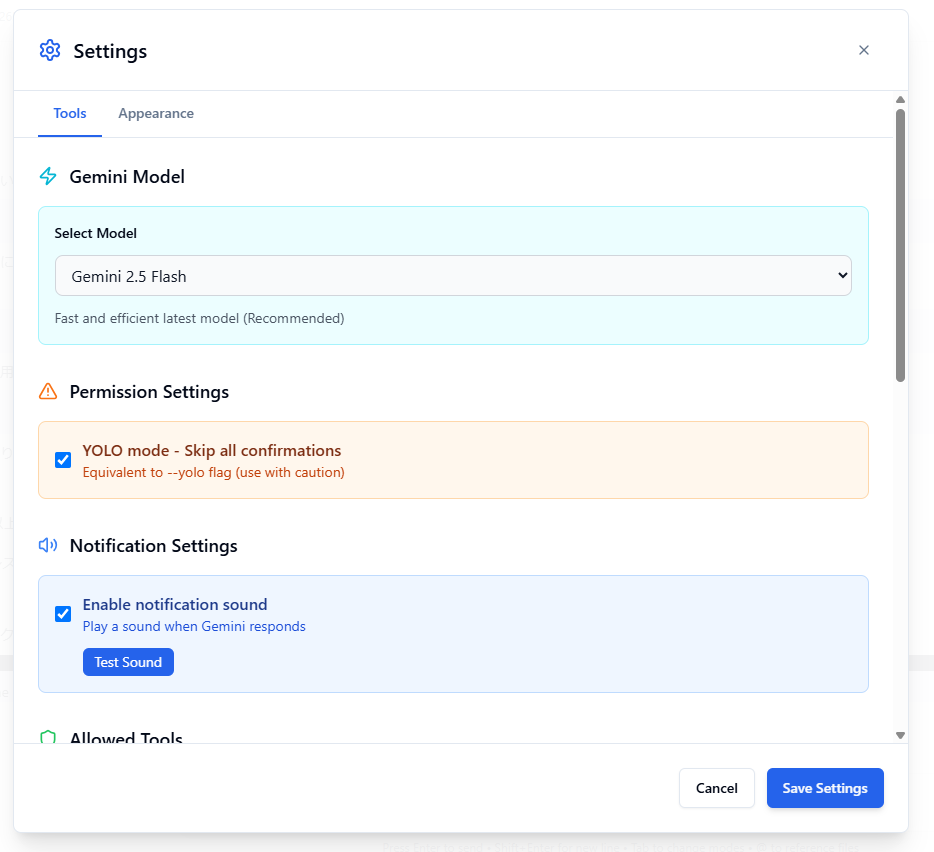
Setting
Chat View

Gemini CLI UI Diagram
Features
- Responsive Design - Works seamlessly across desktop, tablet, and mobile so you can also use Gemini CLI from mobile
- Interactive Chat Interface - Built-in chat interface for seamless communication with Gemini CLI
- Integrated Shell Terminal - Direct access to Gemini CLI through built-in shell functionality
- File Explorer - Interactive file tree with syntax highlighting and live editing
- Git Explorer - View, stage and commit your changes. You can also switch branches
- Session Management - Resume conversations, manage multiple sessions, and track history
- Model Selection - Choose from multiple Gemini models including Gemini 2.5 Pro
- YOLO Mode - Skip confirmation prompts for faster operations (use with caution)
Quick Start
Prerequisites
- Node.js v20 or higher
- Gemini CLI installed and configured
Installation
- Clone the repository:
git clone https://github.com/cruzyjapan/Gemini-CLI-UI.git
cd Gemini-CLI-UI
- Install dependencies:
npm install
- Configure environment:
cp .env.example .env
# Edit .env with your preferred settings
Note: The .env file has been removed for security. Always copy .env.example to .env when using and modify settings as needed.
- Start the application:
# Development mode (with hot reload)
npm run dev
The application will start at the port you specified in your .env
- Open your browser:
- Development:
http://localhost:4009
- Development:
Security & Tools Configuration
🔒 Important Notice: All Gemini CLI tools are disabled by default. This prevents potentially harmful operations from running automatically.
Enabling Tools
To use Gemini CLI's full functionality, you'll need to manually enable tools:
- Open Tools Settings - Click the gear icon in the sidebar
- Enable Selectively - Turn on only the tools you need
- Apply Settings - Your preferences are saved locally
About YOLO Mode
YOLO mode ("You Only Live Once") is equivalent to Gemini CLI's --yolo flag, skipping all confirmation prompts. This mode speeds up your work but should be used with caution.
Recommended approach: Start with basic tools enabled and add more as needed. You can always adjust these settings later.
Usage Guide
Core Features
Project Management
The UI automatically discovers Gemini CLI projects from ~/.gemini/projects/ and provides:
- Visual Project Browser - All available projects with metadata and session counts
- Project Actions - Rename, delete, and organize projects
- Smart Navigation - Quick access to recent projects and sessions
Chat Interface
- Use responsive chat or Gemini CLI - You can either use the adapted chat interface or use the shell button to connect to Gemini CLI
- Real-time Communication - Stream responses from Gemini with WebSocket connection
- Session Management - Resume previous conversations or start fresh sessions
- Message History - Complete conversation history with timestamps and metadata
- Multi-format Support - Text, code blocks, and file references
- Image Upload - Upload and ask questions about images in chat
File Explorer & Editor
- Interactive File Tree - Browse project structure with expand/collapse navigation
- Live File Editing - Read, modify, and save files directly in the interface
- Syntax Highlighting - Support for multiple programming languages
- File Operations - Create, rename, delete files and directories
Git Explorer
- Visualize Changes - See current changes in real-time
- Stage and Commit - Create Git commits directly from the UI
- Branch Management - Switch and manage branches
Session Management
- Session Persistence - All conversations automatically saved
- Session Organization - Group sessions by project and timestamp
- Session Actions - Rename, delete, and export conversation history
- Cross-device Sync - Access sessions from any device
Mobile App
- Responsive Design - Optimized for all screen sizes
- Touch-friendly Interface - Swipe gestures and touch navigation
- Mobile Navigation - Bottom tab bar for easy thumb navigation
- Adaptive Layout - Collapsible sidebar and smart content prioritization
- Add to Home Screen - Add a shortcut to your home screen and the app will behave like a PWA
Architecture
System Overview
┌─────────────────┐    ┌─────────────────┐    ┌─────────────────┐
│   Frontend      │    │   Backend       │    │  Gemini CLI     │
│   (React/Vite)  │◄──►│ (Express/WS)    │◄──►│  Integration    │
└─────────────────┘    └─────────────────┘    └─────────────────┘
Backend (Node.js + Express)
- Express Server - RESTful API with static file serving (Port: 4008)
- WebSocket Server - Communication for chats and project refresh
- Gemini CLI Integration - Process spawning and management
- Session Management - JSONL parsing and conversation persistence
- File System API - Exposing file browser for projects
- Authentication System - Secure login and session management (SQLite database: geminicliui_auth.db)
Frontend (React + Vite)
- React 18 - Modern component architecture with hooks
- CodeMirror - Advanced code editor with syntax highlighting
- Tailwind CSS - Utility-first CSS framework
- Responsive Design - Mobile-first approach
Configuration Details
Port Settings
- API Server: Port 4008 (default)
- Frontend Dev Server: Port 4009 (default)
- These ports can be changed in the
.envfile
Database Configuration
Initial Setup and Table Structure
- Database File:
server/database/geminicliui_auth.db - Database Type: SQLite 3
- Initialization: Automatically created and initialized on server startup
User Table Details
Table Name: geminicliui_users
| Column | Data Type | Constraints | Description |
|---|---|---|---|
id |
INTEGER | PRIMARY KEY AUTOINCREMENT | Unique user identifier |
username |
TEXT | UNIQUE NOT NULL | Login username (email recommended) |
password_hash |
TEXT | NOT NULL | bcrypt hashed password |
created_at |
DATETIME | DEFAULT CURRENT_TIMESTAMP | Account creation timestamp |
last_login |
DATETIME | NULL | Last login timestamp |
is_active |
BOOLEAN | DEFAULT 1 | Account active/inactive status |
Indexes:
idx_geminicliui_users_username: For fast username lookupsidx_geminicliui_users_active: For filtering active users
First Run Setup
- On first server startup, database file is automatically created if it doesn't exist
- Table structure is loaded from
server/database/init.sql - First access displays user registration screen
- First user is registered as administrator
Security Features
- Passwords are hashed with bcrypt before storage
- JWT token-based authentication system
- Session management with timeout functionality
- SQL injection protection (prepared statements used)
Troubleshooting
Common Issues & Solutions
"No Gemini projects found"
Problem: The UI shows no projects or empty project list Solutions:
- Ensure Gemini CLI is properly installed
- Run
geminicommand in at least one project directory to initialize - Verify
~/.gemini/projects/directory exists and has proper permissions
File Explorer Issues
Problem: Files not loading, permission errors, empty directories Solutions:
- Check project directory permissions (
ls -lain terminal) - Verify the project path exists and is accessible
- Review server console logs for detailed error messages
- Ensure you're not trying to access system directories outside project scope
Model Selection Not Working
Problem: Selected model is not being used Solutions:
- After selecting a model in settings, make sure to click "Save Settings"
- Clear browser local storage and reconfigure
- Verify the model name is displayed correctly in the chat interface
License
GNU General Public License v3.0 - see LICENSE file for details.
This project is open source and free to use, modify, and distribute under the GPL v3 license.
Original Project
This project is based on Claude Code UI (GPL v3.0) with customizations.
Major Changes:
- Adapted from Claude CLI to Gemini CLI
- Added authentication system (SQLite-based)
- Gemini-specific model selection feature
- Enhanced Japanese language support
- UI adjustments and Gemini branding
Thanks to the original Claude Code UI project.
Acknowledgments
Built With
- Gemini CLI - Google's official CLI
- React - User interface library
- Vite - Fast build tool and dev server
- Tailwind CSS - Utility-first CSS framework
- CodeMirror - Advanced code editor
Support & Community
Stay Updated
- Star this repository to show support
- Watch for updates and new releases
- Follow the project for announcements