AutoCrawler
Google, Naver multiprocess image crawler (High Quality & Speed & Customizable)
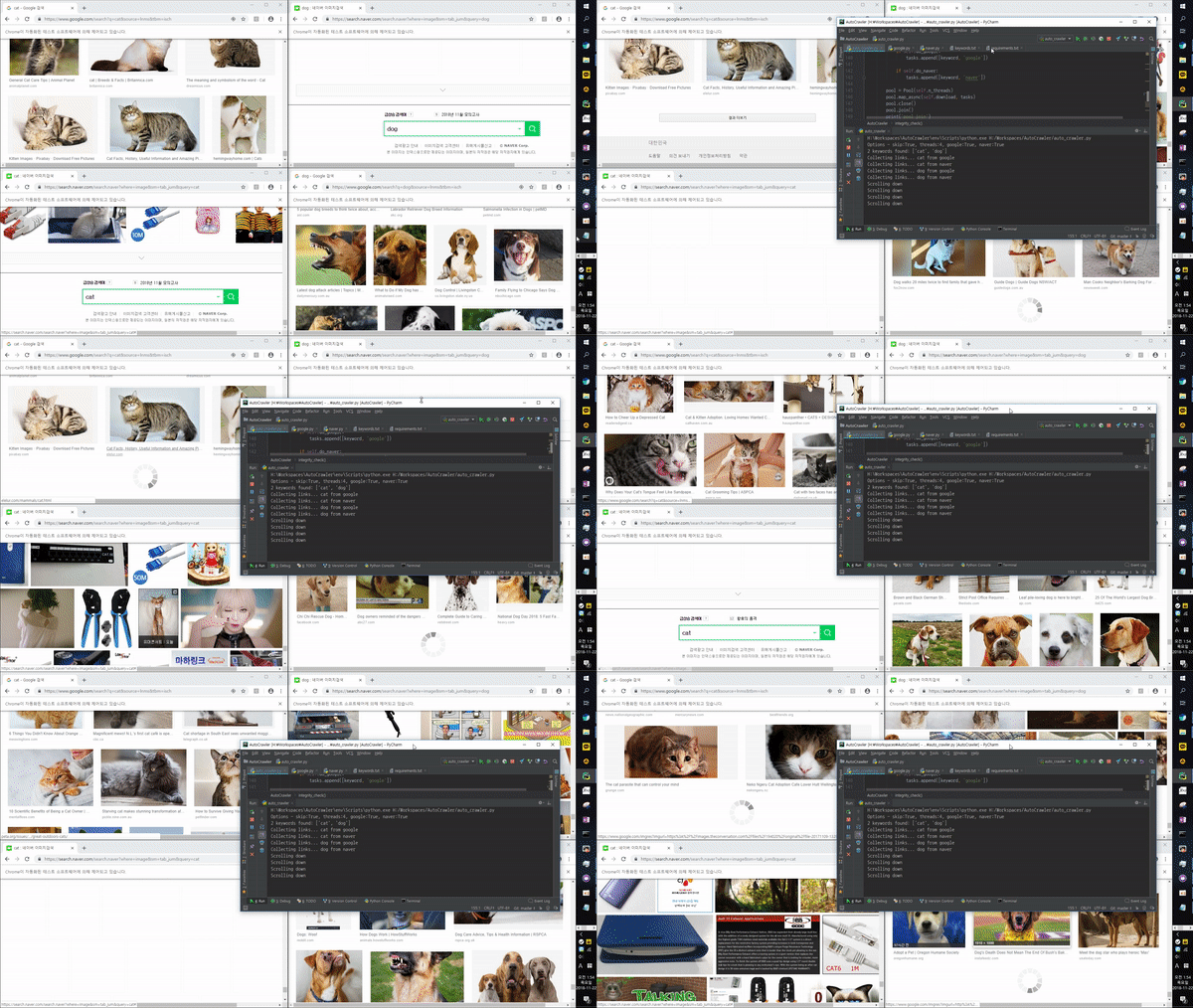
How to use
-
Install Chrome
-
pip install -e .(installs theautocrawlerpackage and its dependencies) -
Write search keywords in keywords.txt
-
Run
autocrawler(orpython -m autocrawler, orpython main.pyfor backwards compatibility) -
Files will be downloaded to the 'download' directory.
Arguments
usage:
autocrawler [--skip] [--threads 4] [--google] [--naver] [--full] [--face] [--no_gui auto] [--limit 0]
--skip / --no-skip     Skip a keyword if its download directory already exists. (default: --skip)
                       This is needed when re-downloading.

--threads 4            Number of worker processes to download with.

--google / --no-google Download from google.com. (default: --google)

--naver / --no-naver   Download from naver.com. (default: --naver)

--full / --no-full     Download full resolution image instead of thumbnails (slow). (default: --no-full)

--face / --no-face     Face search mode. (default: --no-face)

--no_gui auto|true|false   No GUI mode. (headless mode) Acceleration for full_resolution mode, but unstable on thumbnail mode.
                           Default: "auto" - false if --full is not set, true if --full is set.
                           (can be used for docker linux system)

--limit 0              Maximum count of images to download per site. (0: infinite)
--proxy-list ''        The comma separated proxy list like: "socks://127.0.0.1:1080,http://127.0.0.1:1081".
                       Every task randomly chooses one from the list.
--download-path        Download folder path. (default: download)
--keywords-file        Path to the search keywords file. (default: keywords.txt)
Note: as of v2.0, the boolean flags (
--skip,--naver,--full,--face) use--flag/--no-flagpairs instead of--flag true/--flag false.--no_guiis unchanged.
Full Resolution Mode
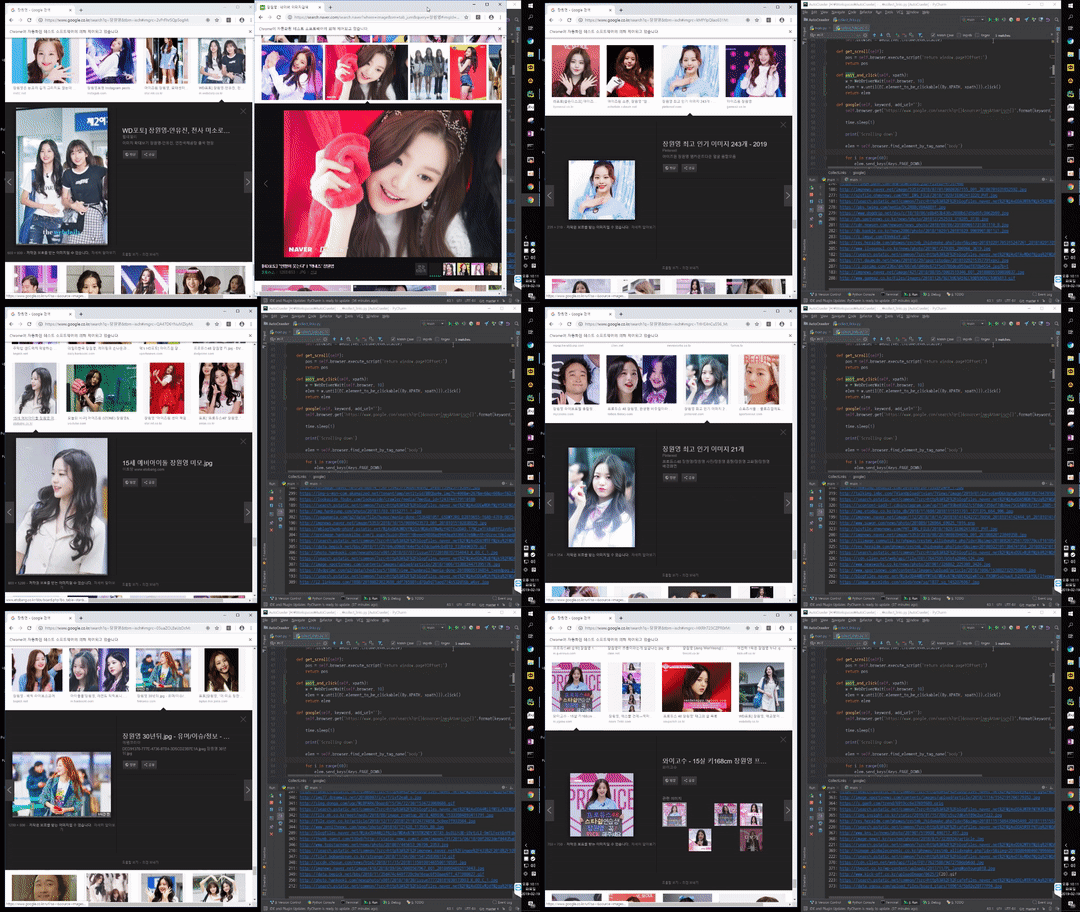
You can download full resolution image of JPG, GIF, PNG files by specifying --full true
Data Imbalance Detection
Detects data imbalance based on number of files.
When crawling ends, the message show you what directory has under 50% of average files.
I recommend you to remove those directories and re-download.
Remote crawling through SSH on your server
sudo apt-get install xvfb <- This is virtual display

sudo apt-get install screen <- This will allow you to close SSH terminal while running.

screen -S s1

Xvfb :99 -ac & DISPLAY=:99 autocrawler
Customize
You can make your own crawler by changing the collectors under src/autocrawler/collectors/
(google.py, naver.py, and the shared helpers in base.py).
How to fix issues
As Google/Naver's sites consistently change, you may need to fix the XPath selectors in
src/autocrawler/collectors/google.py or src/autocrawler/collectors/naver.py.
- Go to google image. https://www.google.com/search?q=dog&source=lnms&tbm=isch
- Open devloper tools on Chrome. (CTRL+SHIFT+I, CMD+OPTION+I)
- Designate an image to capture.
- Checkout
src/autocrawler/collectors/google.py/naver.py - Docs for XPATH usage: https://www.w3schools.com/xml/xpath_syntax.asp
- You can test XPATH using CTRL+F on your chrome developer tools.
- You need to find logic to crawling to work.
As of 2026-08, all four collectors (collect_google, collect_naver, collect_google_full,
collect_naver_full) were re-verified end-to-end against the live DOM and several selector and
timing bugs were fixed. See the NOTE comment at the top of each function in
src/autocrawler/collectors/google.py / naver.py for what changed and why.
"chromedriver" hangs or never starts (macOS)
If chromedriver hangs indefinitely (even when run standalone, outside this project) or the
process ends up stuck and unkillable, macOS Gatekeeper may be rejecting it — chromedriver
binaries (from webdriver-manager or Homebrew) are typically ad-hoc signed with no Team
Identifier, and recent macOS versions increasingly reject unnotarized binaries outright. Check
with:
spctl -a -vv "$(which chromedriver)"
If it prints rejected: on macOS 15+, spctl --add (the classic per-file exception) no longer
works (This operation is no longer supported) — the only remaining override is
sudo spctl --global-disable, which reveals an "allow apps downloaded from anywhere" toggle in
System Settings → Privacy & Security, plus an "Open Anyway" confirmation the next time the
binary runs. In practice, just running chromedriver once directly in an interactive Terminal
(not through a script) got it trusted without needing that toggle at all, so try that first.
If a chromedriver you've already gotten trusted (e.g. via Homebrew, on PATH) still gets rejected
inside this project, note that build_driver() prefers a chromedriver already on PATH over
downloading a separate copy via webdriver-manager — but each distinct binary/path needs its
own Gatekeeper trust, so a copy webdriver-manager downloaded under ~/.wdm/ is a different file
and needs to be approved separately from one on PATH.
Google shows a CAPTCHA / "unusual traffic" page
Google's bot-detection is IP-reputation based, not just per-browser: hitting it with a burst of automated requests (including just testing/debugging) can get your IP flagged for a while, during which a fresh browser process may be asked to solve a CAPTCHA again even with valid cookies.
How solving it works
This works the same regardless of --threads - no need to drop to --threads 1 for this part,
since it all happens before any worker processes start:
- Before crawling starts,
autocrawleropens one visible Chrome window against Google in the main process (this warm-up only targets Google — Naver hasn't been observed to CAPTCHA-block this crawler), using a persistent profile at./chrome-profile. - If that window shows a CAPTCHA, the terminal prints:
Switch to the Chrome window, solve it (checkbox and/or image challenge), then come back to the terminal and press Enter. The detector polls for a few seconds before giving up, since the CAPTCHA widget itself can take a moment to render — if it seems to skip past a CAPTCHA before you can click anything, it likely just hadn't rendered yet in that window.CAPTCHA detected at https://www.google.com/sorry/index?... Solve the CAPTCHA in the open Chrome window, then press Enter here to continue... - Once solved, the cookies are saved into
./chrome-profile. Each crawl task then gets its own temporary copy of that profile (Chrome won't let two processes share one profile directory), so the warmed-up cookies carry over to every task — including when running with multiple--threads— without them colliding on the same profile.