Semantic Segmentation Editor
A web based labeling tool for creating AI training data sets (2D and 3D). The tool has been developed in the context of autonomous driving research. It supports images (.jpg or .png) and point clouds (.pcd). It is a Meteor app developed with React, Paper.js and three.js.
Latest changes
- Version 1.5: Provide a Docker image and update to Meteor 1.10
- Version 1.4: Support for RGB pointclouds (thanks @Gekk0r)
- Version 1.3: Improve pointcloud labeling: bug fixes and performance improvement (labeling a 1M pointcloud is now possible)
- Version 1.2.2: Breaking change: exported point cloud coordinates are no longer translated (thanks @hetzge)
- Version 1.2.0: Support for binary and binary compressed point clouds (thanks @CecilHarvey)
Bitmap Image Editor
:movie_camera: VIDEO: Bitmap labeling overview


PCD Point Cloud Editor
:movie_camera: VIDEO: Point cloud labeling overview


How to run
Using Docker Compose
- Download the docker compose stack file (
sse-docker-stack.yml) - Set the folder that contains bitmap and point cloud files (
YOUR_IMAGES_PATH) and run the tool using docker-compose - The tool runs by default on port 80, you can change the mapping in
sse-docker-stack.yml
wget https://raw.githubusercontent.com/Hitachi-Automotive-And-Industry-Lab/semantic-segmentation-editor/master/sse-docker-stack.yml
wget https://raw.githubusercontent.com/Hitachi-Automotive-And-Industry-Lab/semantic-segmentation-editor/master/settings.json
METEOR_SETTINGS=$(cat ./settings.json) SSE_IMAGES=YOUR_IMAGES_PATH docker-compose -f stack.yml up
(Optional) You can modify settings.json to customize classes data.
Running from source
Install Meteor (OSX or Linux)
curl https://install.meteor.com/ | sh
or download Meteor Windows Installer
Download and unzip latest version from here
Start the application
cd semantic-segmentation-editor-x.x.x
meteor npm install
meteor npm start
The editor will run by default on http://localhost:3000
(Optional) Edit settings.json
By default, images are served from your_home_dir/sse-images and pointcloud binary segmentation data are stored in your_home_dir/sse-internal. You can configure these folders in settings.json by modifying images-folder and internal-folder properties. On Windows, use '/' separators, example c:/Users/john/images
Check Meteor Environment Variables to configure your app
(MONGO_URL, DISABLE_WEBSOCKETS, etc...)
Configuration File: settings.json
{
  "configuration": {
    "images-folder": "/mnt/images", // The root folder containing images and PCD files
    "internal-folder": "/mnt/pointcloud_data" // Segmentation data (only 3D) will be stored in this folder
  },
  // The different sets of classes available in the tool
  // For object classes, only the 'label' field is mandatory
  // The icon field can be set with an icon from the mdi-material-ui package
  "sets-of-classes": [
    {
      "name": "Cityscapes", "objects": [
      {"label": "VOID", "color": "#CFCFCF"},
      {"label": "Road", "color": "#804080", "icon": "Road"},
      {"label": "Sidewalk", "color": "#F423E8", "icon": "NaturePeople"},
      {"label": "Parking", "color": "#FAAAA0", "icon": "Parking"},
      {"label": "Rail Track", "color": "#E6968C", "icon": "Train"},
      {"label": "Person", "color": "#DC143C", "icon": "Walk"},
      {"label": "Rider", "color": "#FF0000", "icon": "Motorbike"},
      {"label": "Car", "color": "#0000E8", "icon": "Car"}
    },
    { ... }
  ]
}
How to use
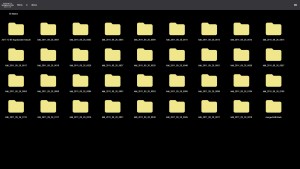
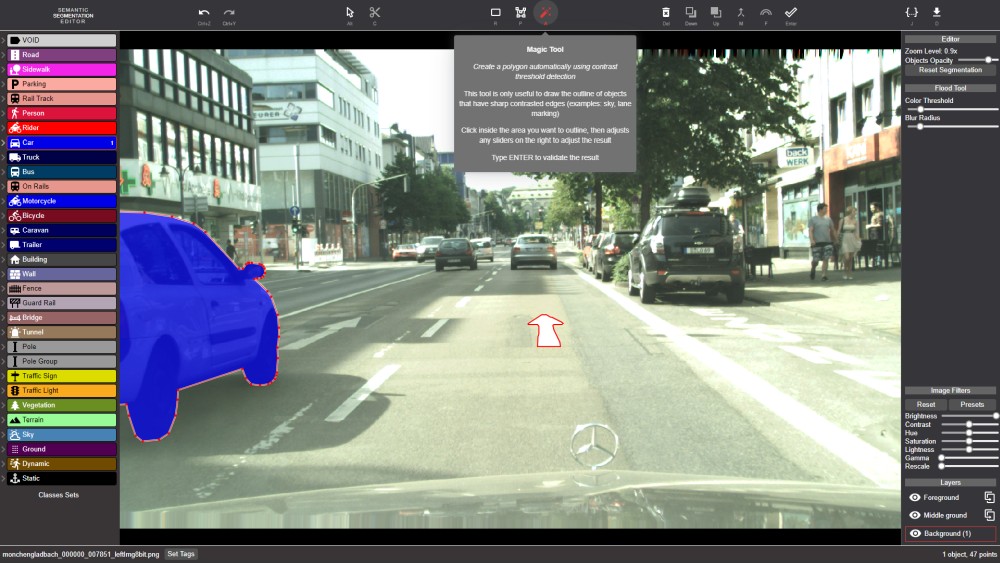
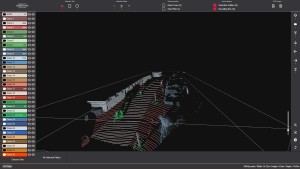
The editor is built around 3 different screens:
The file navigator let's you browse available files to select a bitmap images or a point cloud for labeling
The bitmap image editor is dedicated to the labeling of jpg and png files by drawing polygons
The point cloud editor is dedicated to the labeling of point clouds by creating objects made of subsets of 3D points
Using the bitmap image editor
There are several tools to create labeling polygons:
Polygon Drawing Tool (P)
- Click and/or drag to create points
- Type ESC to remove last created points in reverse order
- Drag the mouse pointer or hold Shift to create a complex polygon without having to click for each point
- Type ENTER or double click the first point to close the polygon
Magic Tool (A)
- Create a polygon automatically using contrast threshold detection
- This tool is only useful to draw the outline of objects that have sharp contrasted edges (examples: sky, lane marking)
- Click inside the area you want to outline, then adjusts any sliders on the right to adjust the result
- Type ENTER to validate the result
Manipulation Tool (Alt)
- Select, move and add point(s) to existing polygons
- Click inside a polygon to select it
- Click a point to select it
- Draw a lasso around multiple points to select them
- Drag a point with the mouse to move it
- Hold Shift to separate points that belongs to more than one polygon
- Click the line of a polygon to create a new point and drag the newly created point to place it
Cutting/Expanding Tool (C)
- Modify the shape of an existing polygon
- Select the polygon you want to modify
- Draw a line starting and ending on the outline of a polygon
- The new line replace the existing path between starting and ending points
- The resulting shape is always the largest one
Contiguous Polygon Tool (F)
-
Create contiguous polygons easily
-
Start a new polygon with the Polygon Drawing Tool
-
Create the starting point by snapping to the outline of the polygon you want to workaround
-
Create the ending point by snapping to another outline, at this point you must have a straight line crossing one or more existing polygons
-
Hit F one or several times to choose what workaround path to use
Using the point cloud editor
- Mouse left button: Rotate the point cloud around the current focused point (the center of the point cloud by default), click on a single point to add it to the current selection
- Mouse wheel: Zoom in/out
- Mouse middle button (or Ctrl+Click): Change the target of the camera
- Mouse right button: Used to select multiple points at the same time depending on the current Selection Tool and Selection Mode.
- Arrow keys: Move through the scene
PCD support
- Supported input PCD format: ASCII, Binary and Binary compressed
- Supported input fields:
x,y,z,label(optional integer),rgb(optional integer) - Output PCD format is ASCII with fields
x,y,z,label,objectandrgb(if available)
API Endpoints
- /api/listing: List all annotated images
- /api/json/[PATH_TO_FILE]: (2D only) Get the polygons and other data for that file
- /api/pcdtext/[PATH_TO_FILE]: (3D only) Get the labeling of a pcd file using 2 addditional columns: label and object
- /api/pcdfile/[PATH_TO_FILE]: (3D only) The same but returned as "plain/text" attachment file download